Marketing Leads: Installing the Website Tracking Script
Last updated: April 24, 2026
To accurately track leads and scheduler conversions from your practice's website, you must install the Website Tracking Script. This snippet allows the Noble Dentistry platform to connect your web traffic with your patient management CRM.
Prerequisites
TeamCare Scheduler Module: You must have an active subscription to the TeamCare Scheduler module for this tracking to function.
Administrative Access: You must have access to the "Marketing" settings in your dashboard.
Web Developer Access: Installing code into the
<head>of a website usually requires access to your website’s CMS (like WordPress, Wix, or Squarespace) or direct access to the source code.
Setup Steps
1. Locate the Tracking Script
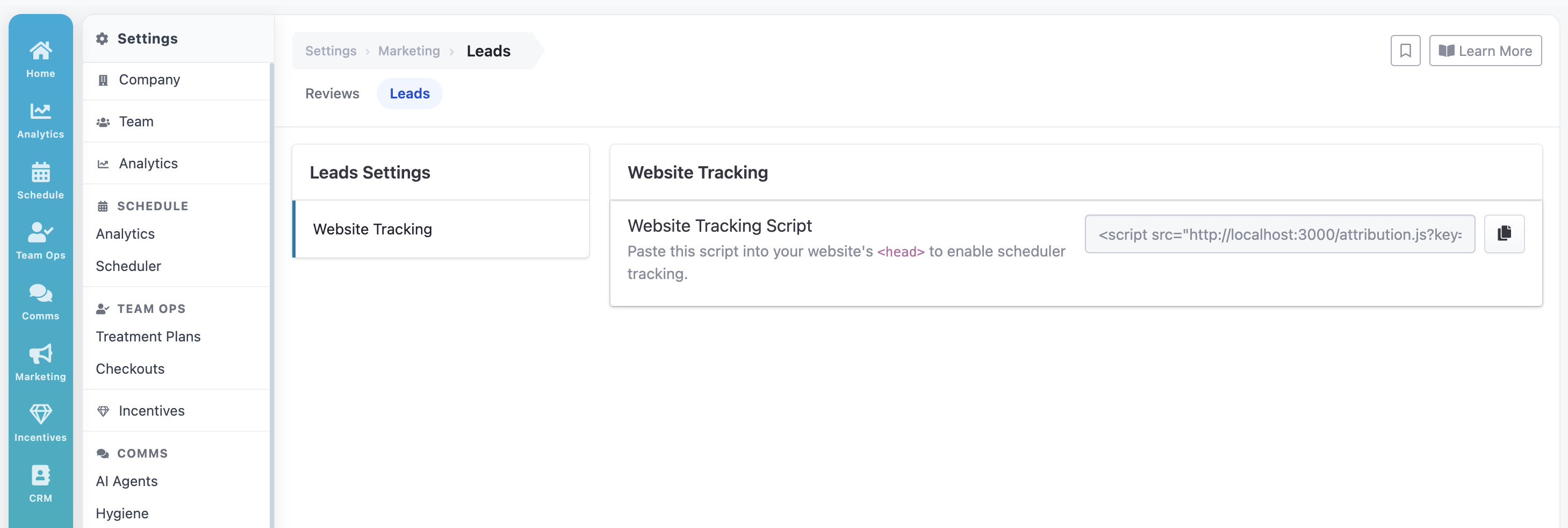
Log in to your dashboard and navigate to the Marketing tab on the left-hand sidebar.
Select Leads from the sub-menu.
Click on the Leads tab at the top of the main window (ensure you are under the "Website Tracking" section).
2. Copy the JavaScript Snippet
Under the Website Tracking header, you will see the "Website Tracking Script" box.
Click the Copy icon (overlapping squares) on the right side of the code block to copy the unique script to your clipboard.
Note: Your script contains a unique key (e.g., ?key=738Dd8a1) specific to your office. Do not share this script with other practices.
3. Install the Script
The script must be placed within the <head> section of your website’s HTML to function correctly.
For Developers: Paste the copied snippet as high up in the
<head>tag as possible on every page you wish to track.For CMS Users (WordPress/Wix/Squarespace): Use a "Header & Footer" plugin or the built-in "Custom Code" settings in your site's dashboard to inject the script into the header.
Need Help?
Because this step involves modifying your website’s source code, we strongly recommend sending this script to your web developer or IT support team. If you have confirmed the script is installed but do not see the "Leads" options in your sidebar, please verify that your TeamCare Scheduler module is active or contact your account manager.