How to setup Hygienist Wage & Commissions
Last updated: February 20, 2026
To manage wages, navigate to the Wages dashboard and select Manage Hygienist Wages.
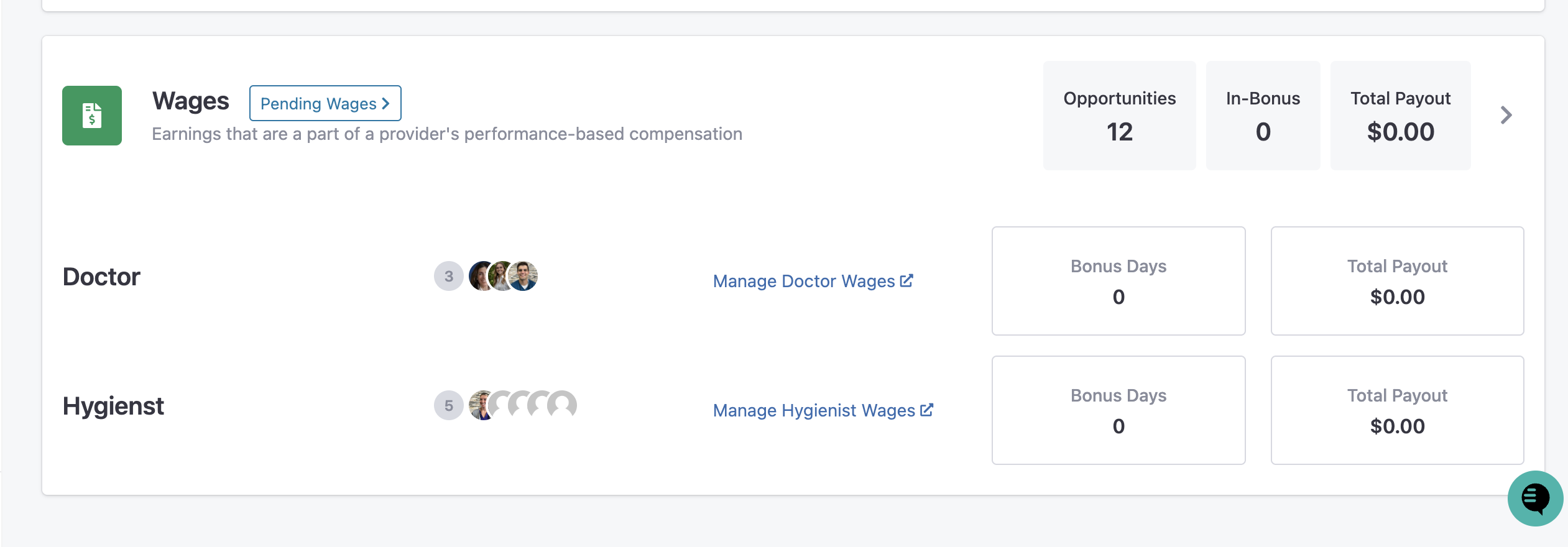
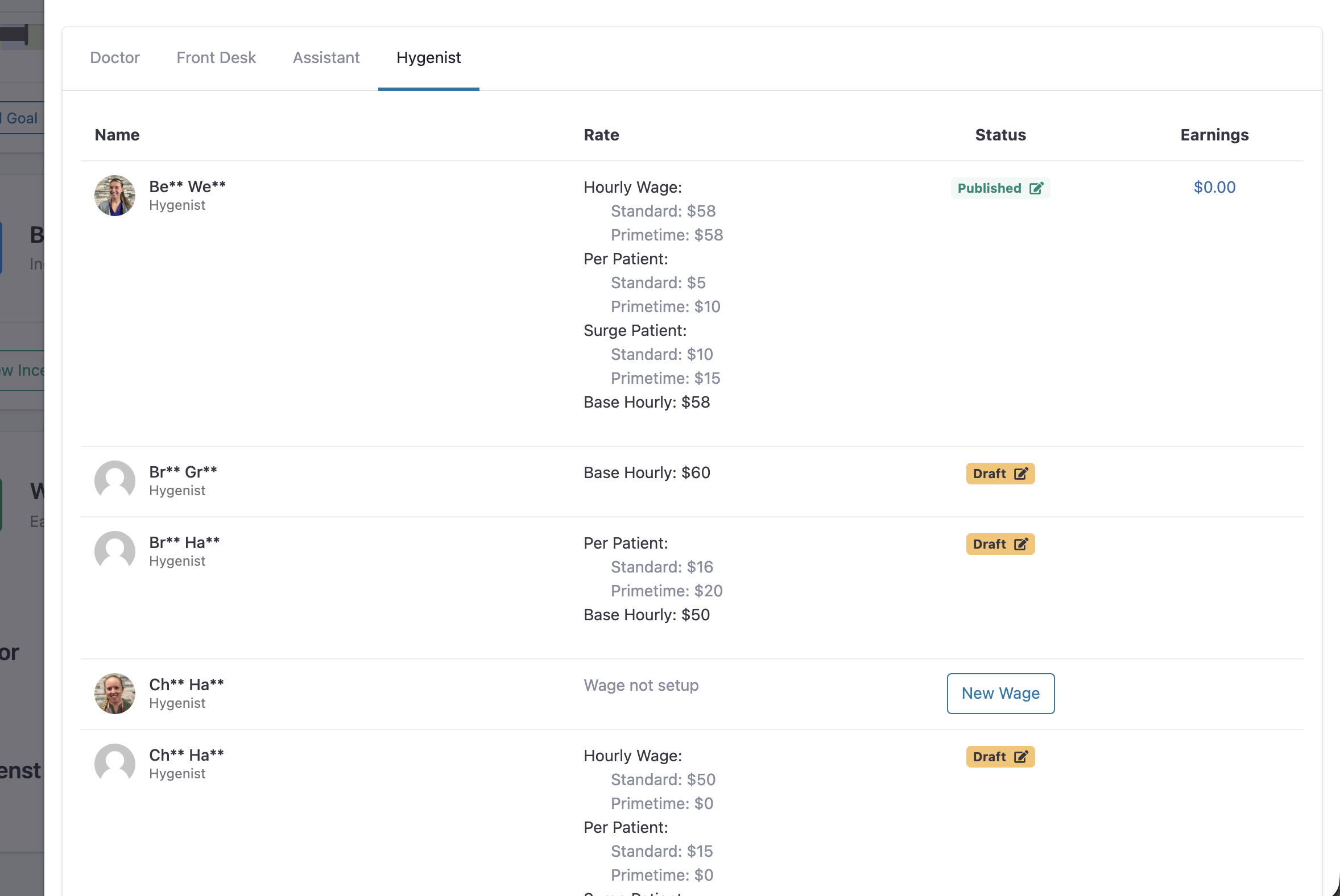
Status Indicators:
Published: The wage is active and currently being used for payout calculations.
Draft: The wage is saved but not yet live.
New Wage: No wage has been configured for this provider yet.
2. Setting the Base Wage
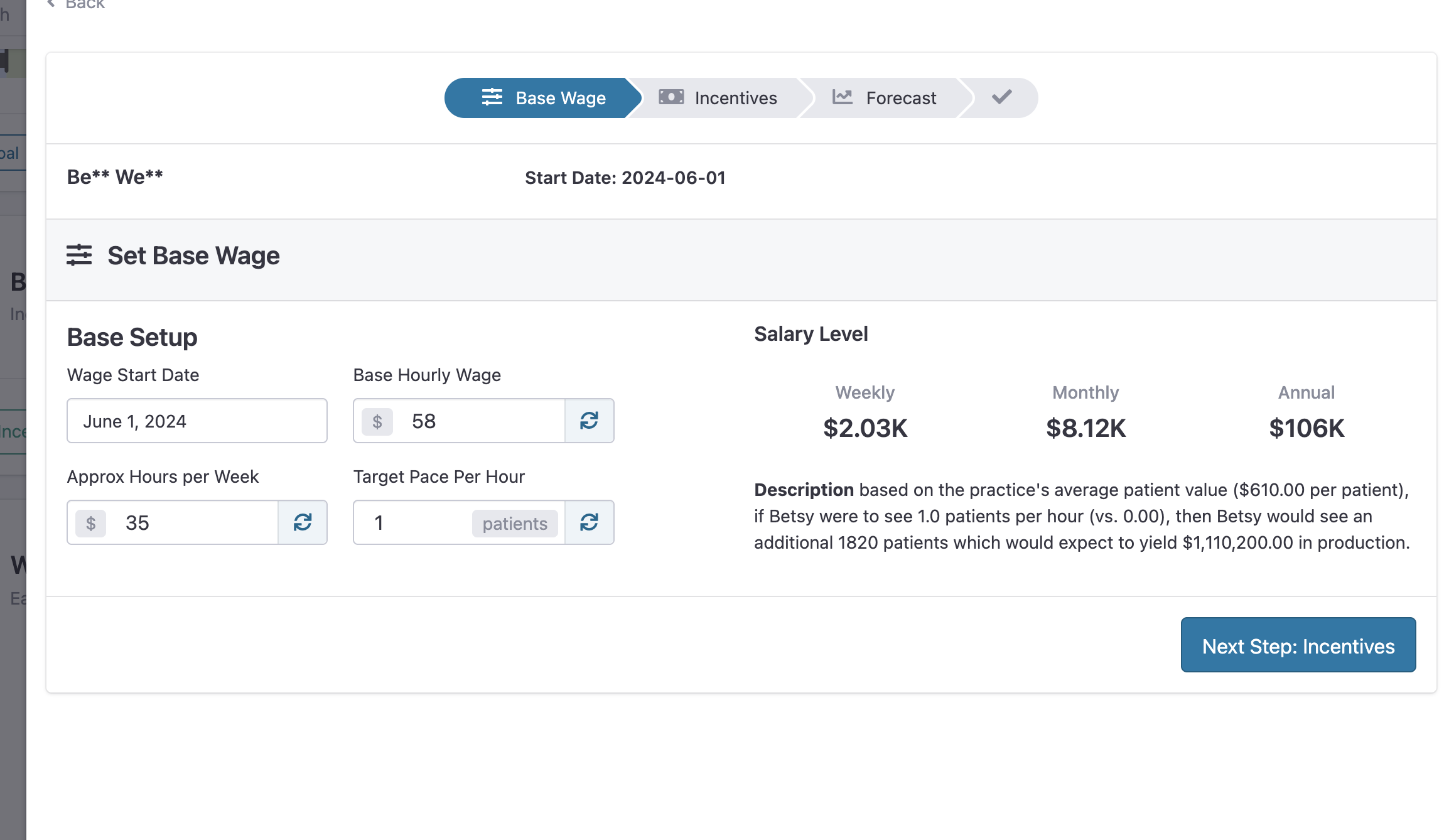
The first step in configuring a provider's pay is the Base Setup. This establishes the foundation for their expected earnings and performance goals.
Wage Start Date: The date the new pay structure takes effect.
Base Hourly Wage: The core rate of pay.
Approx Hours per Week: Used to calculate the "Salary Level" preview (Weekly, Monthly, Annual).
Target Pace Per Hour: The expected number of patients the hygienist should see per hour. This figure is critical as it serves as the benchmark for Surge Patient incentives.
3. Incentive Types & Logic
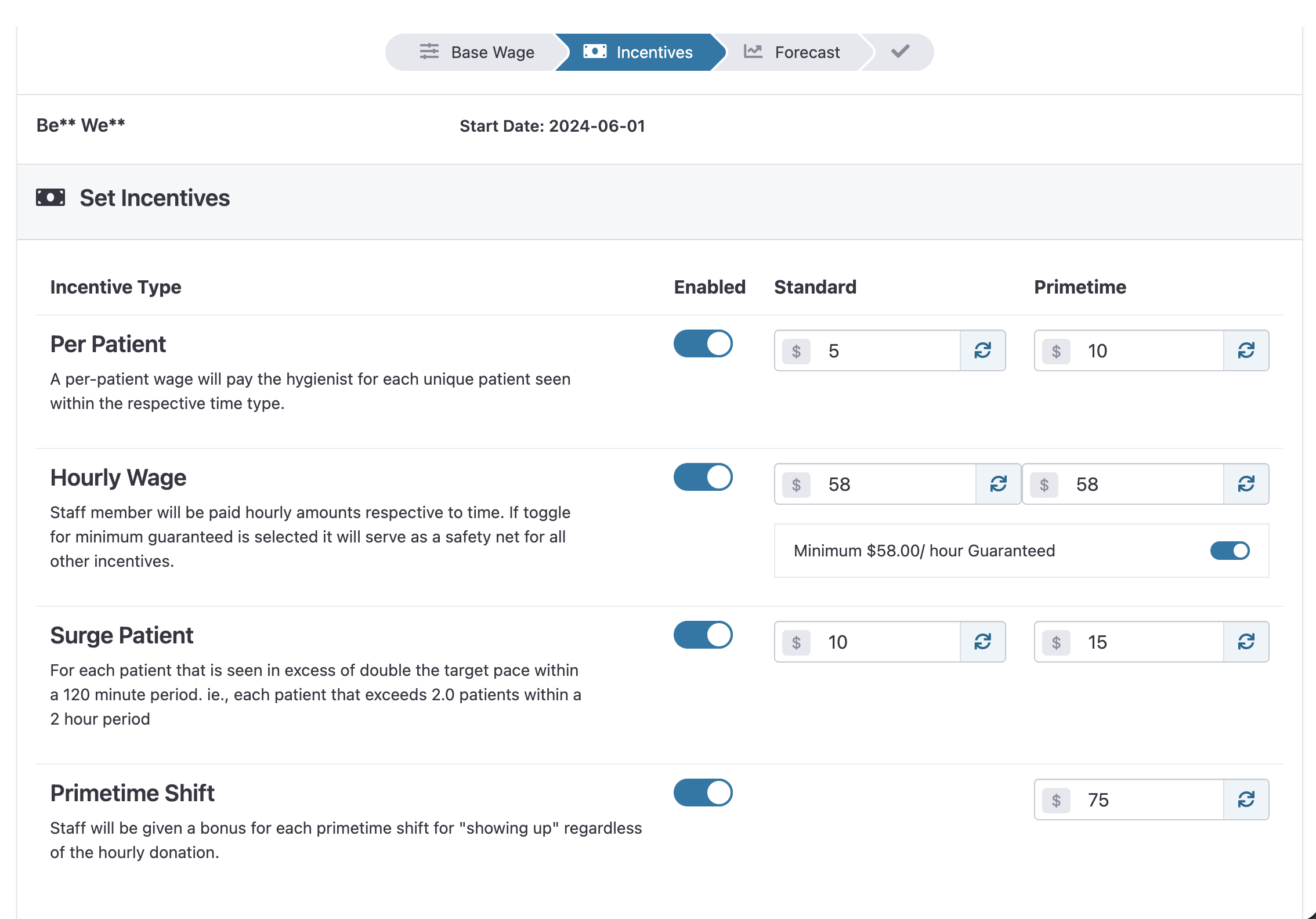
The platform offers four distinct incentive "layers" that can be toggled on or off depending on your practice's compensation model.
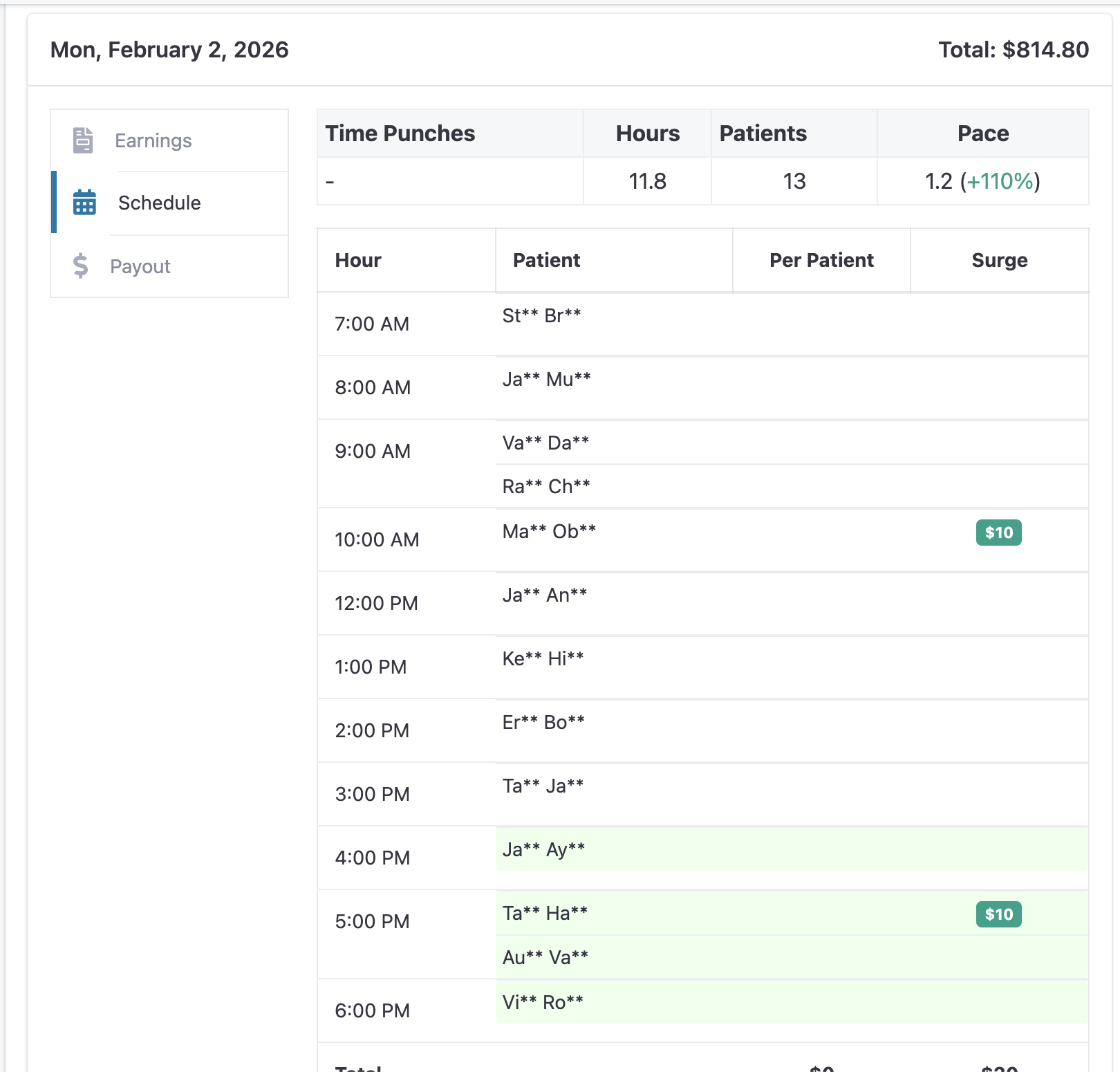
Based on these parameters, TeamCare will dyamamcally review each provider's respective schedule and apply commission amounts where the criteria is matched. The provider will have transparency to their own personal reports, while admins will be able to have full visibility for all providers.
Per Patient Incentive
Pays a flat bonus for every unique patient seen.
Standard: The bonus for patients seen during normal hours.
Primetime: An elevated bonus for patients seen during high-demand hours.
Hourly Wage (Minimum Guarantee)
Ensures the provider never earns less than a specific rate.
Logic: When the "Minimum Guaranteed" toggle is ON, this acts as a safety net. If the total of other incentives (Per Patient + Surge) falls below this hourly rate, the system will automatically default to this base amount.
Surge Patient Incentive
The Surge incentive is designed to reward your providers for "hustling" during high-demand periods and showing appreciation for the extra effort required to manage a high-volume schedule.
The Logic: A Surge is triggered when a provider sees 3 or more patients within any 2-hour (120-minute) window.
How it’s Calculated: TeamCare automatically analyzes individual patient check-in times and appointment durations to identify these high-intensity blocks.
The Reward: When this threshold is met, the provider receives the designated Surge bonus for each patient seen within that accelerated window, rewarding them for maintaining a high level of service during peak times.
Primetime Shift
A "show-up" bonus designed to incentivize staffing during less desirable or high-impact shifts.
Logic: A flat fee is awarded for the shift itself, regardless of patient volume or hourly production.
4. How to Add or Edit Wages
Select Provider: Click New Wage or the Edit icon next to a hygienist's name.
Step 1 (Base): Enter the start date, hourly base, and target pace. Review the projected annual salary on the right.
Step 2 (Incentives): Toggle the desired incentives to Enabled. Enter the specific dollar amounts for both Standard and Primetime categories.
Step 3 (Forecast/Review): Review the logic to ensure the "Minimum Guarantee" is correctly applied.
Publish: Click Save/Publish to move the wage from Draft to Published status.
Pro-Tip: Primetime vs. Standard
Always ensure your Primetime rates are higher than your Standard rates to effectively motivate staff to cover your most profitable or busiest hours.