What Is the Patient Portal?
Last updated: July 23, 2026
Overview
The Patient Portal is a secure, patient-facing web app where your patients can take care of things on their own time — before they ever walk into the office. Instead of filling out a clipboard of paperwork in the waiting room or playing phone tag to confirm an appointment, patients open a private link on their phone or computer and handle it themselves.
Everything a patient does in the portal flows straight back into their record in TeamCare, so your team sees the updates without re-keying anything.
The portal is passwordless. Patients don't create an account or remember a login — they get in through a personal, secure link (and, for their own protection, verify their date of birth). See Sharing a Patient's Portal Link for how to send one.
What Patients Can Do in the Portal
View and manage appointments
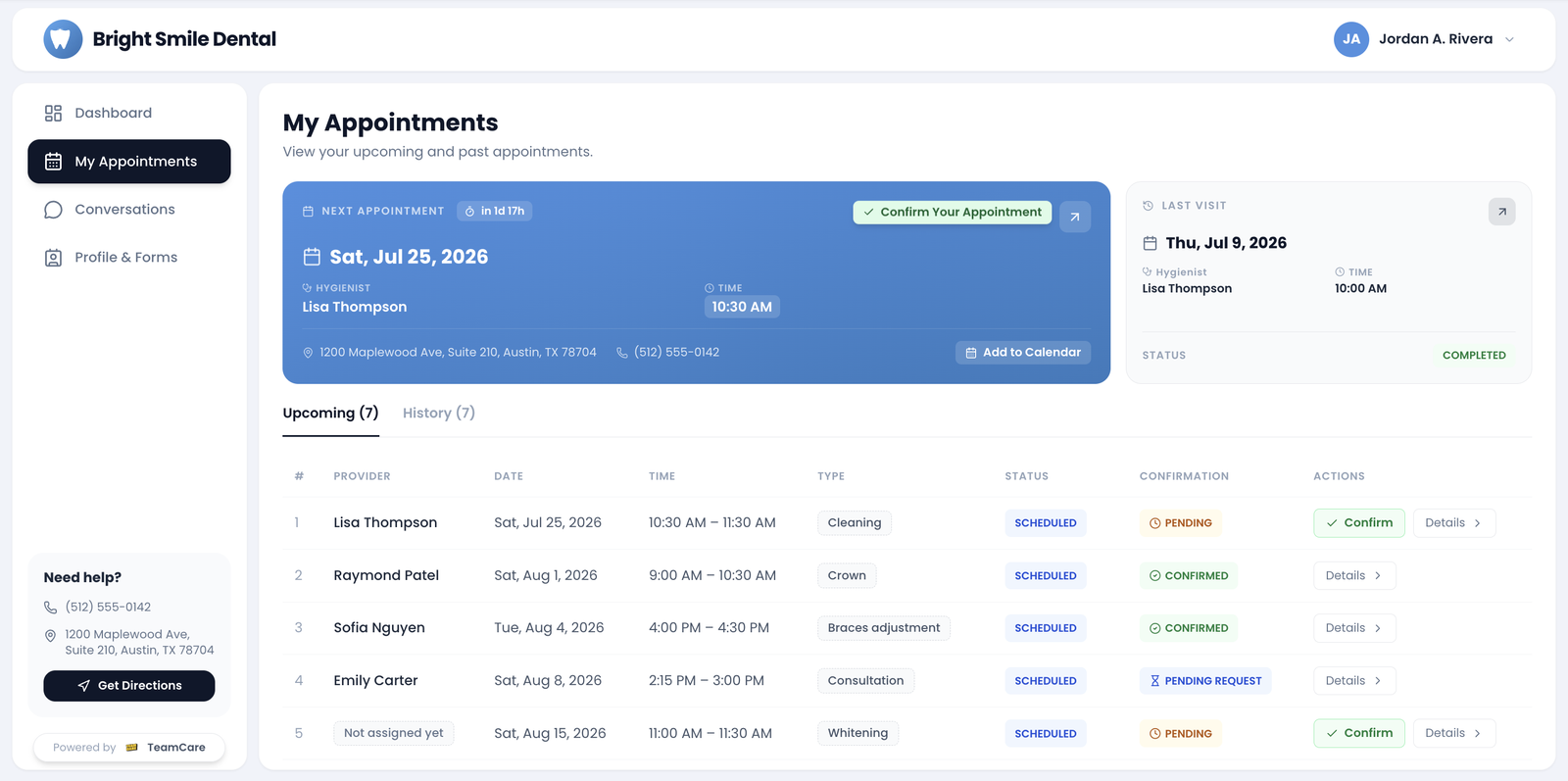
The My Appointments page gives patients a complete picture of their care — what's coming up and where they've been:
Next appointment at a glance. The date, time, provider, and visit type are front and center the moment a patient opens the portal.
Confirm, cancel, or reschedule. Patients can confirm they'll be there, request a cancellation, or request a reschedule. These arrive in TeamCare as appointment requests for your team to act on.
Appointment history. A full list of past visits — provider, date, time, visit type, and status — so patients always know when they were last seen.
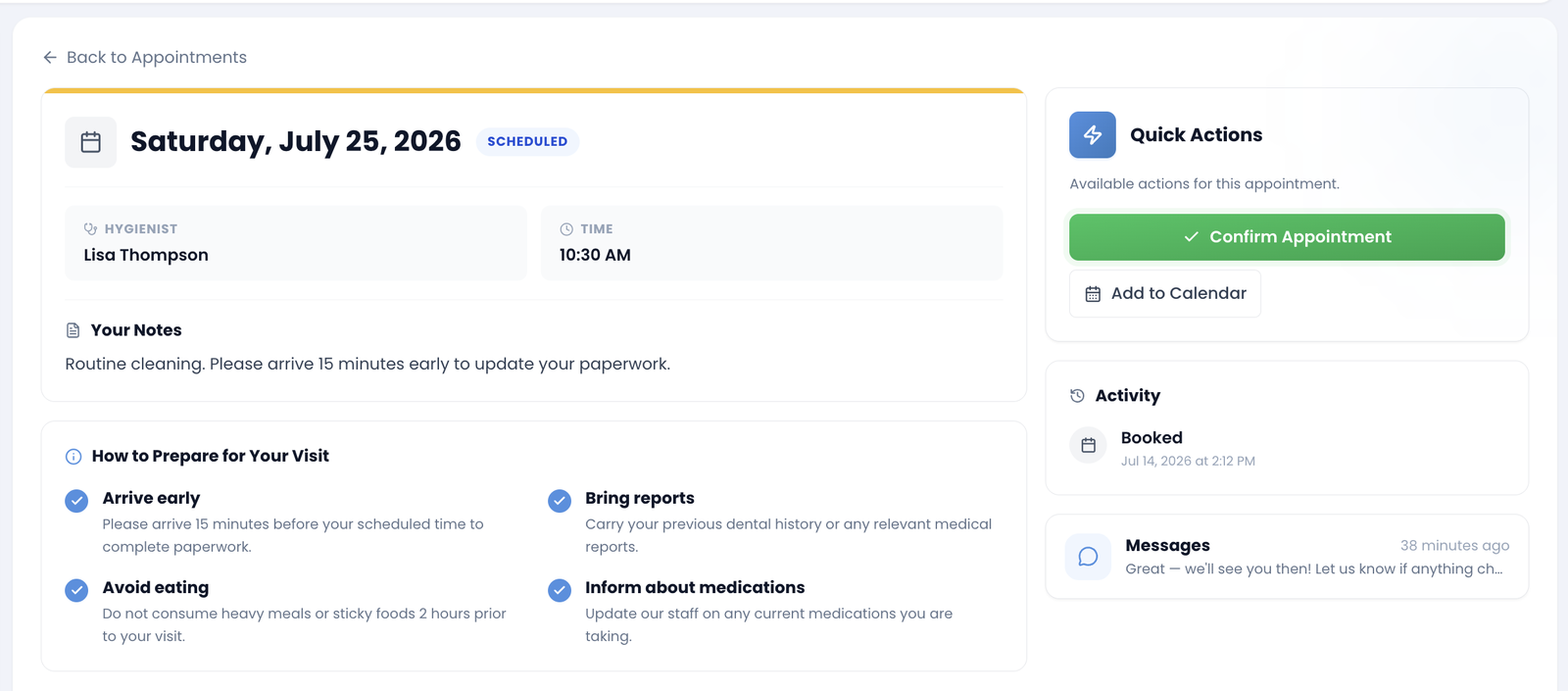
Selecting Details on any visit opens the full appointment view, complete with after-care instructions (brushing, flossing, and eating guidance after treatment) and an activity timeline showing when the appointment was booked and completed.
Fill out intake forms
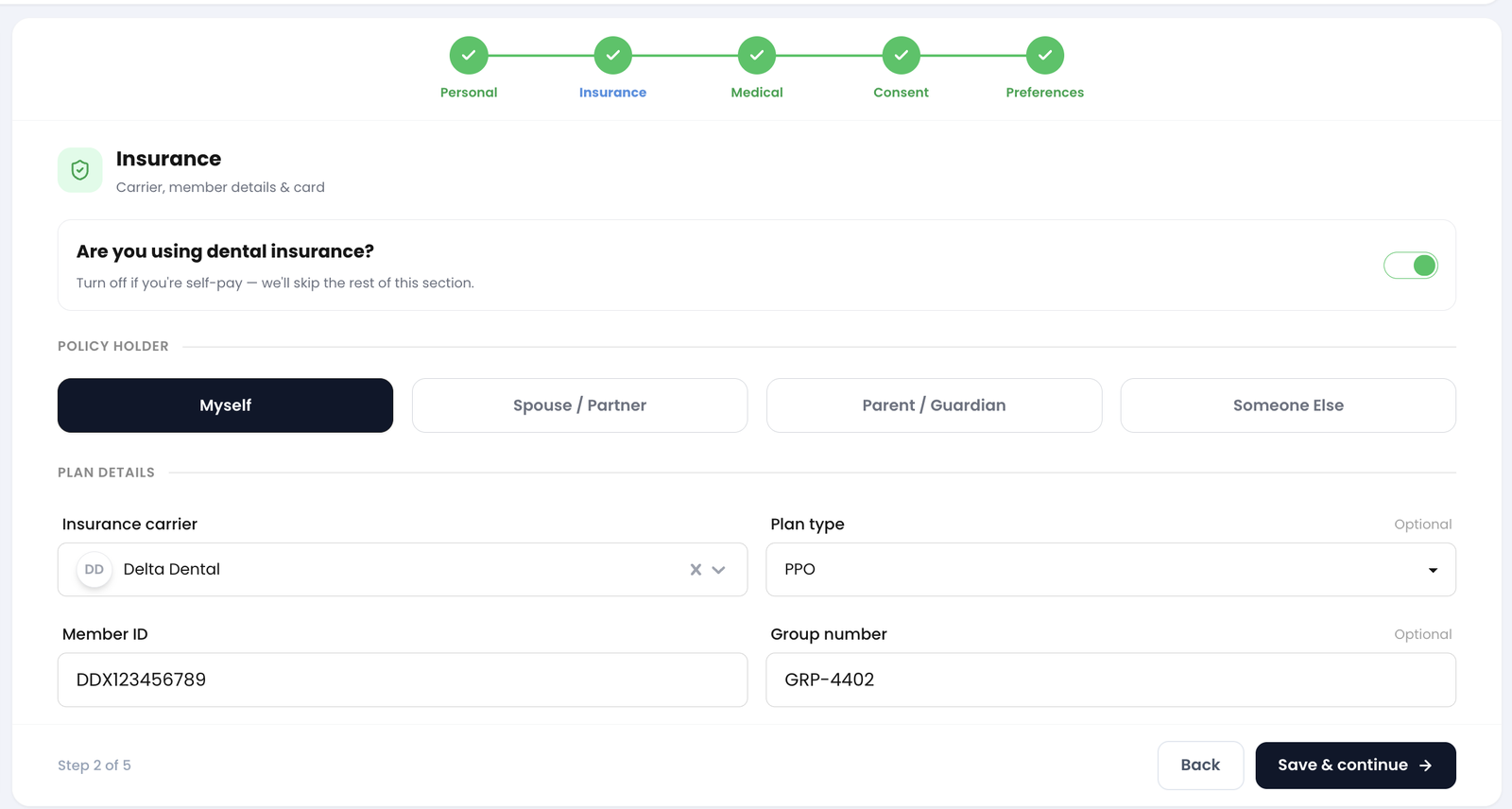
Patients complete five form sections (this is what the Patient Forms Access setting controls — see Enabling the Patient Portal):
Form section | What the patient provides |
|---|---|
Personal Information | Name, address, contact details, and emergency contacts |
Insurance Intake | Carrier, plan type, policy holder, member ID, group number — plus photos of the front and back of their insurance card |
Medical History | Allergies, medical conditions, medications, and any notes (or a "no known conditions" confirmation) |
Consent Form | HIPAA consent, communication consent, and a signature |
Preferences | Appointment and contact preferences |
The forms are designed to be painless:
Progress saves automatically. Patients move through the sections in order, and if they step away partway through, the portal picks up exactly where they left off.
Insurance card photos. Instead of typing every detail, patients can snap or upload photos of the front and back of their insurance card.
Self-pay friendly. Patients without dental insurance simply switch the insurance question off and skip that section entirely.
Message your practice securely
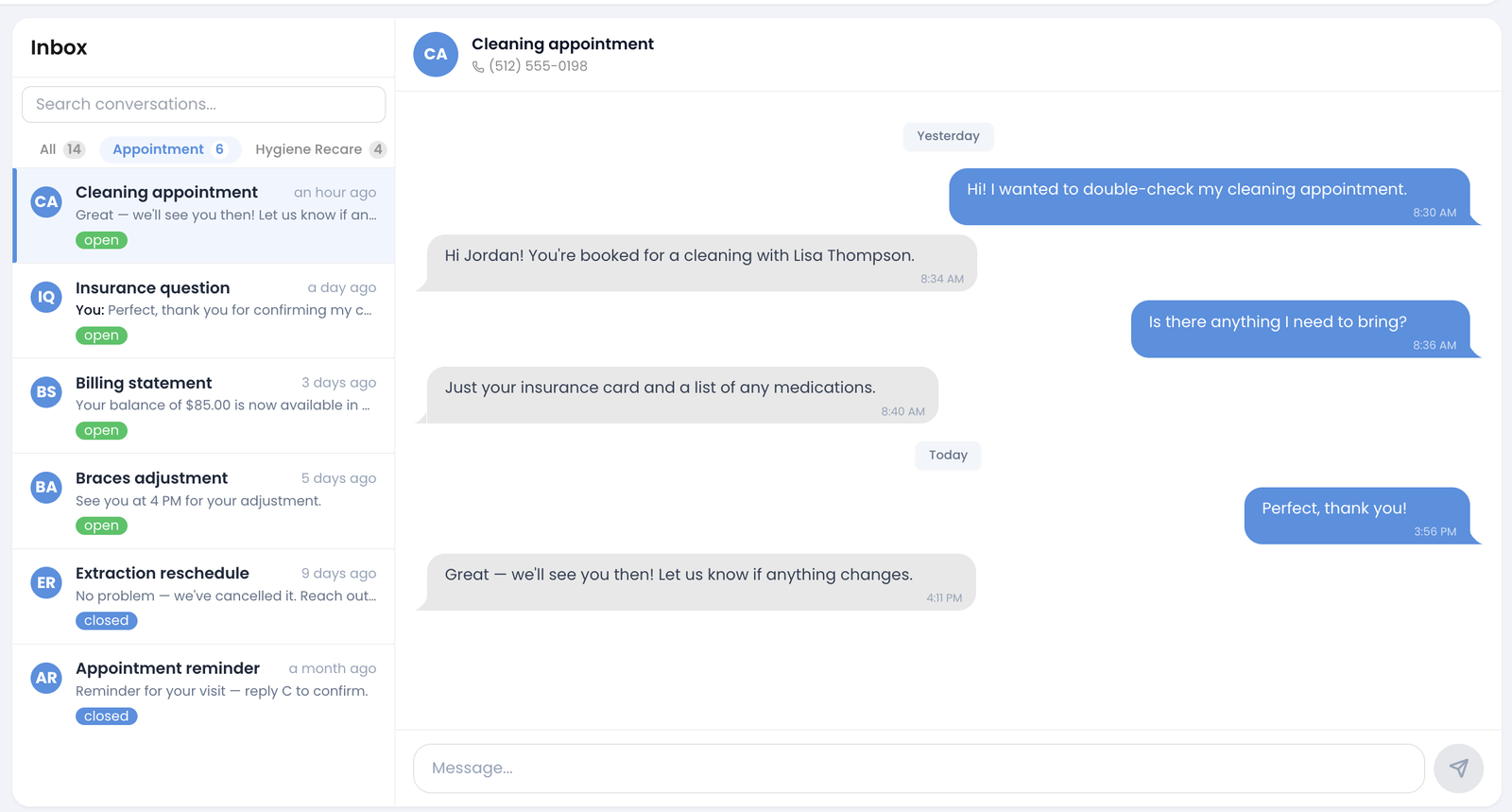
The portal includes two-way secure messaging. Patients can read and reply to conversations from your practice, and their inbox is organized by topic — Appointment, Hygiene Recare, and Treatment Plan — so it's always clear what each conversation is about.
Prepare before the visit
Ahead of an upcoming appointment, the portal shows a short pre-visit checklist that asks the patient to review their medical history and insurance details and confirm everything is current. It takes less than a minute — and it means patients walk in with their paperwork already done.
Reach the practice in one tap
Your practice's phone number and a Get Directions link are always visible inside the portal, so patients can call the office or navigate to it without hunting for contact details.
Coming Soon
We're actively expanding the portal. Two features are on the way:
Treatment plans. A dedicated view where patients can see their proposed treatment plan right in the portal. (Today, treatment-plan topics can already be discussed through secure messaging.)
Online bill pay. The ability for patients to view and pay their balance in the portal.
How Patients Get In
There are two ways a patient reaches the portal, both link-based and both secure — no passwords involved:
A magic link. The most common method. Staff generate a personal link and text (or copy) it to the patient. See Sharing a Patient's Portal Link.
Date-of-birth verification. When a patient opens the portal, they confirm their date of birth to prove the link is really theirs before they see any information.
Security note: Magic links expire 30 minutes after they're created, so send them right away. If a link expires, staff can simply generate a fresh one.
Because access is tied to a specific patient, each patient only ever sees their own appointments, forms, and messages.
Frequently Asked Questions
Do patients need to download an app or create an account?
No. The portal opens in a web browser from a link you send them. There's no app store download and no username or password to manage.
Do patients have to finish their forms in one sitting?
No. Progress saves as they go, and the portal reopens right where they left off.
Can patients pay their bill in the portal?
Online bill pay is coming soon. It isn't available yet, but it's on the roadmap.
Can patients see their treatment plan in the portal?
A dedicated treatment-plan view is coming soon. In the meantime, treatment-plan topics can be discussed through the portal's secure messaging.
Is the information secure?
Yes. Access is link-based with no shared passwords, invite links expire after 30 minutes, and patients verify their date of birth. Each patient can only view their own records.
What happens to the information a patient submits?
It updates that patient's record in TeamCare automatically. Your team can review submitted forms from the Huddle screen (see Reviewing Incoming Patient Forms in Huddle).
Do I need to turn anything on first?
The forms portion is controlled by the Patient Forms Access setting. See Enabling the Patient Portal.