Agent Attended Badge — Setup & How-It-Works Guide
Last updated: July 3, 2026
Audience: Practice owners, managers, and consulting firm admins
What this covers: How to set up the Agent Attended badge, how agents earn it, and how payouts reach them.
Overview
The Agent Attended badge rewards your practice's agents (the staff who make reactivation phone calls) every time a patient they called actually shows up and completes their hygiene appointment.
It works exactly like the Reactivation Attended badge, with one key difference:
Badge | Who earns it |
|---|---|
Reactivation Attended | Regular staff (front desk, hygienist, etc.) whose call brought the patient back |
Agent Attended | Staff with the Agent role whose call brought the patient back |
Use this badge when you have dedicated agents (for example, a recall/reactivation caller or an outbound calling team) and you want their attended-patient results tracked and paid separately from the rest of your team.
In one sentence: An agent makes a reactivation call → the patient attends and completes their hygiene visit within the allowed window → the agent automatically earns the Agent Attended badge → the reward is approved and paid out.
Before You Start — Prerequisites
To use this badge you need these things in place:
The Consulting Firm has enrolled its Stripe account (do this first). Agents are paid through one shared Stripe account that the Consulting Firm enrolls once. This is the foundation for agent payouts, so it comes first — see Part 1 below.
At least one employee with the Agent role. The Agent Attended badge is only awarded to staff whose role is Agent. If nobody has that role, no badges will ever be earned. You can set a staff member's role to Agent when you add or edit an employee.
Agents are making reactivation outreach calls. Badges are earned off outreach (reactivation phone calls) that agents log against overdue patients. If your agents aren't making tracked calls, there is nothing to attribute a badge to.
A payout method decided for the badge. You'll choose during setup whether payouts go out automatically through Stripe AutoPay, or whether you'll record and pay manually.
Part 1 — Agent Payouts (Consulting Firm Stripe Enrollment)
Start here. Setting up how agents get paid is the first thing to do — before creating the badge itself. This is different from how a regular practice pays its own staff.
Regular practice staff get paid through the practice's own AutoPay/Stripe setup. Agents are paid differently — through their Consulting Firm.
Where to find it: Company Settings › Payout Account
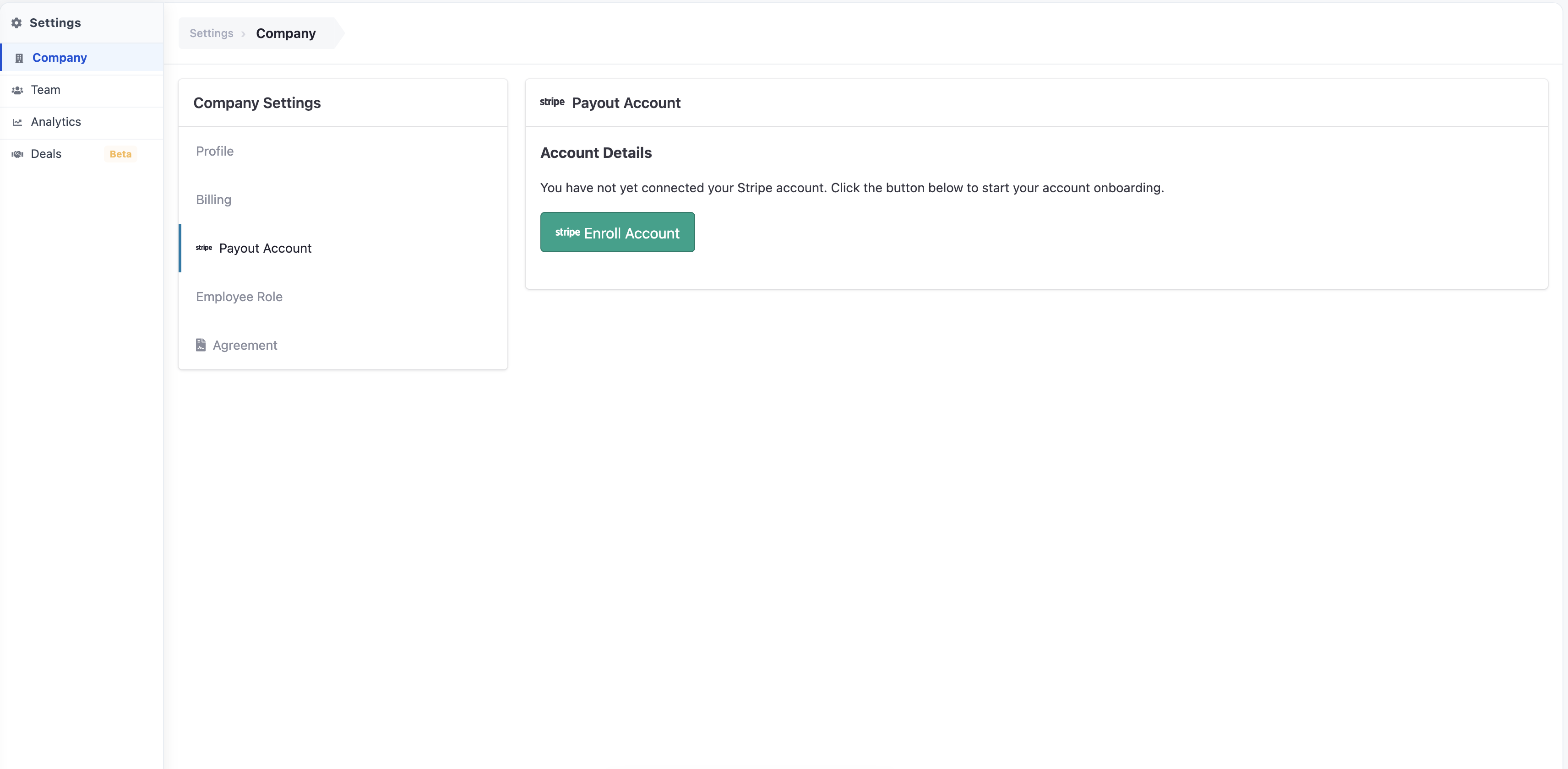
The key idea: enroll once, cover every agent
Agents do not each link their own bank account. Instead:
The Consulting Firm enrolls a single Stripe account (one time). Someone at the Consulting Firm connects the firm's Stripe (Express) account. This is a one-time setup for the whole firm.
Every agent under that firm automatically inherits that Stripe account. The moment the firm's Stripe account is connected, TeamCare finds all agents belonging to that Consulting Firm and assigns the firm's Stripe account to each of them automatically. Agents don't have to do anything.
New agents added later are covered automatically too. When you add a new Agent to a firm that has already enrolled its Stripe account, that agent inherits the firm's Stripe account as part of being set up — no extra step.
Why it's set up this way
The firm enrolls once instead of chasing every agent to link a bank.
Onboarding a new agent is instant — they're payout-ready the moment they're created under the enrolled firm.
All agent earnings are consolidated under the firm's account.
What this means for payouts
For an Agent Attended reward to actually pay out via Stripe, both of these must be true:
The Consulting Firm has an enrolled Stripe account, and
The agent has that firm's Stripe account assigned (which happens automatically once the firm is enrolled).
If the firm hasn't enrolled its Stripe account yet, agents will still earn badges — they just can't be auto-paid until enrollment is complete.
In short: The Consulting Firm enrolls its Stripe account once → all its agents (current and future) are automatically set up to receive payouts through that account.
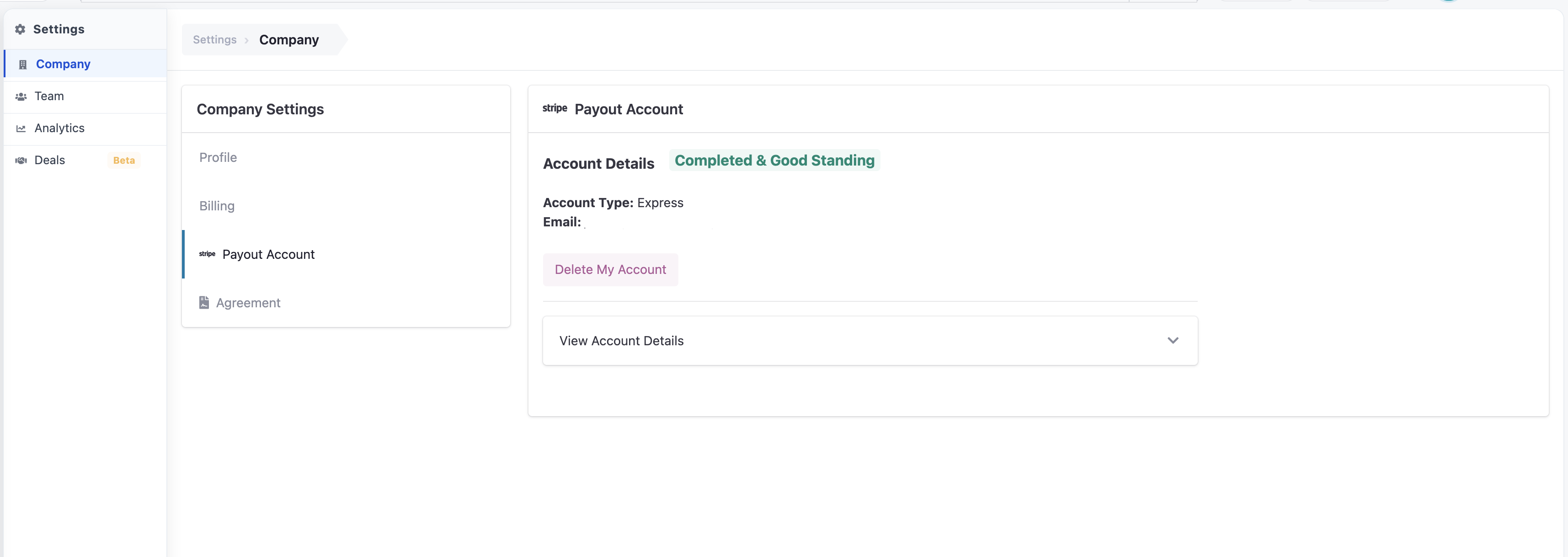
Part 2 — Setting Up the Badge
Once agent payouts are in place, create the Agent Attended badge through a short guided workflow. You move through each step with the Next button, and you can go Previous at any time to change something.
Where to find it: Incentives › Opportunities › Badges › Overview → + Add Badge
Page path: /incentives/achievement_rewards
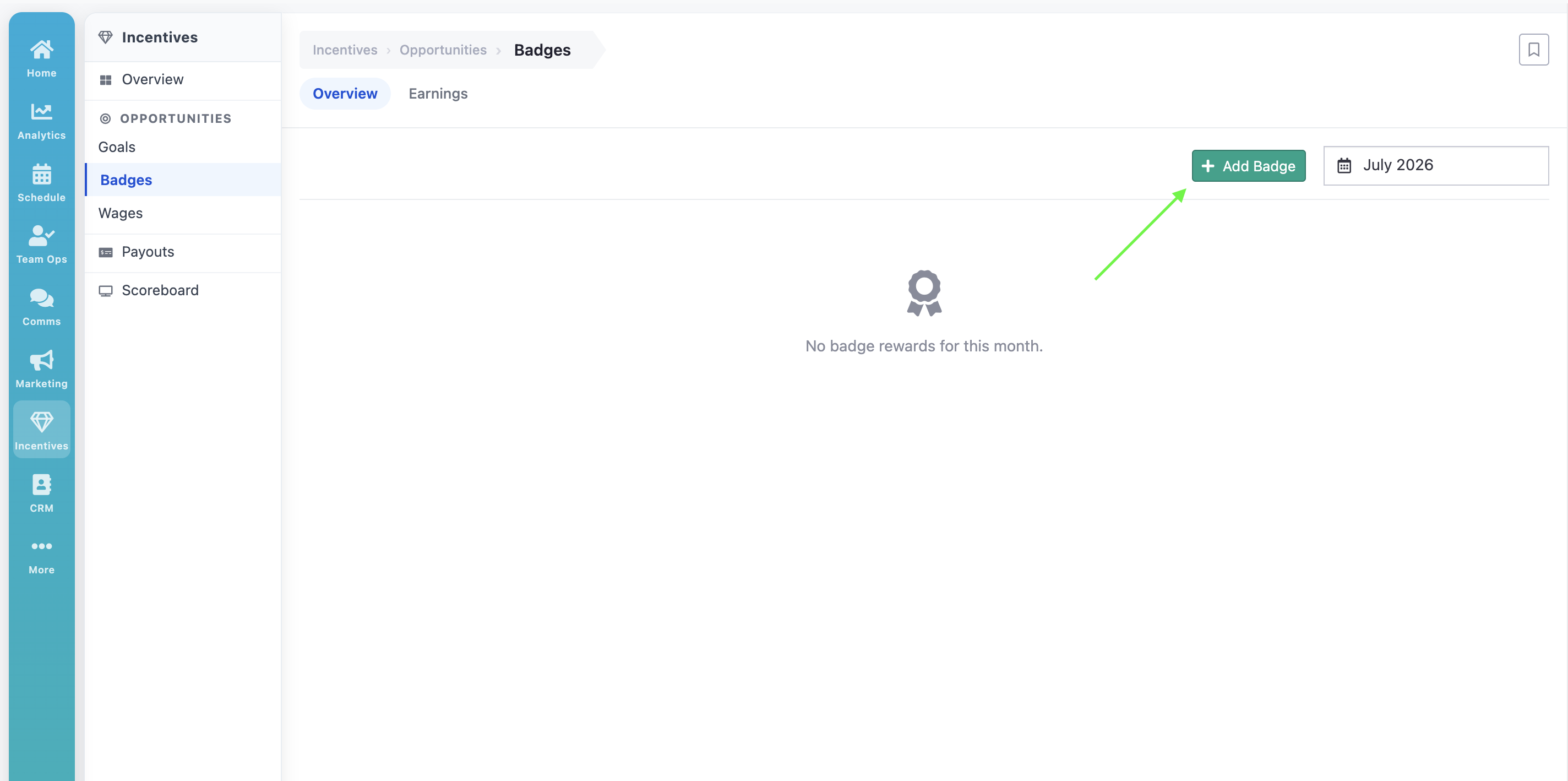
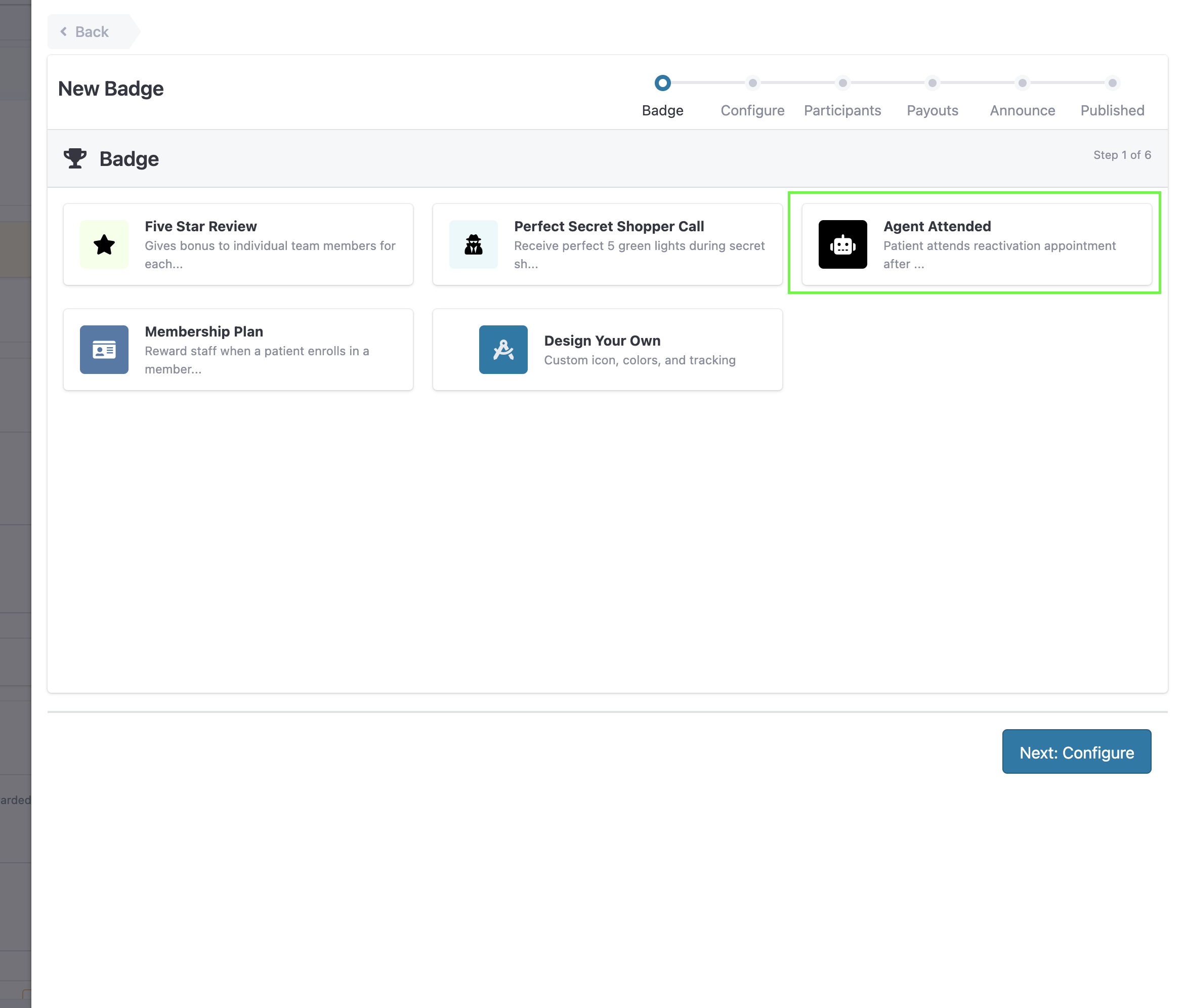
Step 1 — Draft
Start a new Agent Attended badge and give it its basic details (its active start date, and either an end date or "runs forever" / lifetime). This is where the badge begins life.
Step 2 — Configure (Forecast)
Review the badge and its expected impact before committing. This is an informational/estimate step — confirm the badge looks right and continue.
Step 3 — Staff (Set Participants)
TeamCare automatically assigns all of your active Agent-role staff as the eligible participants. Only agents can earn this badge, so the system fills this in for you.
Assigned staff will see their incentive opportunity in their private My Rewards dashboard.
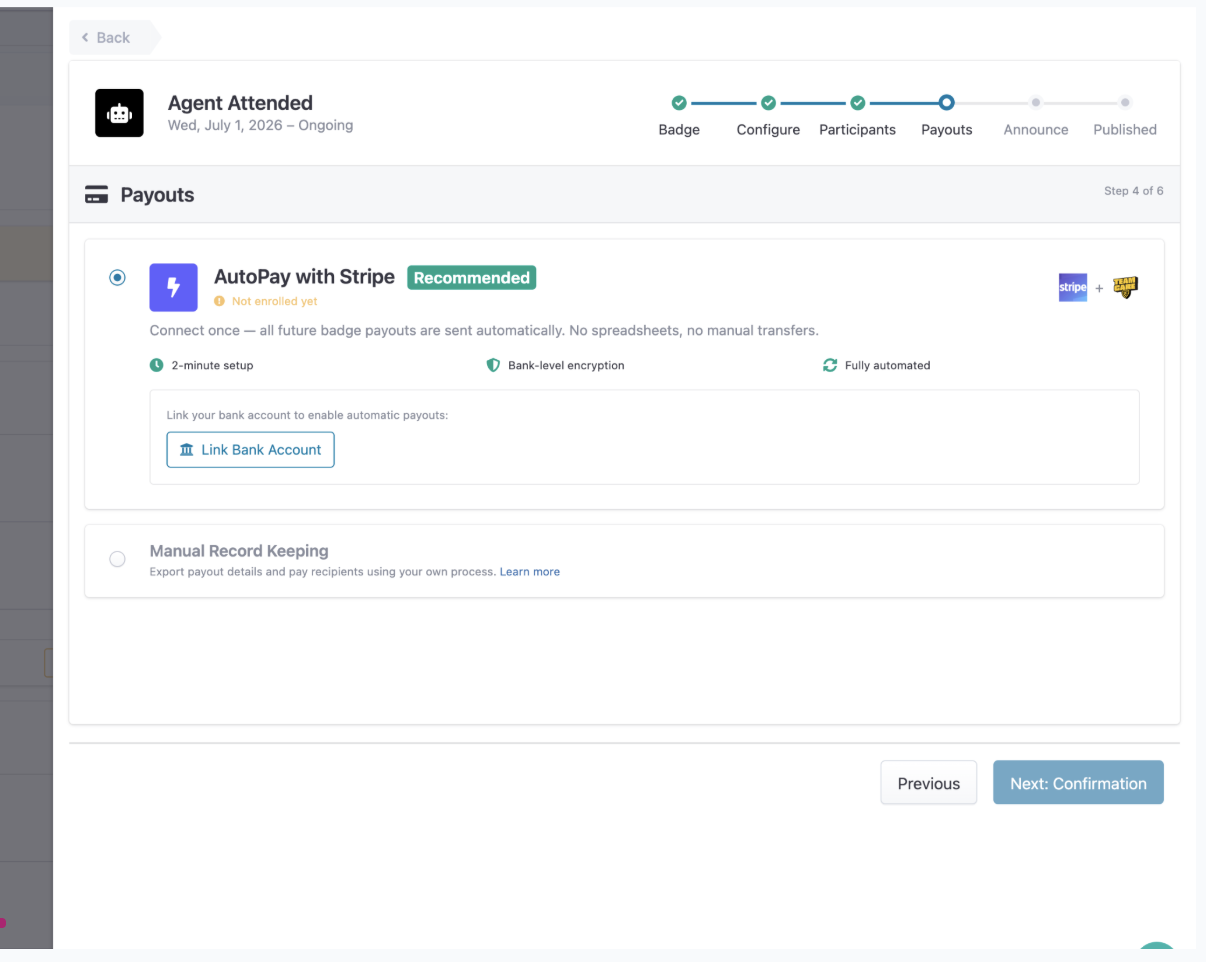
Step 4 — Payment
Choose how earned badges get paid out. There are two options:
AutoPay with Stripe (recommended). Connect a bank account once, and every future payout for this badge is sent automatically. You cannot continue in AutoPay mode until a bank account is linked.
Manual Record Keeping. TeamCare tracks everything, but you export the payout details and pay staff using your own process (payroll, cash, gift card, etc.).
Step 5 — Confirmation
Review everything one last time — dates, eligible agents, and payout method. This is your final check before the badge goes live.
Step 6 — Publish
Click Publish to make the badge active. Once published:
Eligible agents are notified (if email announcements are on).
The badge starts listening for qualifying attended patients.
Any qualifying attended patients that already happened inside the badge's date range are picked up retroactively — so you don't lose credit for calls that landed just before you published.
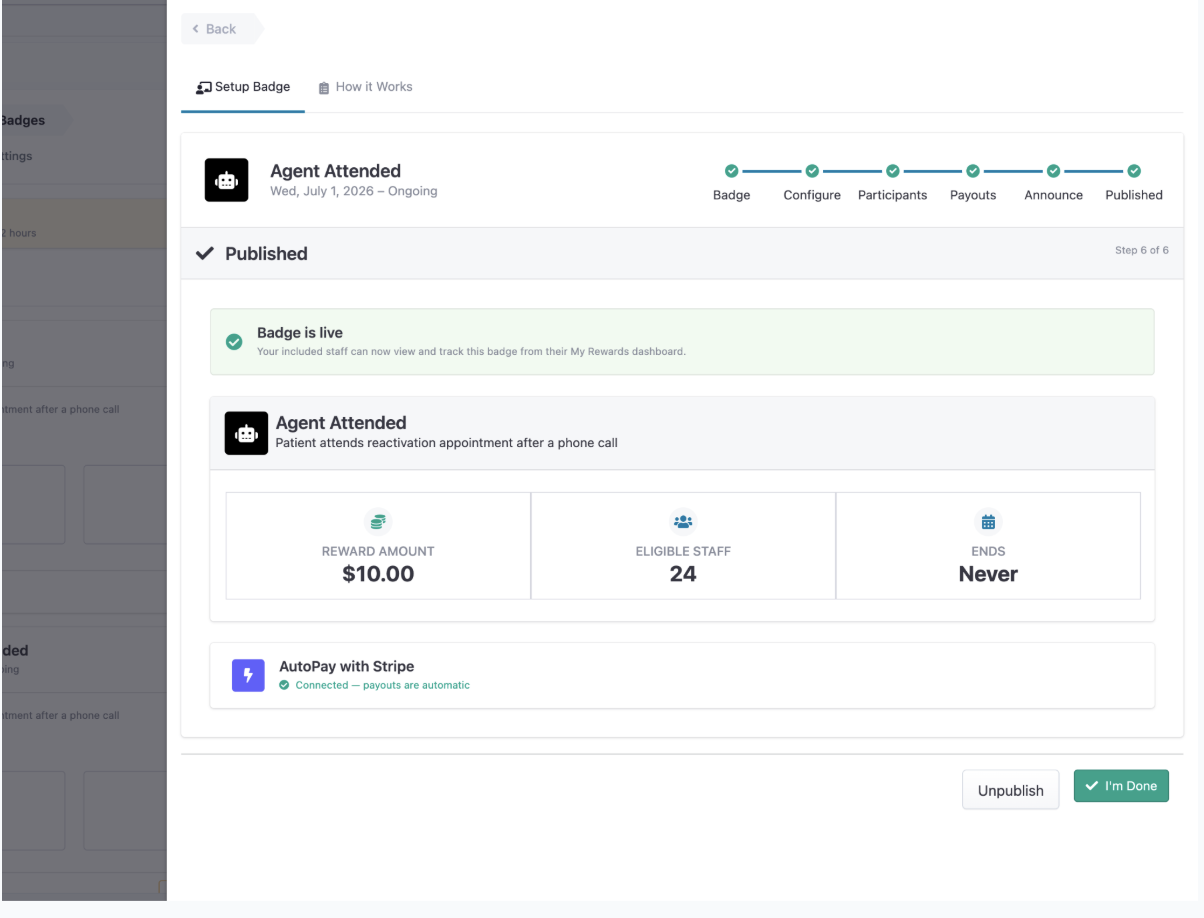
Tip: You can Unpublish a published badge later if you need to make changes.
Part 3 — Setting Up Payout Timing (Auto-Approval)
Separately from the badge itself, your practice has a payout preference for achievements that controls when earned badges get automatically approved and released for payout.
The key setting is Auto-Approve Days (default: 7 days).
This is a "grace/review window." When a badge is earned, it sits as pending for this many days.
During that window an Owner or Manager can review it, adjust the dollar amount, split it between team members, or deny it.
After the window passes with no action, TeamCare auto-approves the badge and moves it toward payout.
You also set a payout schedule (daily / weekly / bi-weekly / monthly) and a payment method (Stripe / manual / pay later) in your achievement payout preferences.
Part 4 — How a Badge Actually Gets Earned (Day-to-Day Flow)
Once the badge is published, everything below happens automatically. Here's the life cycle of a single Agent Attended badge:
An agent makes a reactivation call. An Agent-role staff member logs an outreach call to an overdue/recall patient.
The patient attends and completes their hygiene visit. When that patient's continuing-care (recall) appointment is marked completed, TeamCare checks whether it was the result of a call.
The "attended" rule is checked. The visit only counts if it was completed within 60 days of the agent's most recent call. If more than 60 days passed, no badge is awarded.
The right agent is credited. TeamCare awards the badge to the Agent who made the most recent qualifying call for that patient. Non-agent staff earn the Reactivation Attended badge instead.
The badge is created and the agent is notified. A badge is logged, the reward amount is attached, and the agent sees it in their My Rewards dashboard.
Review / approval window. The reward sits pending for your Auto-Approve Days window. An Owner or Manager can approve, deny, or adjust it during this time.
Auto-approval. Once a badge ages past your auto-approve window, it is automatically approved and its reward is marked processing.
Payout. AutoPay (Stripe): paid to the agent through the Consulting Firm's enrolled Stripe account. Manual: you mark it as paid on your own schedule.
The Four Stages at a Glance
Stage | What happens |
|---|---|
1. Choose Eligible Staff | All active Agents are assigned automatically and see the opportunity in My Rewards. |
2. Earn Badges | An agent's call leads to an attended, completed hygiene visit (within 60 days) → badge earned. |
3. Approve | Owners/Managers can approve, deny, or adjust the amount during the auto-approve window. |
4. Payout | Approved rewards are paid via Stripe AutoPay, or marked paid manually. |
Important Details
Agent payouts come first. Agents are paid through the Consulting Firm's Stripe account. The firm enrolls once, and every agent (current and future) is set up automatically. Agents don't link their own bank.
Agents only. This badge can only be earned by staff with the Agent role. Give the role to the right people first.
60-day attended window. A visit must be completed within 60 days of the agent's most recent call to count.
Most-recent-call wins. The agent credited is the one who made the latest qualifying call for that patient.
Retroactive on publish. Publishing the badge captures qualifying attended patients that already occurred inside its date range.
Auto-approve is time-based. If nobody reviews a badge, it approves itself after your configured number of days (default 7).
Frequently Asked Questions
Q. Do agents each need to link their own bank account to get paid?
No. Agents are paid through their Consulting Firm's Stripe account. The firm enrolls that account once, and all of its agents are automatically set up to receive payouts through it.
Q. We added a new agent after the firm already enrolled its Stripe account — do we redo anything?
No. New agents inherit the firm's Stripe account automatically when they're created, so they're payout-ready right away.
Q. Our agents are earning badges but not getting paid — why?
The most common reason is that the Consulting Firm hasn't enrolled its Stripe account yet. Agents keep earning badges, but Stripe payouts can't go out until the firm's account is connected.
Q. Who exactly gets paid when a badge is earned?
The Agent whose most recent reactivation call led to the patient attending and completing their hygiene visit.
Q. What's the difference between this and the Reactivation Attended badge?
They reward the same behavior (a call that brings a patient back), but Agent Attended pays your Agent-role staff, while Reactivation Attended pays your regular (non-agent) staff. This lets you track and budget agent performance separately.
Q. What if the patient comes back, but 3 months after the call?
No badge. The completed visit must fall within 60 days of the agent's call to be counted as "attended" from that call.
Q. Do I have to approve every badge manually?
No. You can review and adjust badges during the approval window, but if you take no action they are auto-approved after your Auto-Approve Days setting (default 7 days).
Q. Can I change the badge after publishing?
Yes — unpublish it, make your changes, and publish again.
Q. How do agents see what they've earned?
Each agent has a private My Rewards dashboard showing their earned badges and reward amounts.