Connecting Your Bank Account for Incentives
Last updated: July 6, 2026
How to securely link a bank account through Stripe — whether you’re an admin funding staff incentives, or an employee getting paid.
Before you start
TeamCare uses Stripe, a certified payments provider, to move money securely. TeamCare never sees or stores your full account or routing numbers — everything sensitive is handled inside Stripe’s encrypted environment.
This guide has two paths. Jump to the one that matches your role:
• Admins / Owners → fund staff incentives from a company bank account.
• Employees → connect a personal bank account to get paid.
1. For Admins: Managing Company Payouts (Sending Money)
To automatically pay out staff incentives, the practice links a company bank account. Stripe then charges that account and pays your team on a rolling daily basis — no manual transfers required.
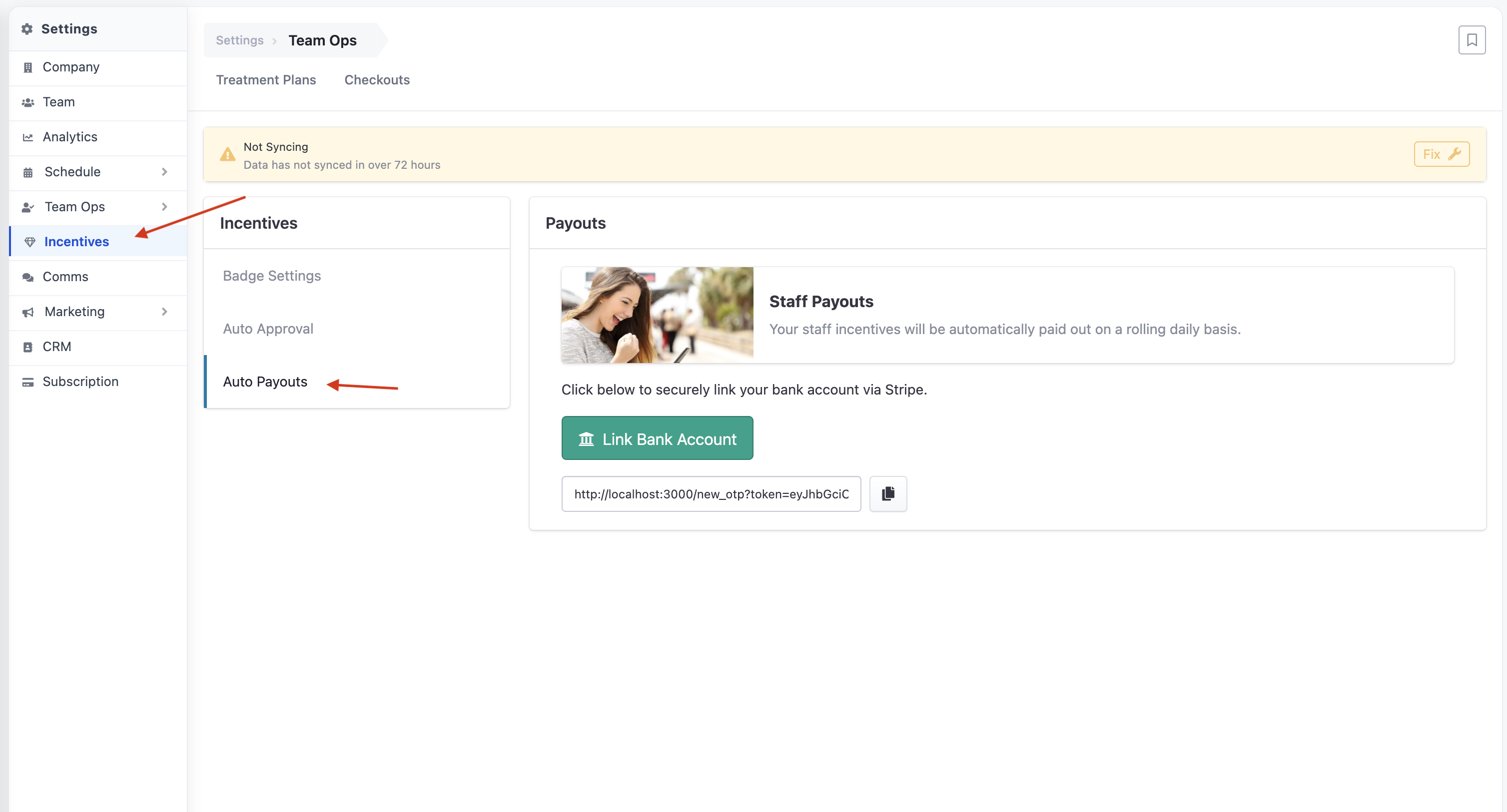
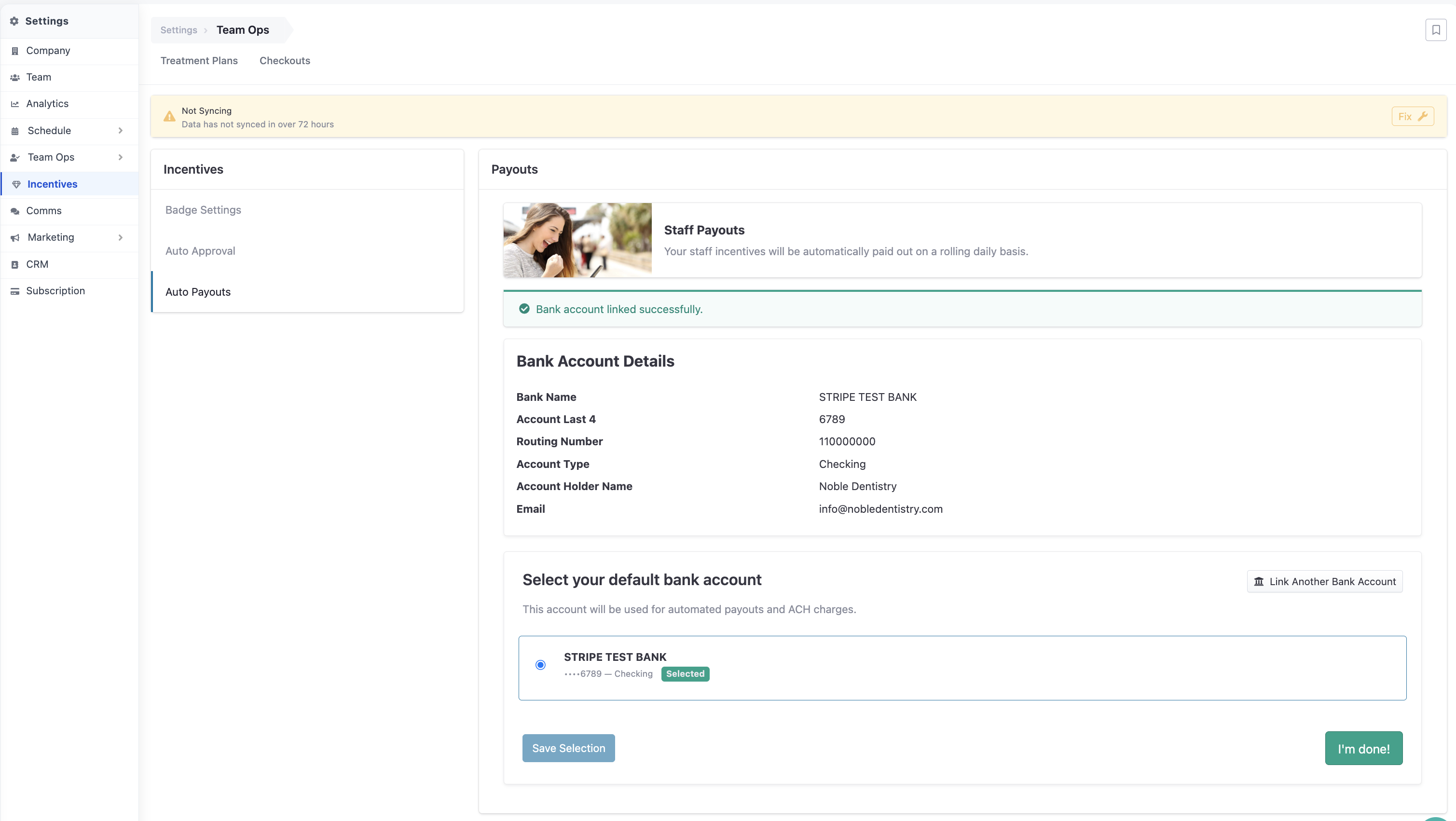
Where to go: Settings (gear icon) › Incentives › Auto Payouts
Step by step
Open Settings from the main navigation (the gear icon), then choose the Incentives tab.
In the left-hand menu, select Auto Payouts. You’ll see the Payouts panel on the right.
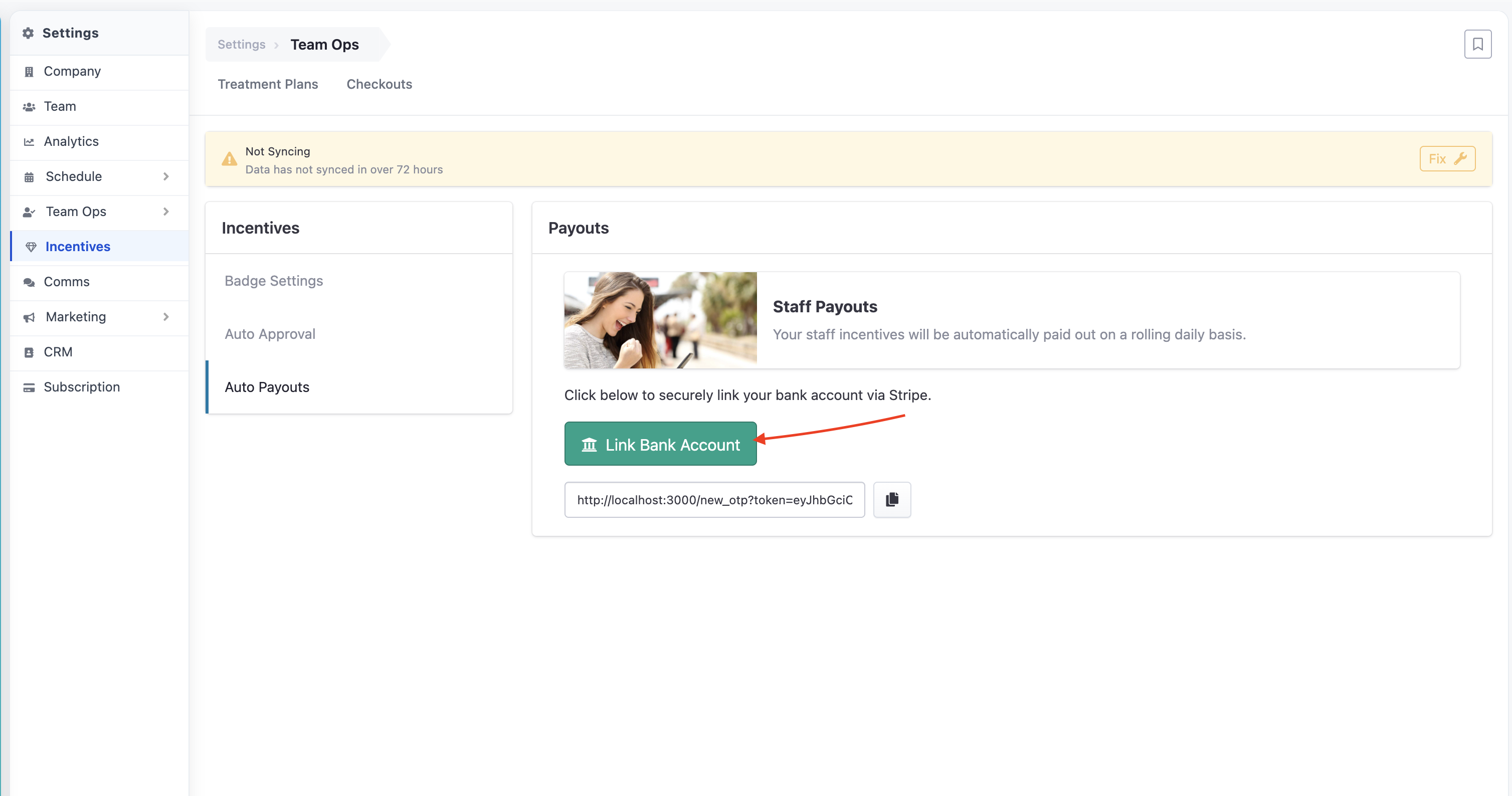
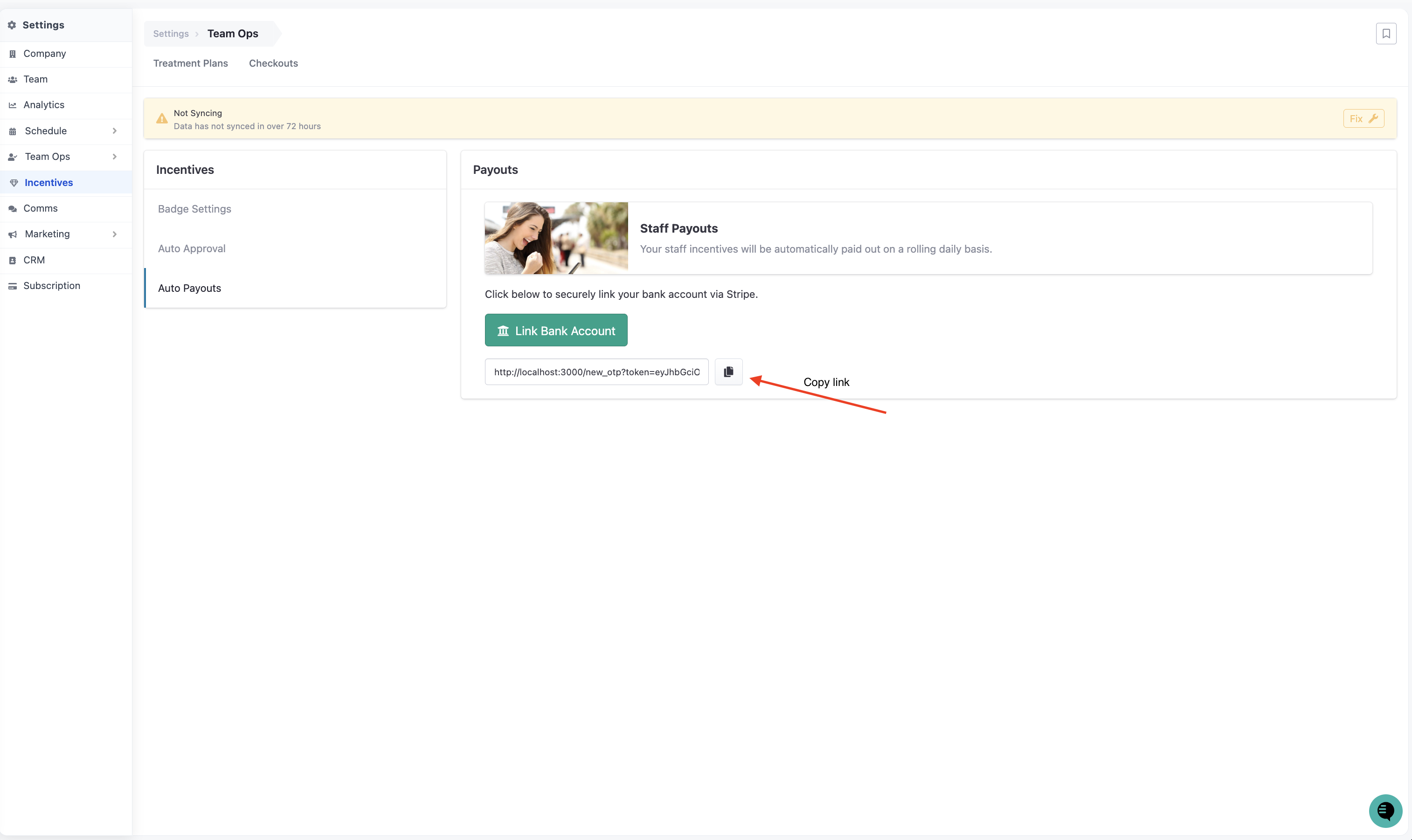
Click Link Bank Account to start the secure Stripe connection. Or copy and send the link to a relative person.
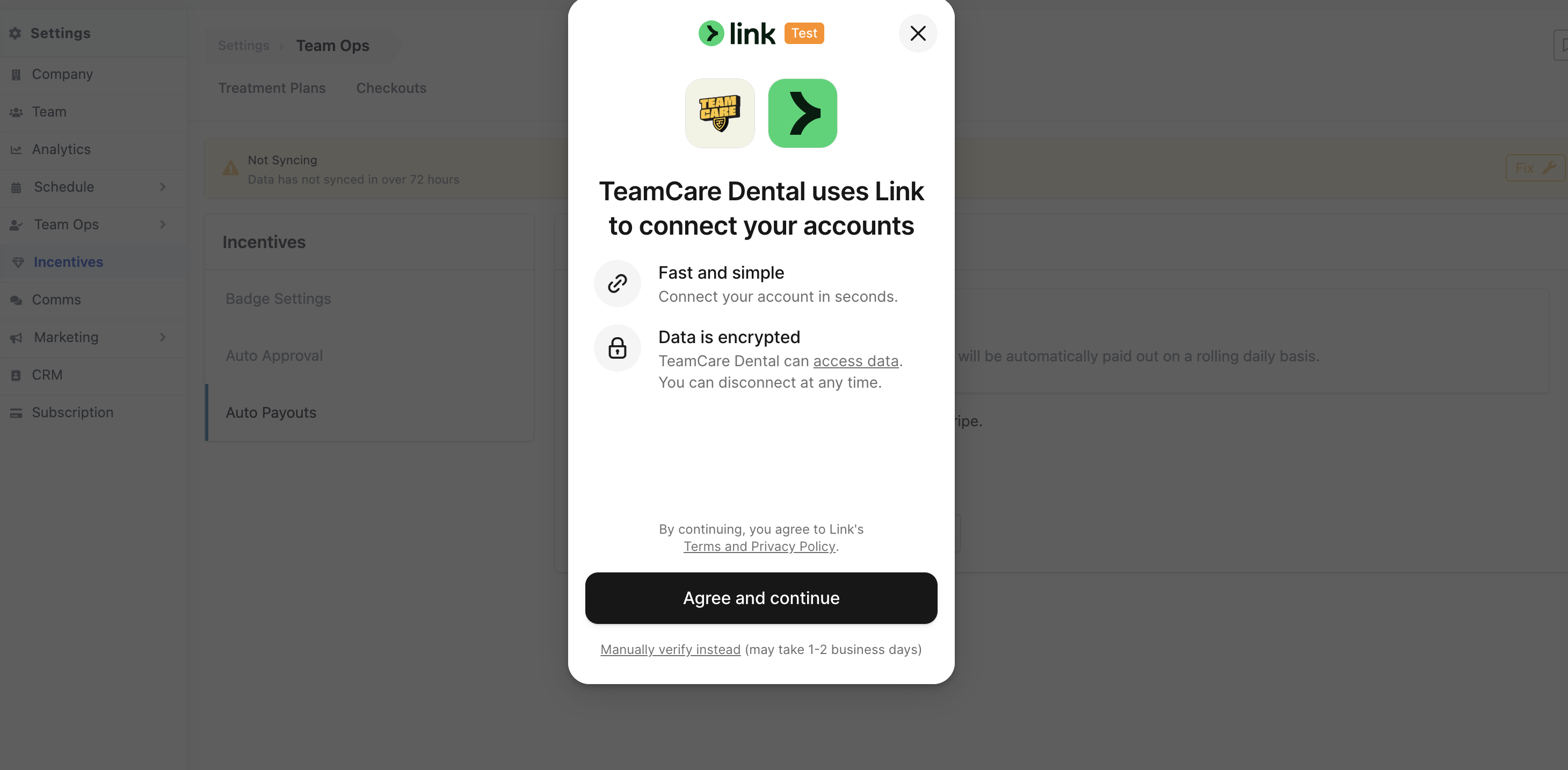
A secure Stripe window opens. Sign in to your bank or enter your account details, then confirm.
Once linked, the account appears in the Payouts panel with its Bank Name, Account Holder, and Routing Number (last digits only).
What you can do here
Link an account — connect the practice’s primary bank account to enable rolling daily payouts.
Manage defaults — if more than one account is linked, choose which one is used for automated ACH charges.
View details — confirm the Bank Name, Account Holder, and Routing Number currently on file at a glance.
Good to know
Only a practice owner/admin can connect or change the company payout account. If you don’t see the Incentives tab, ask your practice owner to grant access or complete this step.
2. For Employees: Receiving Your Incentives (Getting Paid)
To receive your earned bonuses by direct deposit, connect your own personal bank account. This is a one-time setup that takes just a few minutes.
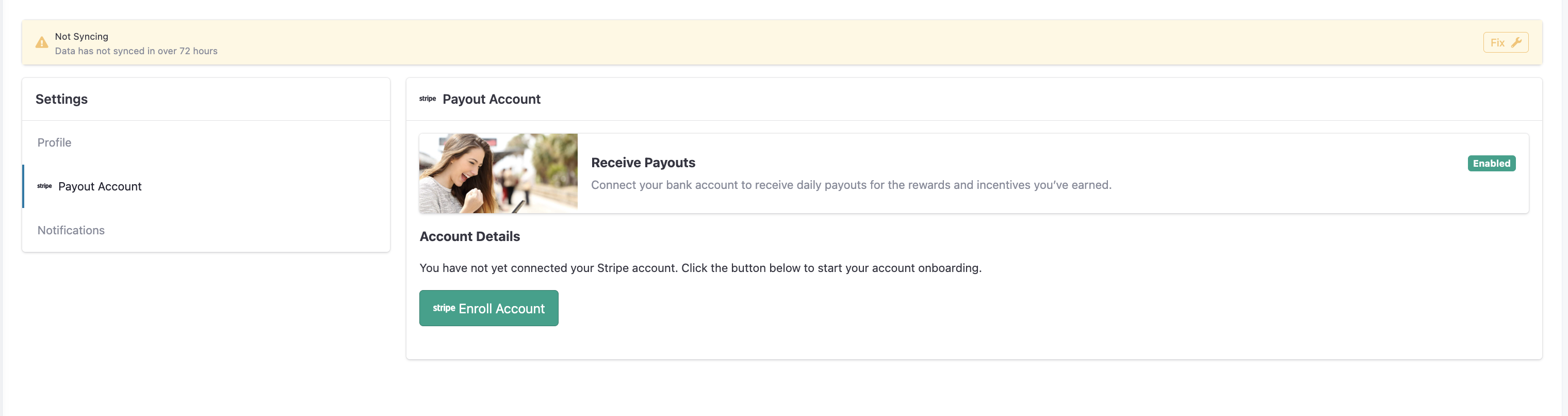
Where to go: Profile photo (top right) › Profile › Payout Account
Step by step
Click your profile photo in the top-right corner and choose Profile.
Open the Payout Account tab (marked with the Stripe icon).
Click the green Enroll Account button to begin Stripe’s secure onboarding.
Fill in your details in the Stripe window: your name, address, date of birth, the last 4 of your SSN, and your bank account information.
Add your bank account (account + routing number) and submit.
You’ll return to TeamCare automatically. The Payout Account card now shows your connection status.
What you can do here
Enroll — start the secure Stripe onboarding to link your bank.
Monitor status — check your Account Details to see if your bank is connected or if Stripe needs anything else.
Manage account — once connected, use the Manage Account button to update bank details or view payouts in Stripe.
3. Understanding Your Account Status
Not Connected | No account is linked yet. Click the enroll button to begin. |
Requires Immediate Attention | |
Upcoming Requirements Pending | Information will be due soon. You can keep operating, but complete it before the deadline. |
Pending Verification | You submitted everything; Stripe is reviewing. No action needed — this usually clears within a day or two. |
Completed & Good Standing | All set. Your account is fully connected and ready. |
4. Stripe Verification Checklist
To keep your account from getting stuck in a Pending status, have these items ready before you start. Stripe uses them to verify your identity (a legal requirement known as KYC — Know Your Customer).
Government photo ID | A clear photo of a driver’s license, state ID, or passport to verify your identity. |
Bank account details | The account and routing number of the bank account that will send or receive funds. |
SSN / last 4 digits | Required for individuals to satisfy U.S. identity (KYC) rules |
Business EIN / Tax ID (admins) | The practice’s tax identification number when connecting a company account. |
Proof of ownership (occasionally) | Stripe may ask for a voided check or a recent bank statement to confirm the account belongs to you. |
Tip
Enter your legal name and address exactly as they appear on your bank account and government ID. Mismatches are the most common reason verification stalls.
5. Removing an Account & Data Privacy
You can disconnect your banking information at any time — whether you’re an admin or a staff member.
Option A — Disable from TeamCare
Open your account card (Payout Account for employees, or Auto Payouts for admins).
Choose Disable / Remove account. The account is immediately disconnected from TeamCare.
⟢ Screenshot goes here — The account details view showing the disable/remove option.
Option B — Remove from Stripe
Log in to your Stripe account.
Go to Settings › Business › Bank accounts.
Delete the linked account.
Your data is safe
TeamCare does not store your full account or routing numbers. All sensitive banking data lives in Stripe’s encrypted, PCI-certified environment.
When you disconnect an account, your banking information is permanently removed and purged from the payment system.