Understanding Goals
Last updated: October 20, 2025
Tracking goals is one of the most powerful ways to align your team, stay on track month-to-month, and drive consistent growth. TeamCare makes this easy by embedding goals, metrics, and performance indicators throughout the platform—helping practices turn long-term ambitions into daily action.
This article covers:
How goals work in TeamCare
How to set, edit, and customize goals
Daily and monthly goal tracking
Setting provider and office-level goals
Using incentives to motivate your team
How Goals Work in TeamCare
At the start of each month, TeamCare automatically generates new goals based on a Trailing Three-Month (TTM) Average (for example, September–November averages inform December’s goal). This ensures that goals are both achievable and aligned with recent performance trends.
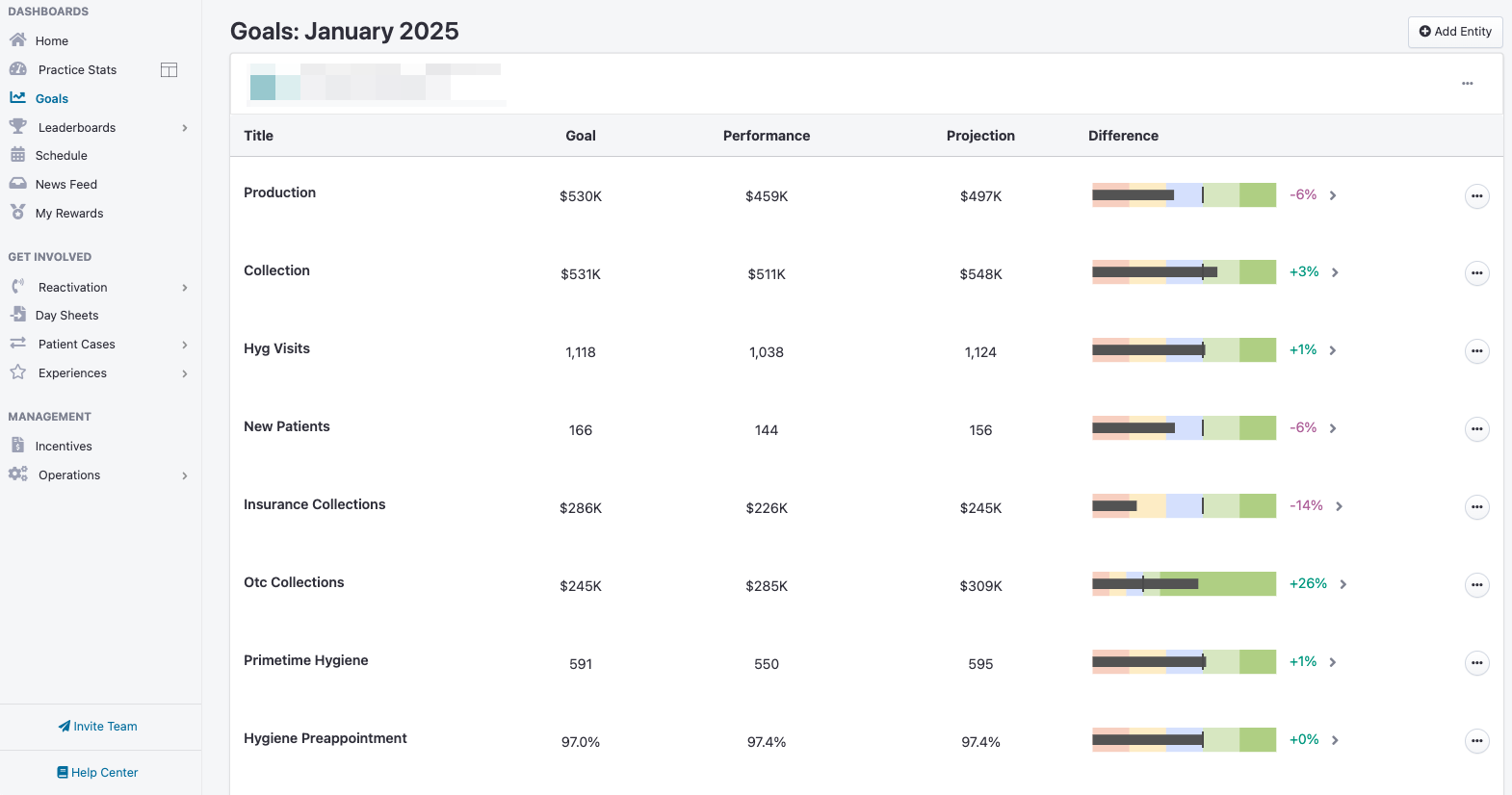
You can track goals for multiple KPIs, including:
Production
Collections
Hygiene appointments
New patients
And more
TeamCare visualizes progress using trendlines and color-coded indicators, making it easy to see if you’re ahead, on pace, or behind.
Daily and Monthly Goal Tracking
To make monthly goals more actionable, TeamCare breaks them into daily goals based on the number of working days in the month. These are displayed in the app and in daily performance emails sent to practice owners or managers.
Each daily update includes:
Month-to-Date (MTD) performance
Whether you’re on pace
Projected end-of-month performance
These insights help teams make quick adjustments and avoid last-minute surprises.
Daily Goal Tips & Tricks
Small Wins Philosophy: Think of daily goals as the building blocks of long-term success. Small, consistent wins compound over time and drive steady growth.
SMART Goals: Make sure goals are Specific, Measurable, Achievable, Relevant, and Time-bound.
Celebrate Progress: Recognize daily wins to keep morale high and staff motivated.
How to Set or Edit Goals
While TeamCare sets production goals automatically, you can customize them to reflect staffing changes, PTO, or strategic adjustments.
To Edit a Goal:
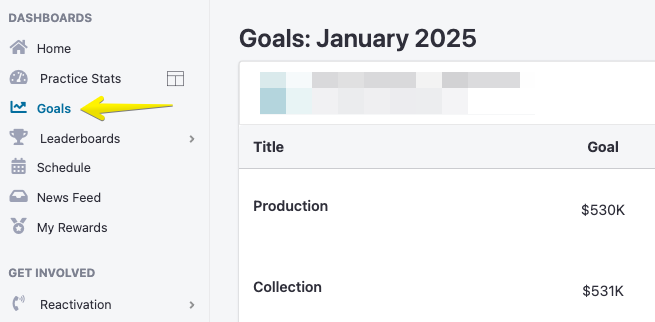
Navigate to Goals in the left sidebar.
Find the goal you want to edit.
Click the three-dot icon next to the goal.
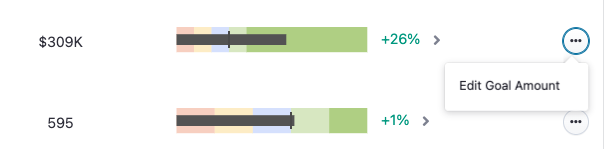
Enter the new goal value and press Submit.
The updated goal will immediately reflect across all relevant goal charts for that month.
Customizing Working Days
Click the 3 dots in the top right corner of the Goals page and click "Edit Days"
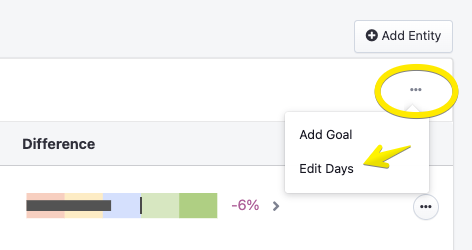
Adjust the working days to ensure the practice’s goals align with its operational schedule.
How to Add Goals for Individual Providers
You can set specific goals for each provider in your practice through the Goals dashboard. Here's how to add provider-specific goals:
Navigate to the Goals section in your dashboard
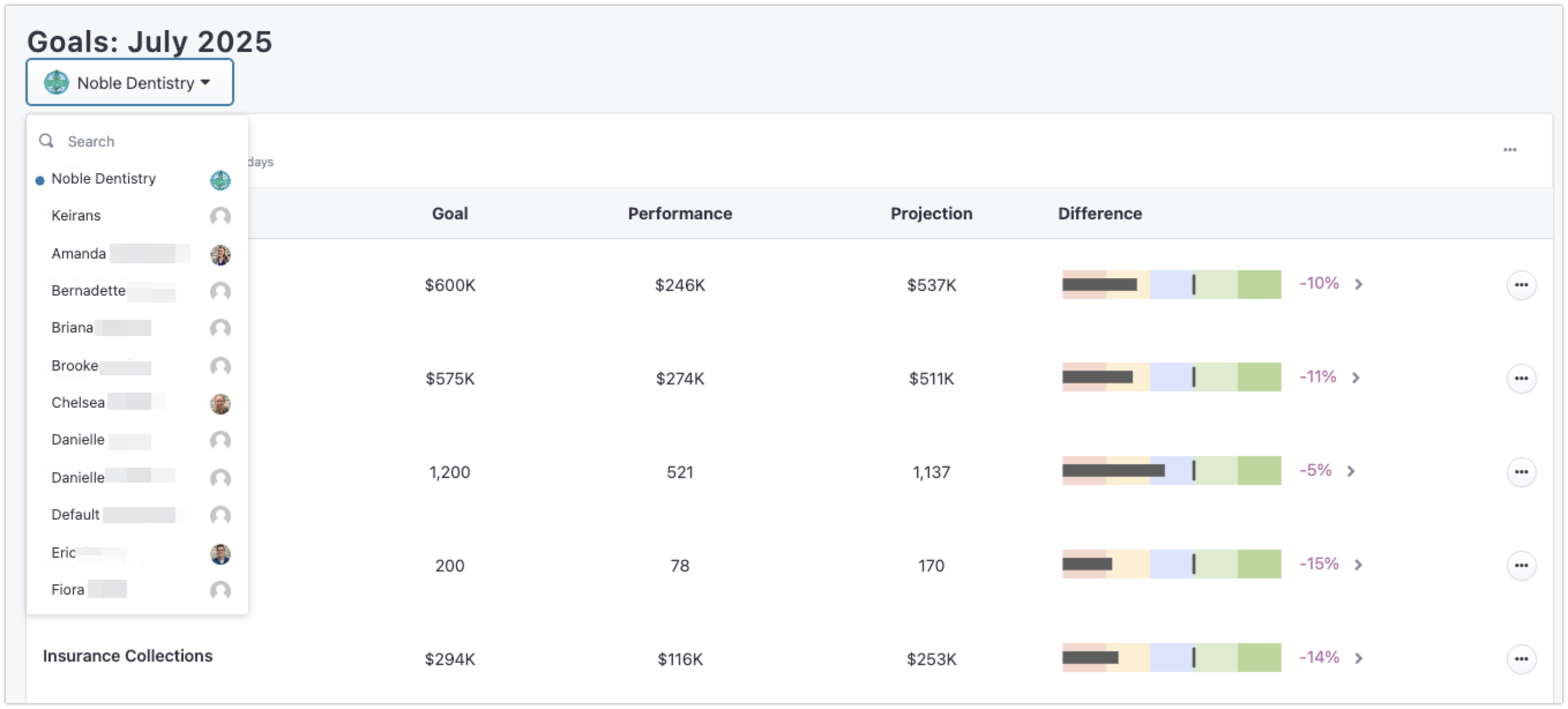
Click the picker at the top left and scroll down to find the specific provider
Once chosen, click the 3 dot menu on the top right and click "Add Goal"
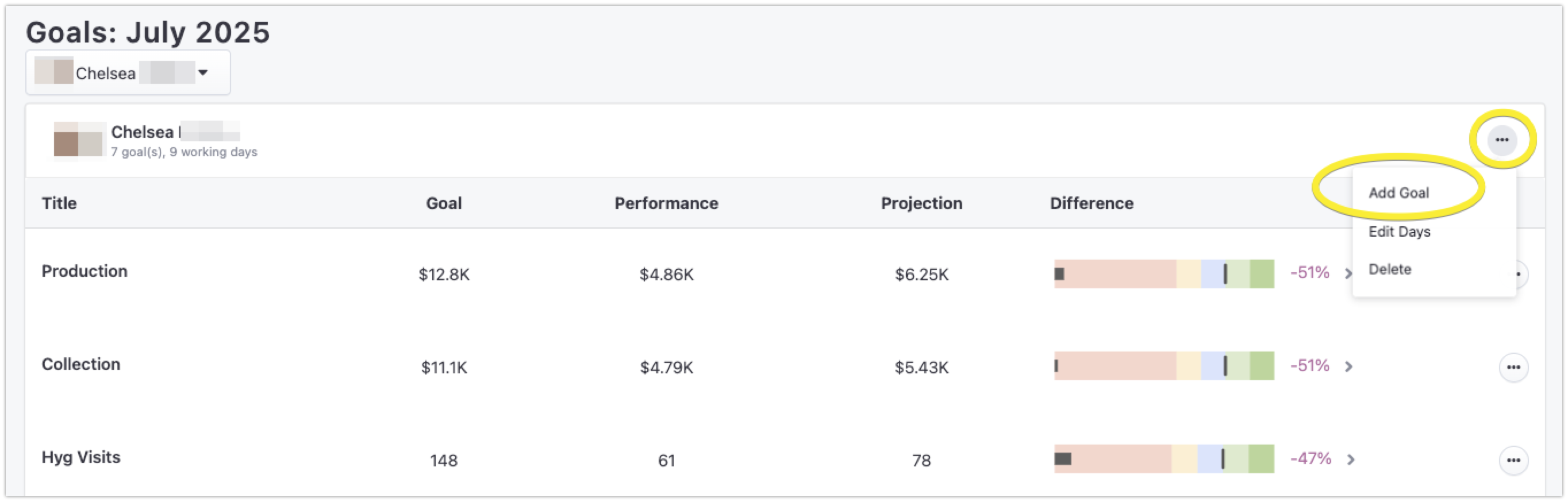
Some common goals are automatically added by the system for each provider. You
✅ Tip: Only authorized users (typically owners or managers) can update goals.
Adding New Goals
You can add additional operational metrics—like hygiene reactivation calls or preappointments—to track broader performance areas.
To Create a New Goal:
Go to the Goals Dashboard.
Click the three-dot menu in the top right corner (underneath “+Add Entity”).
Choose the desired metric (e.g., hygiene reactivation calls).
Scroll down to locate the new goal.
Click Edit, define your Goal Value (e.g., 50 calls per day), and click Submit.
Using Office Goals and Incentives
TeamCare’s Incentives feature helps motivate staff and reward performance automatically.
With Incentives, you can:
Track monthly goals for key KPIs (e.g., production, new patients)
Automatically reward staff when goals are met
Layer bonuses for exceeding targets
To Set Up Office Goals and Incentives:
Go to Management → Incentives in your sidebar.
Click +New Incentive under Goals.
Choose a Goal and an Incentive Type.
Select which staff members are included and define payout details.
Once goals are met, TeamCare automatically distributes bonuses to the appropriate team members.
🎯 Pro Tip: Add additional incentives to encourage “above-and-beyond” performance.