How to update your business hours
Last updated: September 7, 2026
This is a step by step guide on how to update your business hours on Team Care
Select Settings. From your home page, click Settings in the top right. Navigate to the "Hours" section, located under the Map

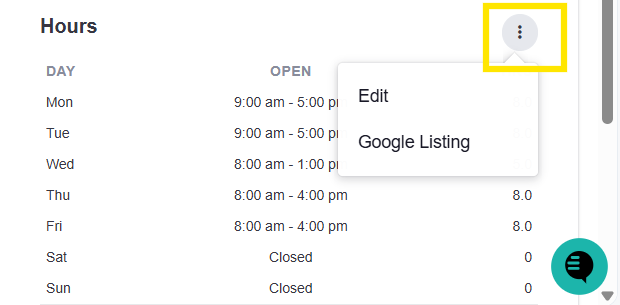
Find the Hours section. In the Profile section, scroll right until you see Hours, then click the three dots next to it.
Set each day of the week. Each day has an Open at column and a Closed at column. If closed that day Select "Closed" and if open enter the times you open and close.
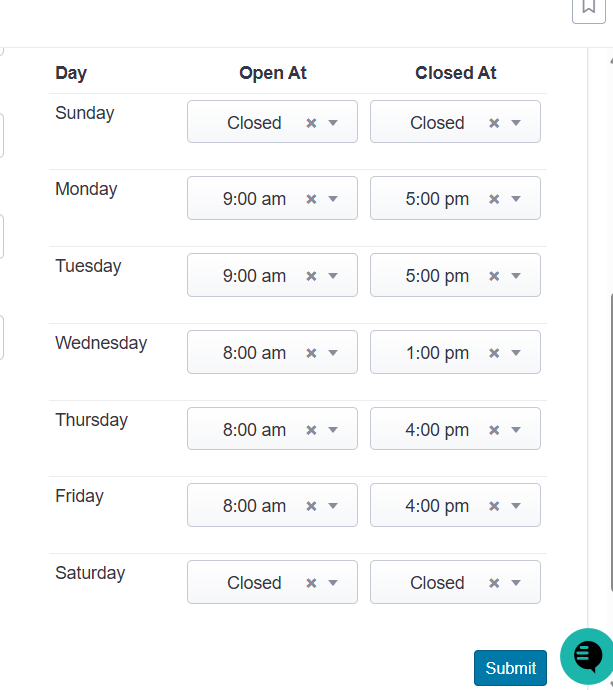
4. Repeat for every day of the week.
5. Click Submit. At the bottom of the page, click Submit.
6. Click Update business hours. At the top of the page, click Update business hours.