How To Access TeamCare Email Daily Reports
Last updated: June 2, 2026
TeamCare sends automated daily emails with your key metrics — hygiene, financials, patient data, and treatment plans. You can also access and resend these reports at any time directly from the dashboard, and filter them by a specific date.
Step 1: Navigate to the Analytics page
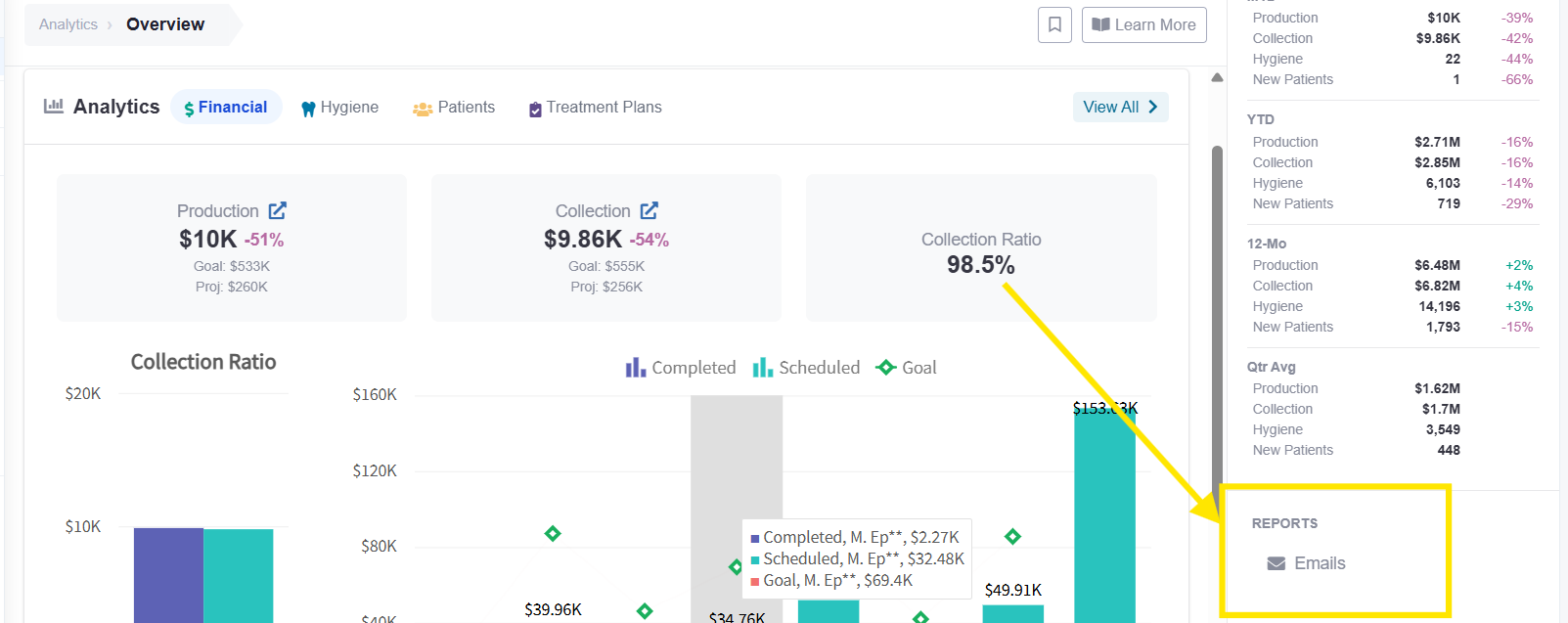
From your main dashboard, click on Analytics in the left-hand navigation menu and select Overview from the available options. This will open a summary of all your key metrics.
Step 2: Open the Reports email panel
On the right-hand side of the Overview page, locate the Reports section. Click on Emails to open the email report panel.
Step 3: Select your report type
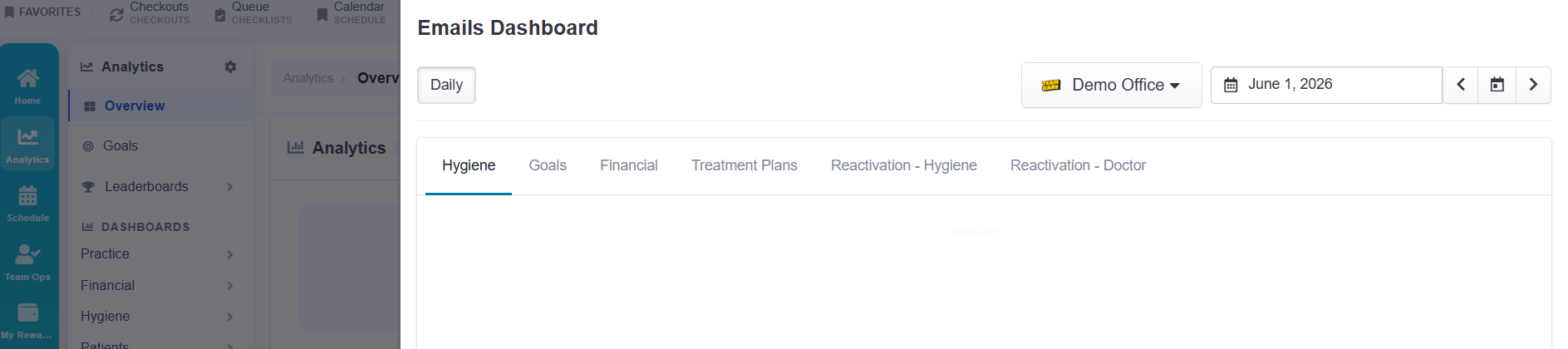
From the panel, choose which type of report you want to access. You can choose from the following:
Hygiene — hygiene appointment and production metrics
Financial — revenue, collections,
Patients — patient activity and new patient stats
Treatment plans — case acceptance and outstanding treatment
Step 4: Filter by date
Use the date selector to choose the specific day you want to pull the report for. This is useful if you want to review metrics from a previous date rather than the current day.
Step 6: View or email the report
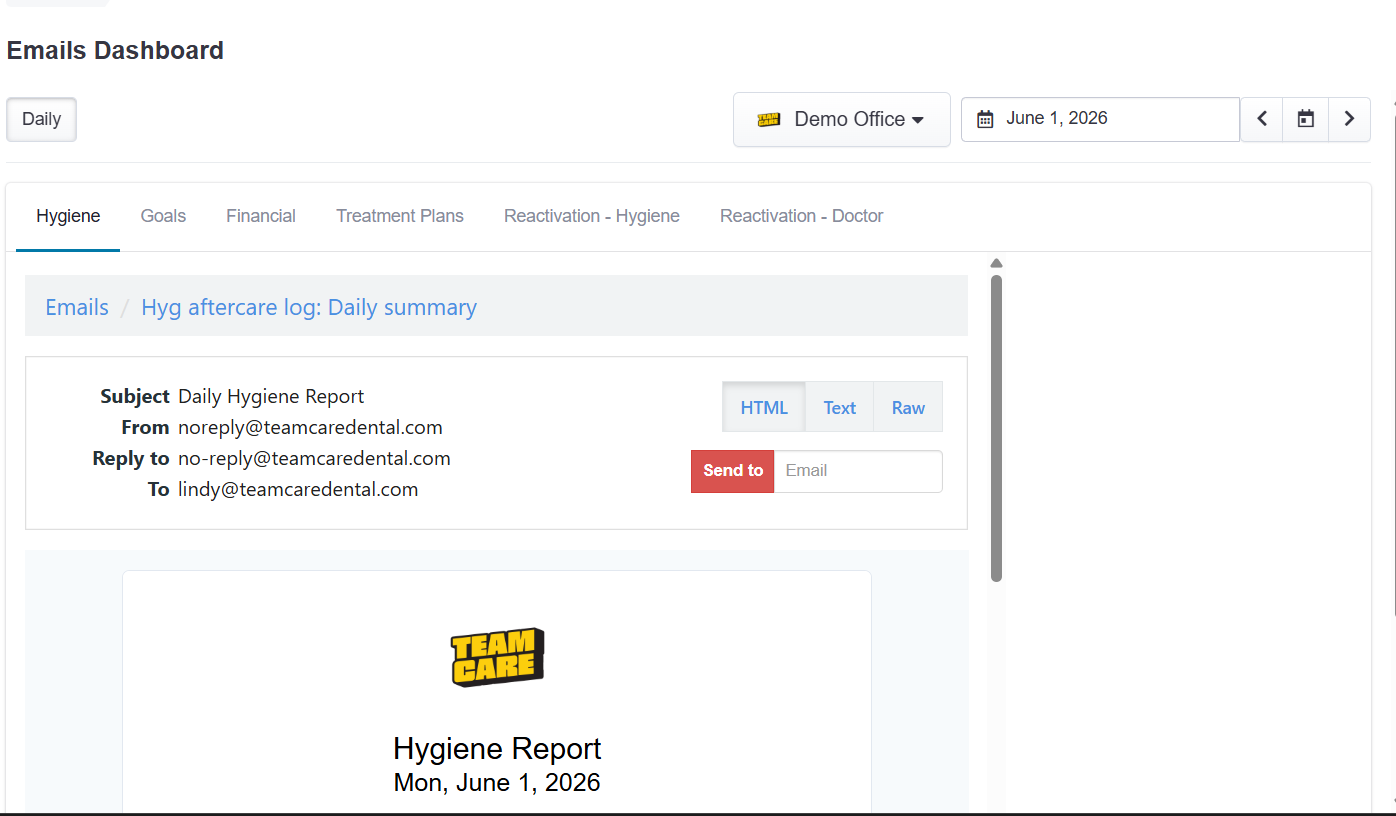
Once your report type and date are selected, TeamCare will generate the report. You have two options for how to access it:
View in browser — the report renders as an HTML page you can read immediately.
Email to yourself — use the Send to email option to have the report delivered to your inbox.
Tip: Your daily reports are also emailed to you automatically each morning. The steps above let you re-access or resend any report for any past date without waiting for the scheduled email.