How to Use Hygiene Reactivation
Last updated: February 26, 2026
The Reactivation Tool helps your team re-engage inactive patients through an automated, centralized system that updates in real time.
How It Works
Dynamic Reactivation List
The Reactivation Tool automatically generates a list of patients who need outreach.
A patient appears on the list if:
They have not had a hygiene appointment in the last 6 months.
A previous follow-up call is due.
When a call is logged:
The patient is removed from the list across all workstations.
Notes and outcomes are saved for future reference.
Making Reactivation Calls
Accessing the List
Reactivation → Hygiene
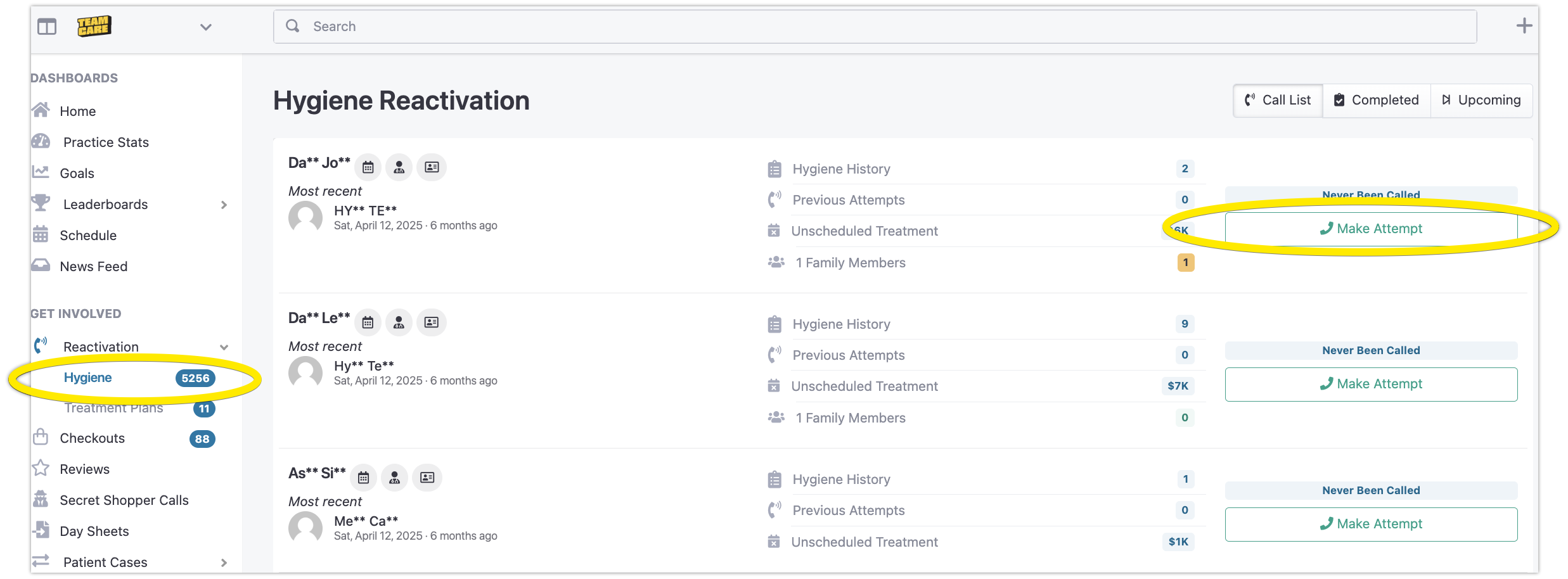
Click the green “Make Attempt” button.
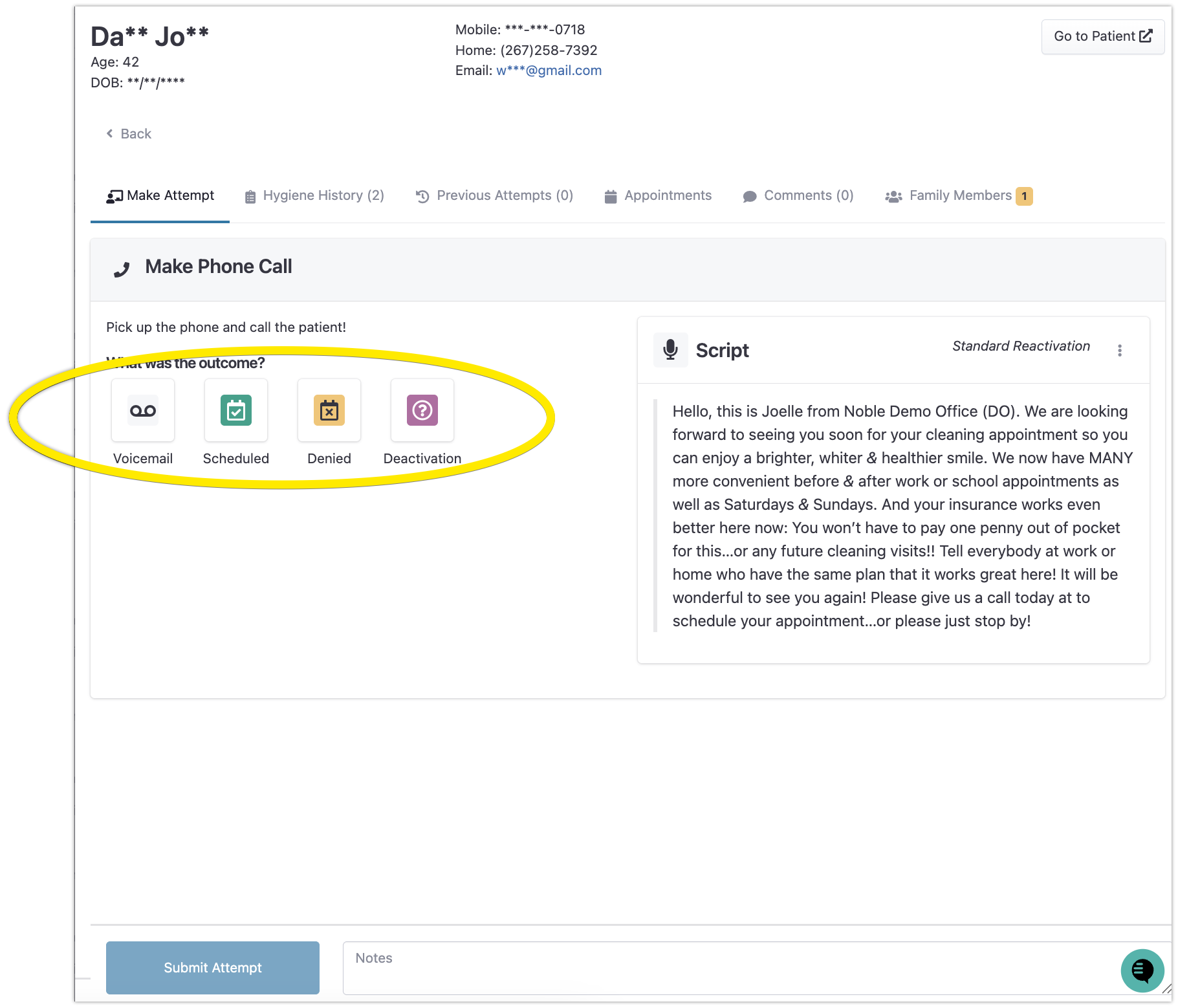
Review the provided call script before dialing.
Complete the Call Form after each attempt.
Completing the Call Form
Record the following:
Call Result (e.g., voicemail left, appointment scheduled, patient declined).
Call Back Date (if a follow-up is needed).
Notes (reason for outcome or additional context).
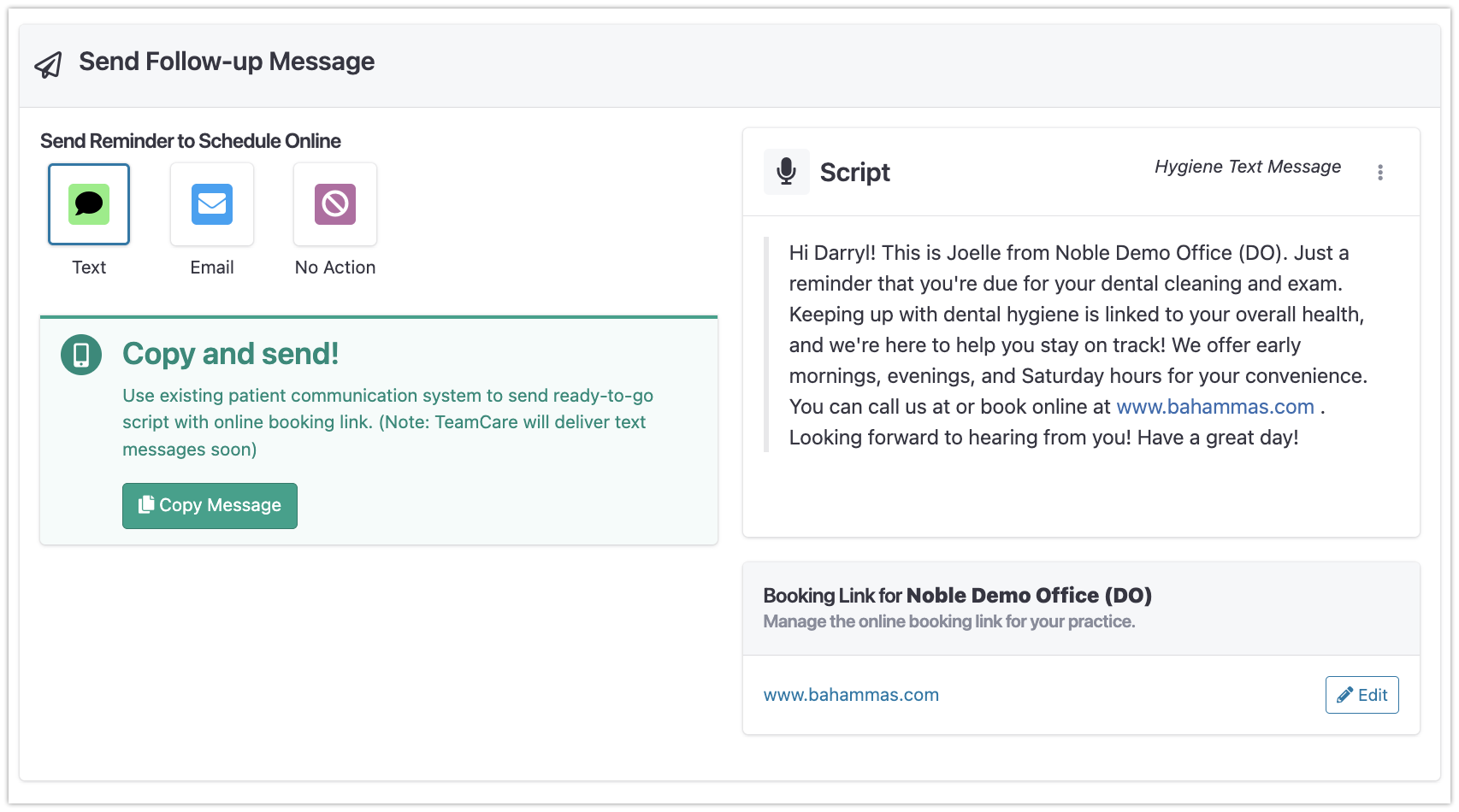
Once the form is submitted:
The patient is removed from all reactivation lists.
The staff member receives automatic credit for the call.
Viewing Past Activity
To view previous calls and notes:
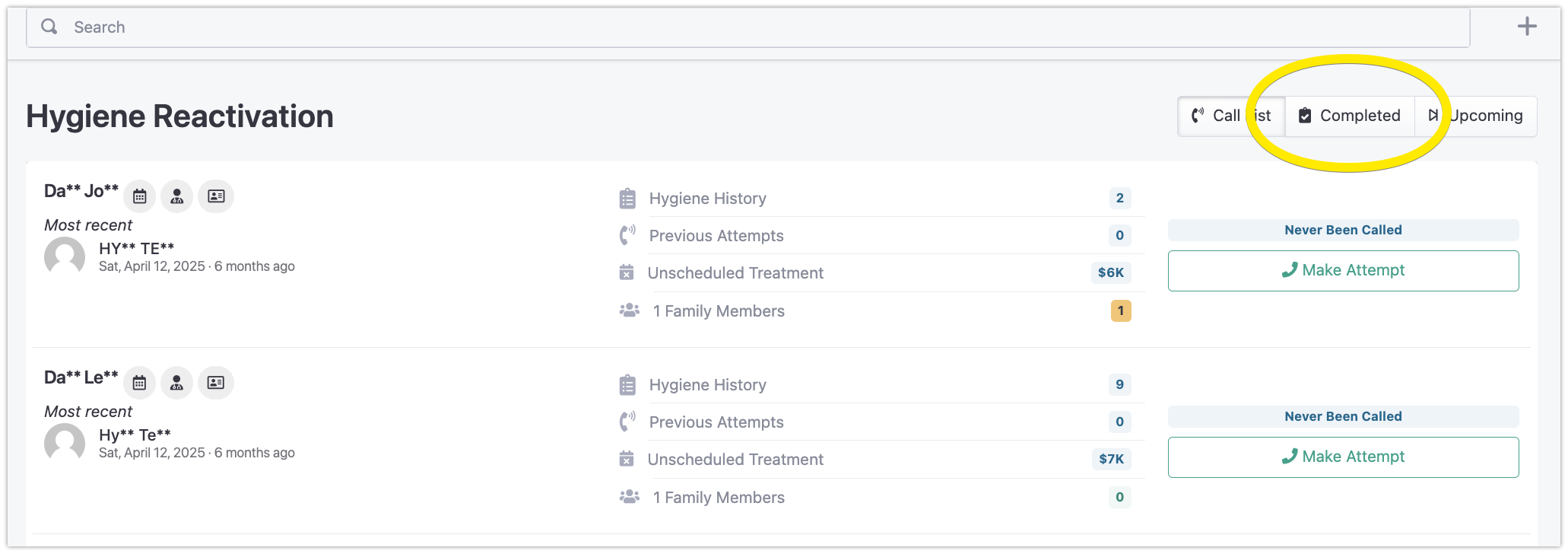
Go to the Hygiene Reactivation page.
Click Completed in the top-right corner.
This displays all past outreach activity and notes for each patient.
Managing “Do Not Call” Patients
Refer to this specific article:
📄 How do I deactivate or mark a patient as "do not call"?
Tracking Performance
Metrics
Reactivation performance is automatically tracked in:
Leaderboards → Reactivation (individual performance)
Dashboard → Hygiene → Reactivation Calls (overall progress)
Metrics include:
Number of calls made
Appointments scheduled
Voicemails left
Declined attempts
Patients marked inactive
Incentives
Managers can create incentive programs based on leaderboard results to encourage consistent outreach.
Patient Status Categories
Scheduled: Appointment booked during a reactivation call.
Upcoming: Patient has any future appointment (including reactivated ones).
Attended: Patient completed their appointment.
All “Scheduled” patients also appear in “Upcoming.”
Setting Up the Reactivation Tool
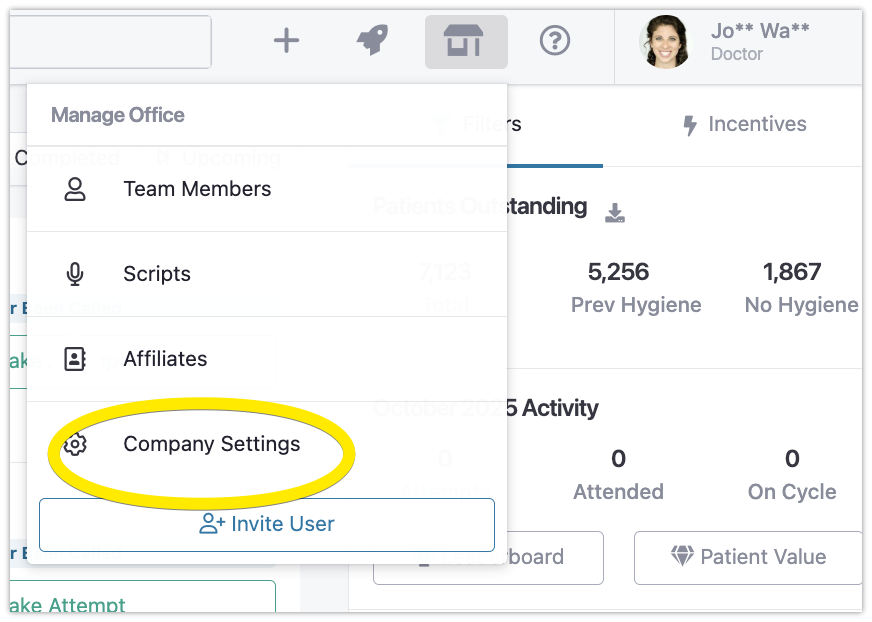
Before starting, configure the following settings.
Company Settings → Reactivation
Settings to Review
Outreach: Default follow-up preferences.
Hygiene: Default reactivation rules and follow-up timeframes.
Scripts: Edit or create call, text, and email scripts.
Online Booking: Customize details for email follow-ups.
Doctor: Adjust participation settings and messaging.
Editing Call Scripts
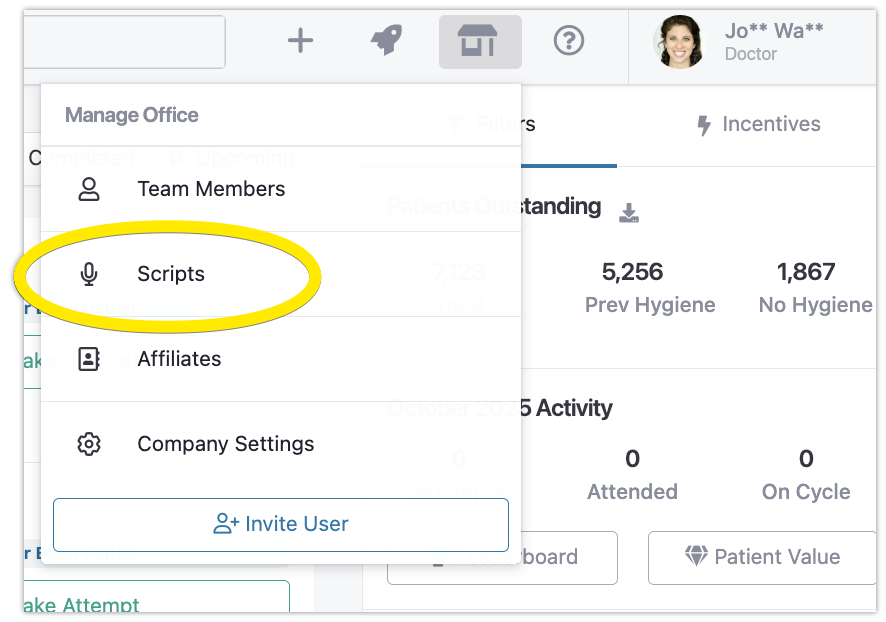
Click Office Icon → Scripts.
Select an existing script or create a new one.
Update content as needed for clarity and tone.
Tool Limitations
The Reactivation Tool does not:
Connect directly to the phone system.
Record calls.
Automatically place calls.
Automatically send text messages