Reactivating Family Members
Last updated: February 17, 2026
When reaching out to a patient for their hygiene recall, you may discover that other members of their household are also due for a visit. TeamCare makes it easy to identify these opportunities and record attempts for the entire family in one workflow.
1. Identify Family Opportunities
On the Hygiene Reactivation list, each patient card displays a "Family Members" section.
Look for the orange badge next to the family icon.
The number inside the badge indicates how many family members are currently eligible for hygiene recall.
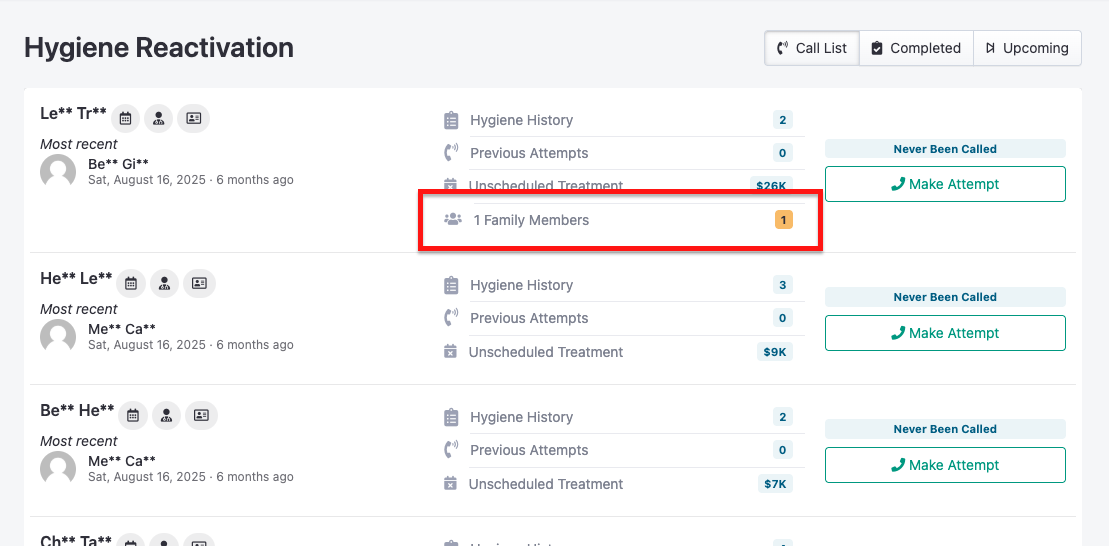
2. Access Family Details
To view which specific family members need an appointment:
Click the Family Members row on the main patient card.
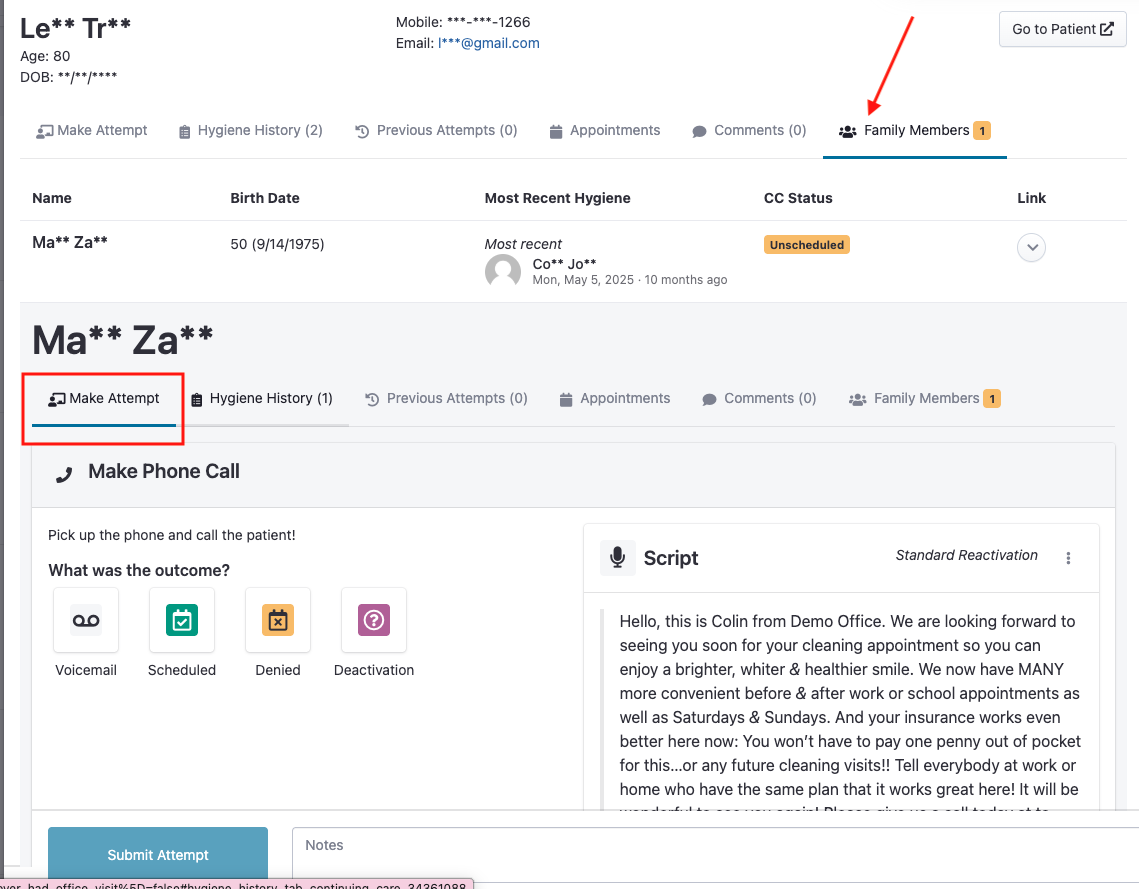
This will open the patient’s detailed view with the Family Members tab automatically selected.
3. Review History & Make an Attempt
Once the tab is open, you will see a list of eligible family members including their:
Most Recent Hygiene: Date and provider of their last cleaning.
CC Status: Their current continuing care status (e.g., Unscheduled).
To record a call for a family member:
Select the family member from the list.
Click the Make Attempt button (located on the left side of the sub-menu).
Select the outcome of the call (Voicemail, Scheduled, Denied, or Deactivation) and add any relevant notes.
Click Submit Attempt.
💡 Pro Tip: Use this tab while you have a parent or spouse on the phone to "bundle" appointments. It saves the office time and is a great convenience for the patient!