How do I deactivate or mark a patient as "do not call"?
Last updated: February 26, 2026
When you need to remove a patient from receiving reactivation calls (e.g., if they move away, leave the practice, or request no further calls), you can mark them as "do not call" through the Reactivation Tool.
Marking a Patient as Do Not Call
Open the Reactivation Tool
During a Reactivation Attempt, click the "deactivate" result option
Add a required note explaining the reason for deactivation
Note: Deactivating a patient in TeamCare's Reactivation Tool only removes them from reactivation calls - it does not deactivate them as a patient in your Practice Management System (PMS).
Setting Up Notifications
Practice managers can receive notifications when patients are marked as inactive. Contact your account representative to configure these notification settings.
Managing Deactivation Status
To modify a patient's deactivation status:
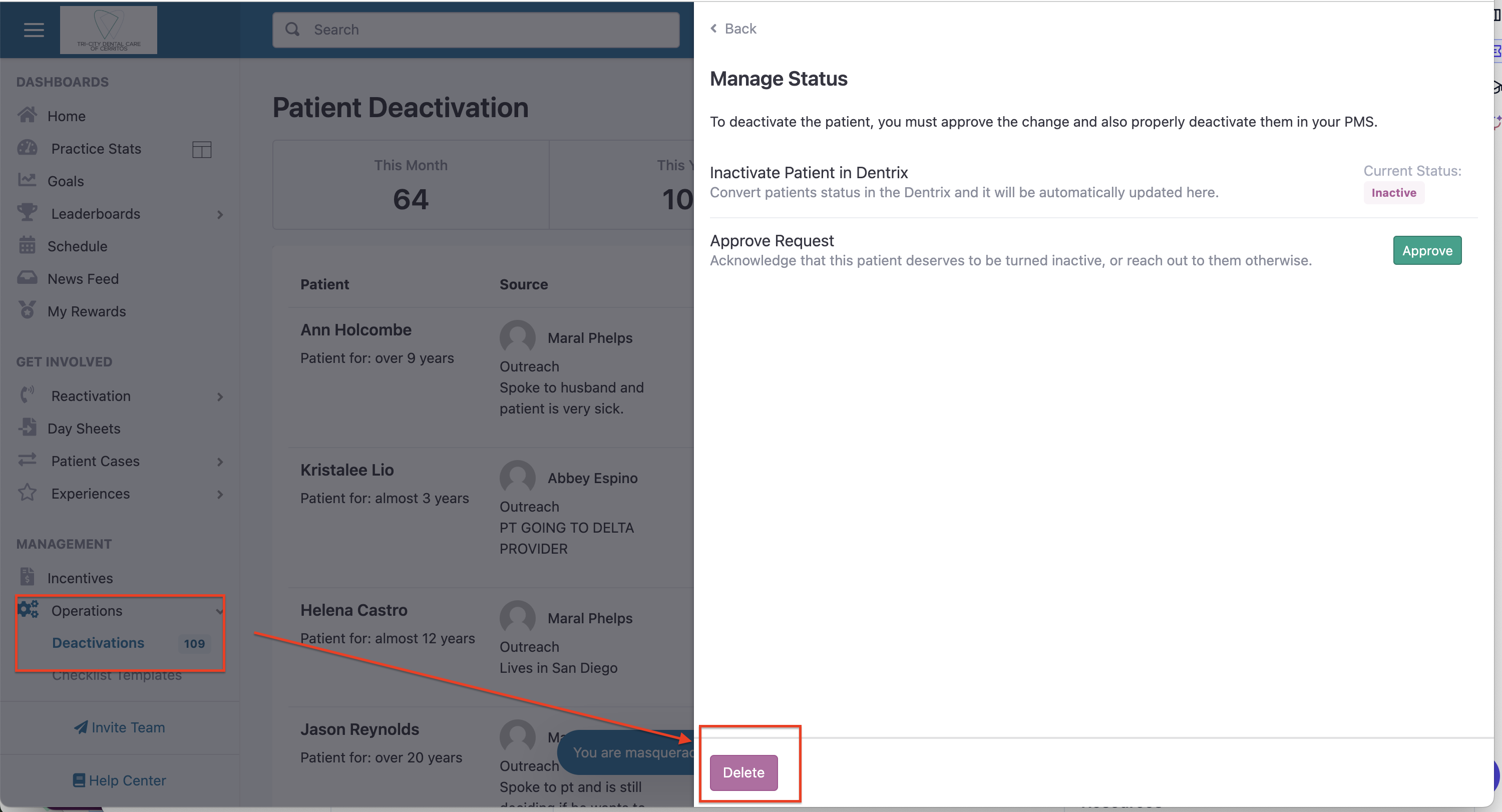
Navigate to the Patient Deactivations section
Locate the patient in the list
Use the "Delete" button to remove their deactivated status
Automatic Status Updates
Patient deactivation status is also automatically updated when:
A deactivated patient schedules a new hygiene or exam appointment
The patient appears in the upcoming appointments list
The reactivation leaderboard includes an "upcoming" column that shows patients scheduled for future appointments, making it easier to track reactivation success.