How to Set up Scheduler
Last updated: August 20, 2026
The Scheduler will fill your book while you are out!
1. Activate the Scheduler Subscription
Log in to TeamCare.
Go to Settings on the top right side
Click Subscriptions on the left panel.
Find Scheduler and click Activate.
Enter payment info to finish activation.
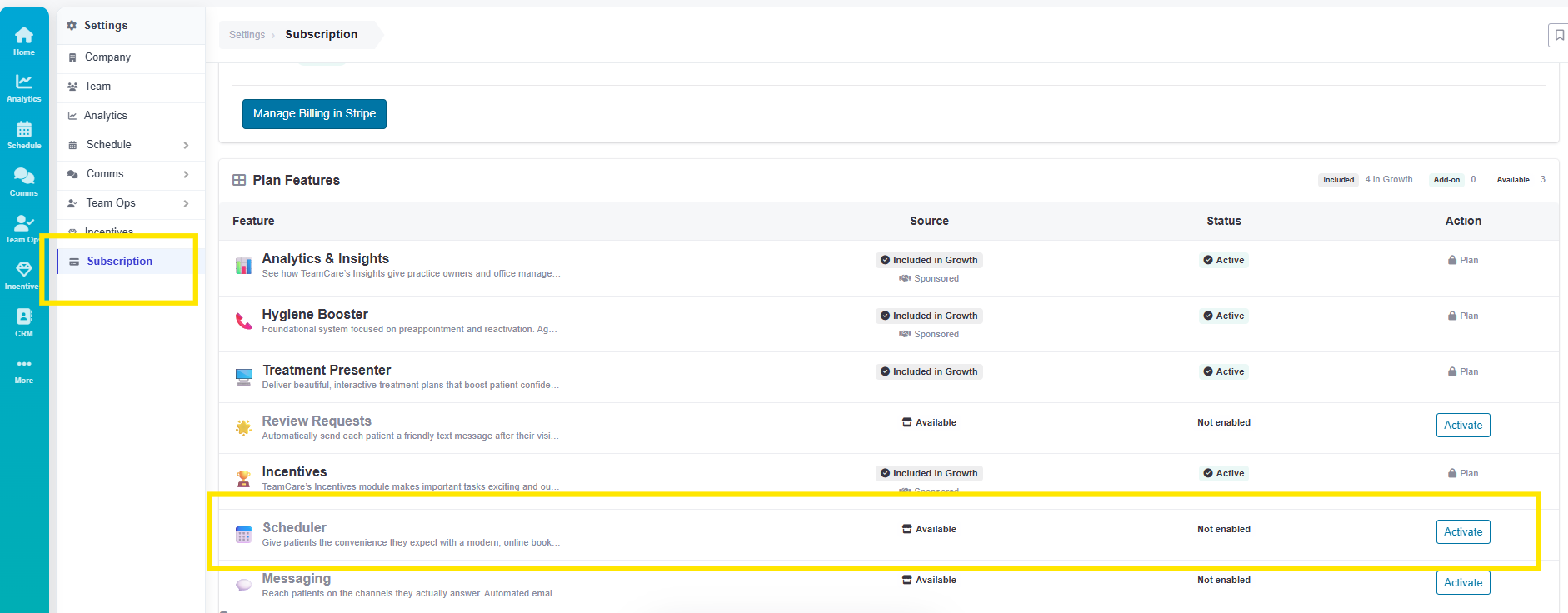
Pro tip: Some scheduler configuration options won't appear until the subscription is fully activated.
Define Your Appointment Types
Decide which services are available for online booking (e.g., New Patient Exam, Emergency, Cleaning, Consultations).
Navigate to the Scheduler
Go to the bottom Admin and then Online Scheduler, workflow
You'll see default appointment types preloaded: Cleaning, Emergency, Consultation, New Patient.
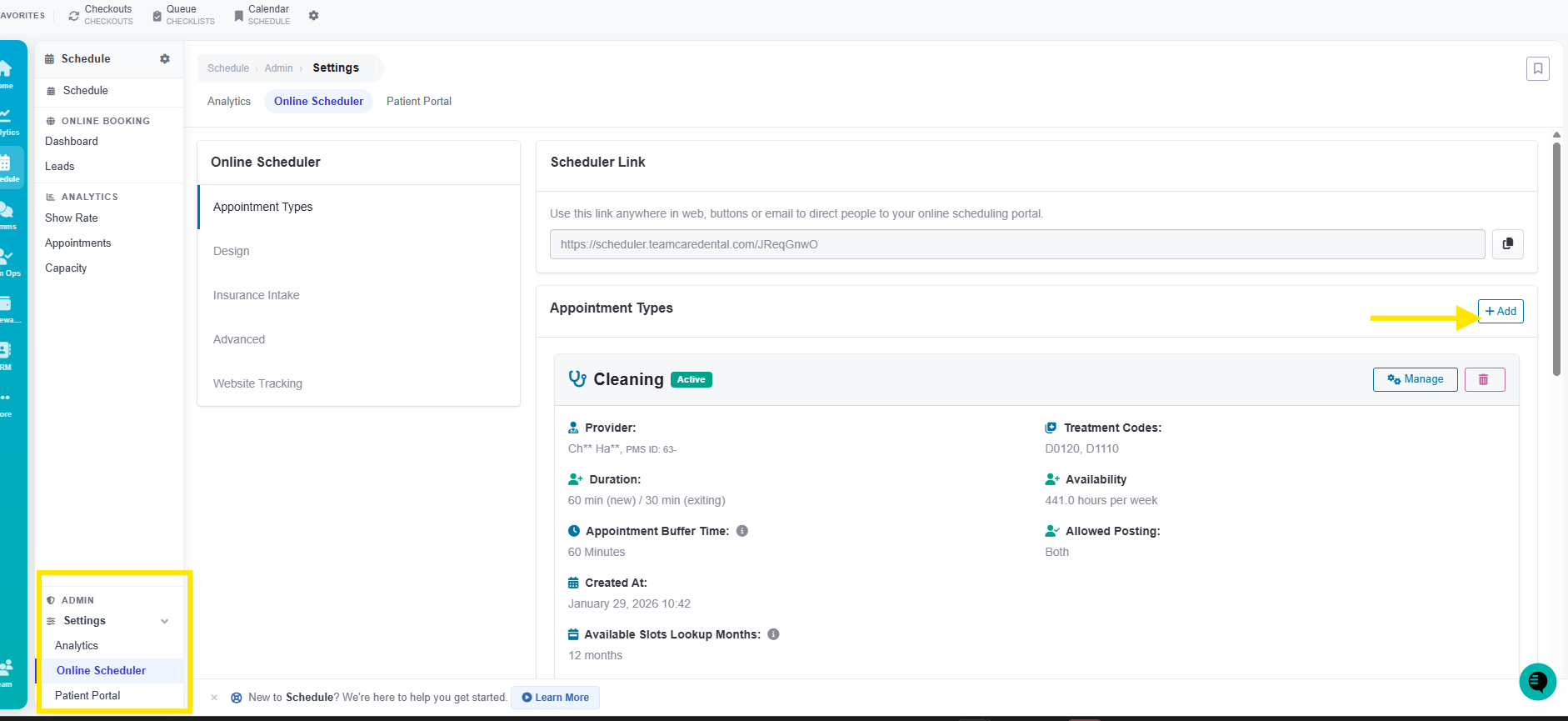
You can set custom durations and "buffer" times for each to ensure your clinical team never feels rushed. The Add button on the upper right will walk you through any appointment type you would like.
Sync Your Providers & Operatories
Map your TeamCare Scheduler to specific chairs and providers. This ensures that a "New Patient" link. Allowing the correct amount of time and provider and operatory needed.
Go to the gear that is marked Manage- next to every appointment type and open it. this will allow you to start linking to your PMS schedule.
This will include appointment type, provider and codes. Every column in your PMS will be visible.
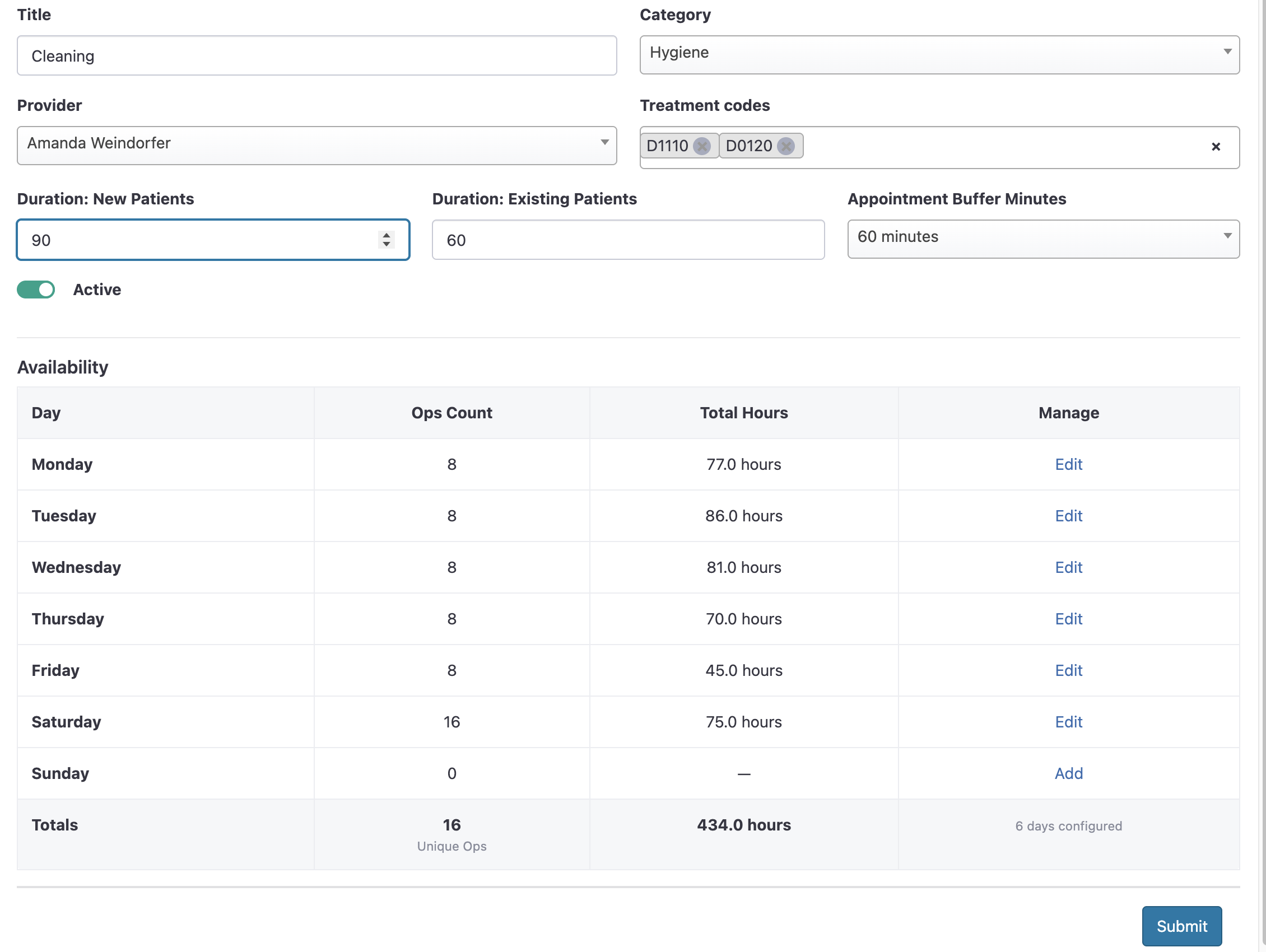
Manage Each Day's Permitted Booking Zones
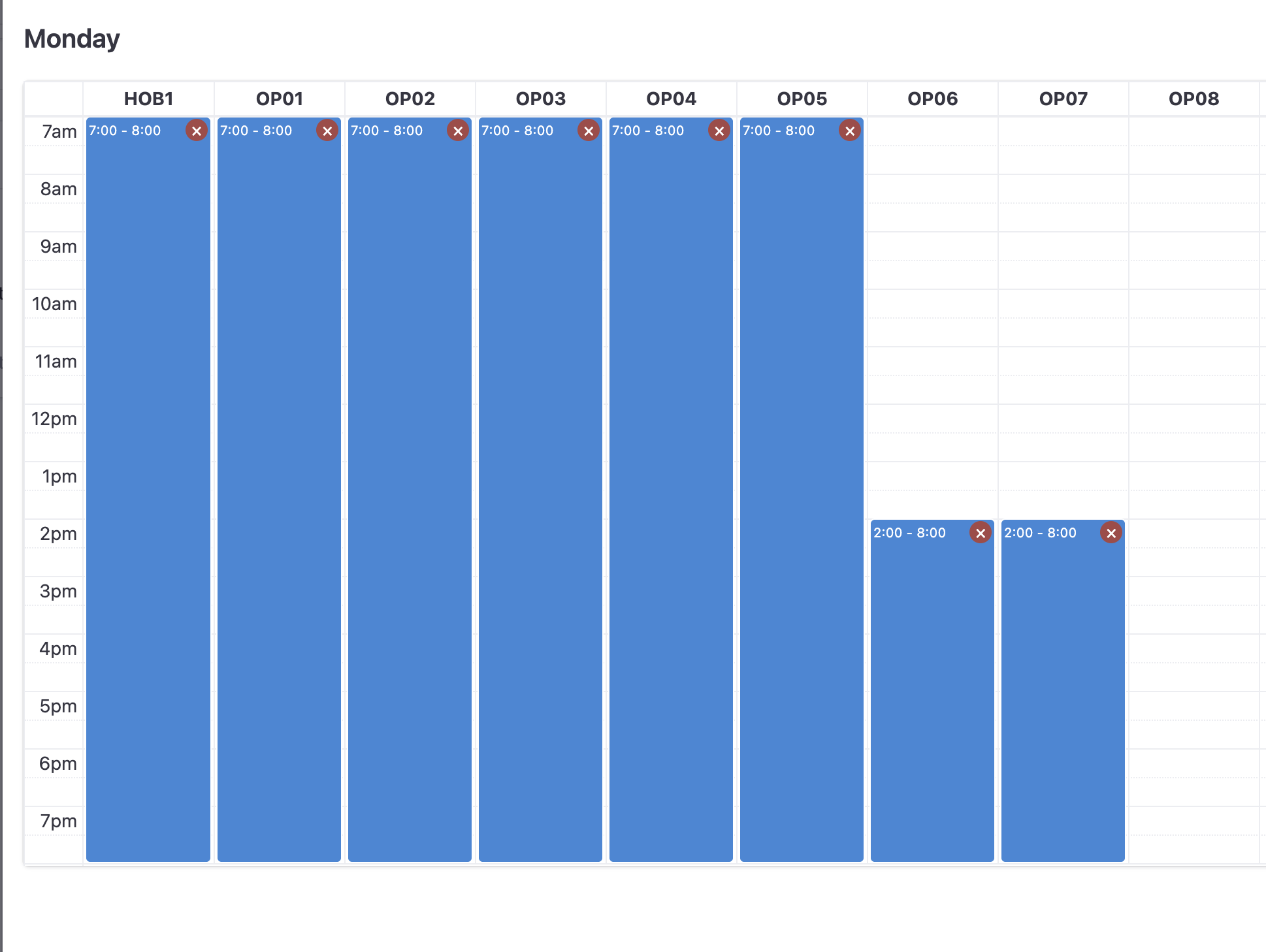
The first step is to align TeamCare columns with your schedule on your PMS. Just drag and drop the columns so they are labelled the same in both. The columns in your PMS must be open to allow scheduling into them. Check Check and double check.
Second, By clicking on the "edit" button respective to each day, you can click & drag the zones to which will be permitted for online scheduling. These zones will represent total capacity, and availabilities will be determined by openings inside the blocks.
Set Your Rules & Logic
Lead Time:
Scheduling Window: Decide how far in advance a patient can book.
Blackout Dates: Automatically respects your practice management software’s holiday and closure settings. We will read your PMS for any close out dates.
Copy link and put into a new browser

Generate Your Links
Once configured, TeamCare generates unique URLs. You can have one "Master Link" for everything, or specific links for specific campaigns (like a "Back to School Cleaning" link).
Pro Tip: Embed your scheduler link directly into your "Book Now" buttons on your website and Google Business Profile for maximum conversion.
We suggest you allow a 12 month booking
Use our campaigns for texting for confirmations and hyg. reacitivation.