How to Add and Present Treatment Plans
Last updated: August 9, 2026
Effective treatment tracking is a challenge many dental practices face, especially when ensuring that treatment plans align with patients’ needs, insurance coverage, and financial capacity. Traditional practice management systems (PMS) often lack the tools to manage this process efficiently.
TeamCare's Treatment Presentation feature solves this by letting front desk staff log treatment data right at checkout — giving practice owners and managers a clear, comprehensive view of treatment outcomes and acceptance rates.
Note: Complete the appointment in your practice management software (PMS) before claiming the checkout in TeamCare.
If the patient decides to stay for treatment that same day, or ends up deferring instead of scheduling, those have their own extra steps — see the related articles below.
How to Track Treatment Plans at Checkout
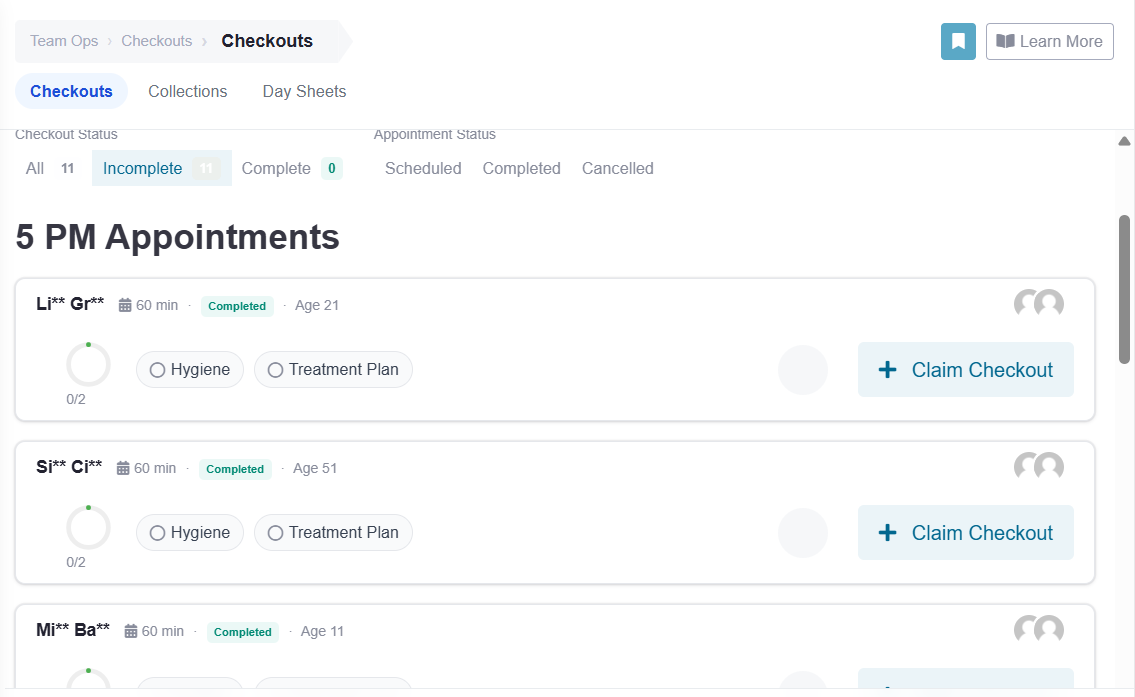
Navigate to the Team Ops: In your TeamCare dashboard, go to the Checkouts tab on the left of your dashboard.
Claim the Checkout: You'll see a list of patients from today so far, click "+Claim Checkout" to begin.
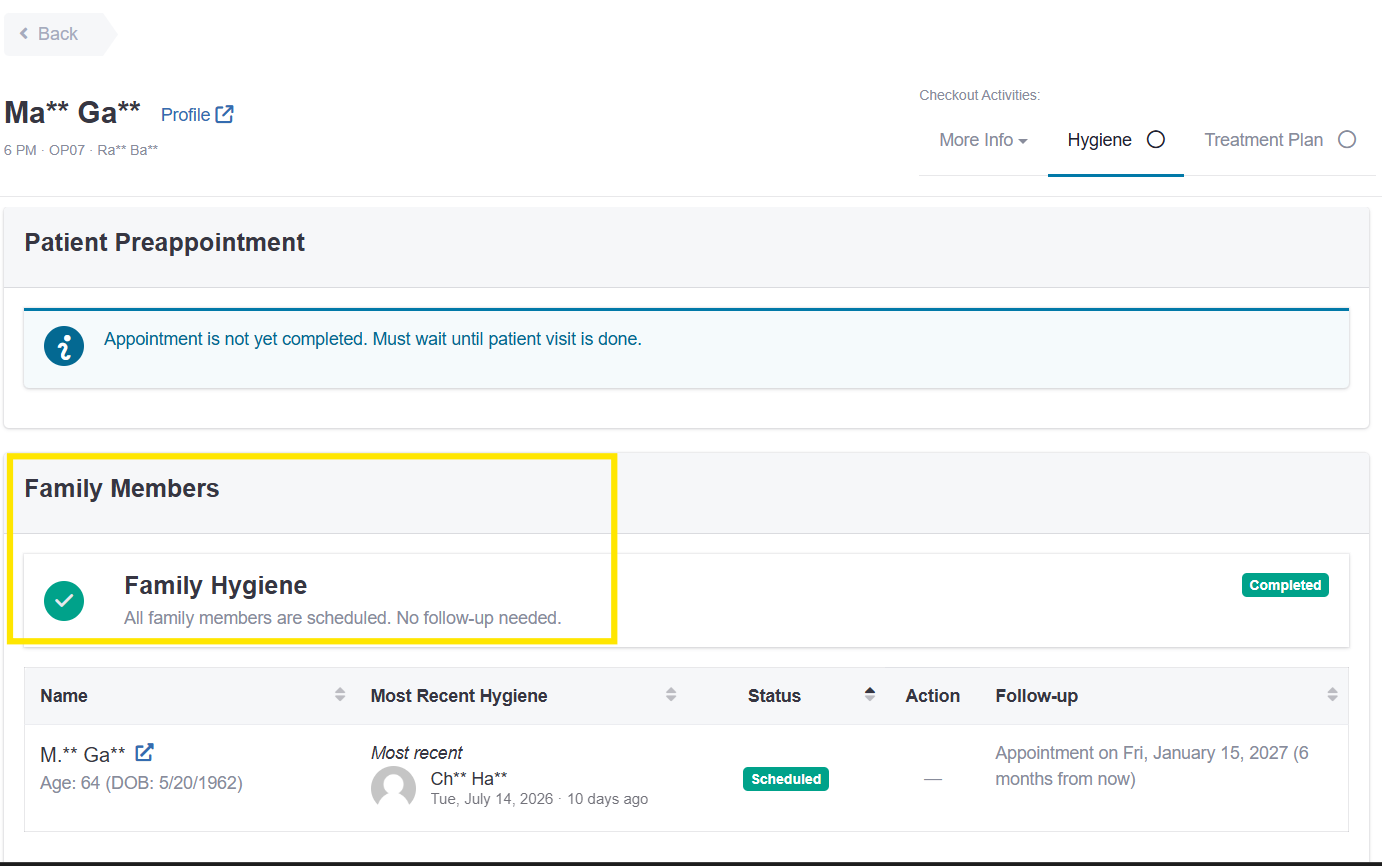
Review pre-appointment and upcoming details. TeamCare will check whether the patient has a future cleaning appointment on the books, and flag any family members due for a cleaning. If there's no future appointment, you'll be asked to enter a reason before continuing.
TeamCare will then automatically route you to the Treatment Planning section.
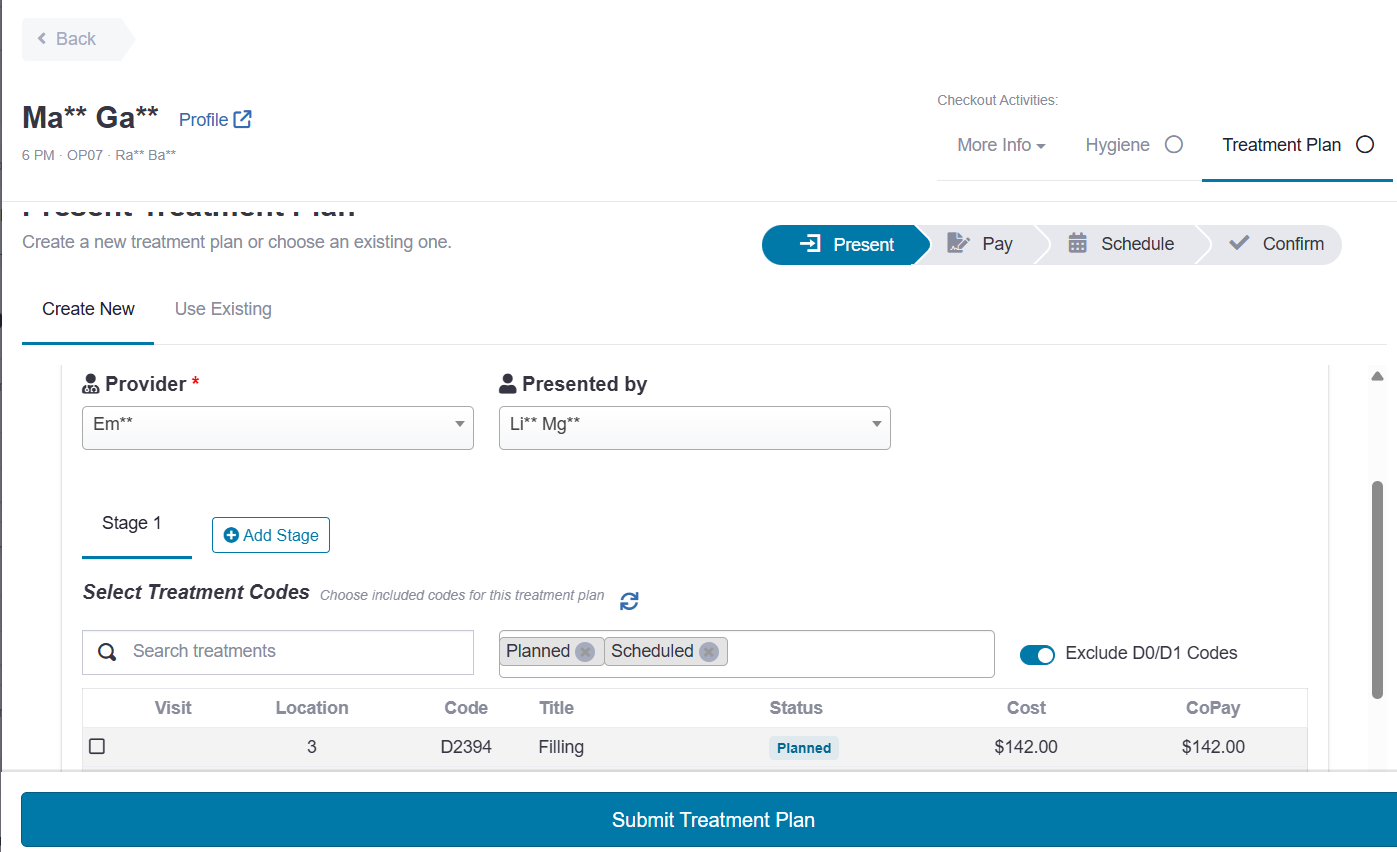
Choose Presented Treatment or Did Not Present. This section defaults to Presented Treatment. If no treatment options were presented, choose Did Not Present instead.
For a presented treatment, fill in:
Provider — auto-fills from the PMS
Presented by — auto-fills from the user doing the checkout
Treatment codes — search for and check the box next to each applicable treatment
Use the Completed status to pull up completed treatments and mark them as such within the plan.
Tip: Make sure all treatments are scheduled in your PMS before syncing with TeamCare. For easier access, consider using two monitors — one for PMS, one for TeamCare.
Review the calculated totals. Once treatments are chosen, TeamCare automatically calculates the total for services, patient responsibility, and estimated insurance payment based on the patient's insurance info on file.
Tip: Make sure all treatments are scheduled in your PMS before syncing with TeamCare. For easier access, consider using two monitors—one for PMS and the other for TeamCare.
Once treatments are chosen, TeamCare will automatically calculate the total for services, patient responsibility and estimated insurance payment based on the insurance information we have on that patient.
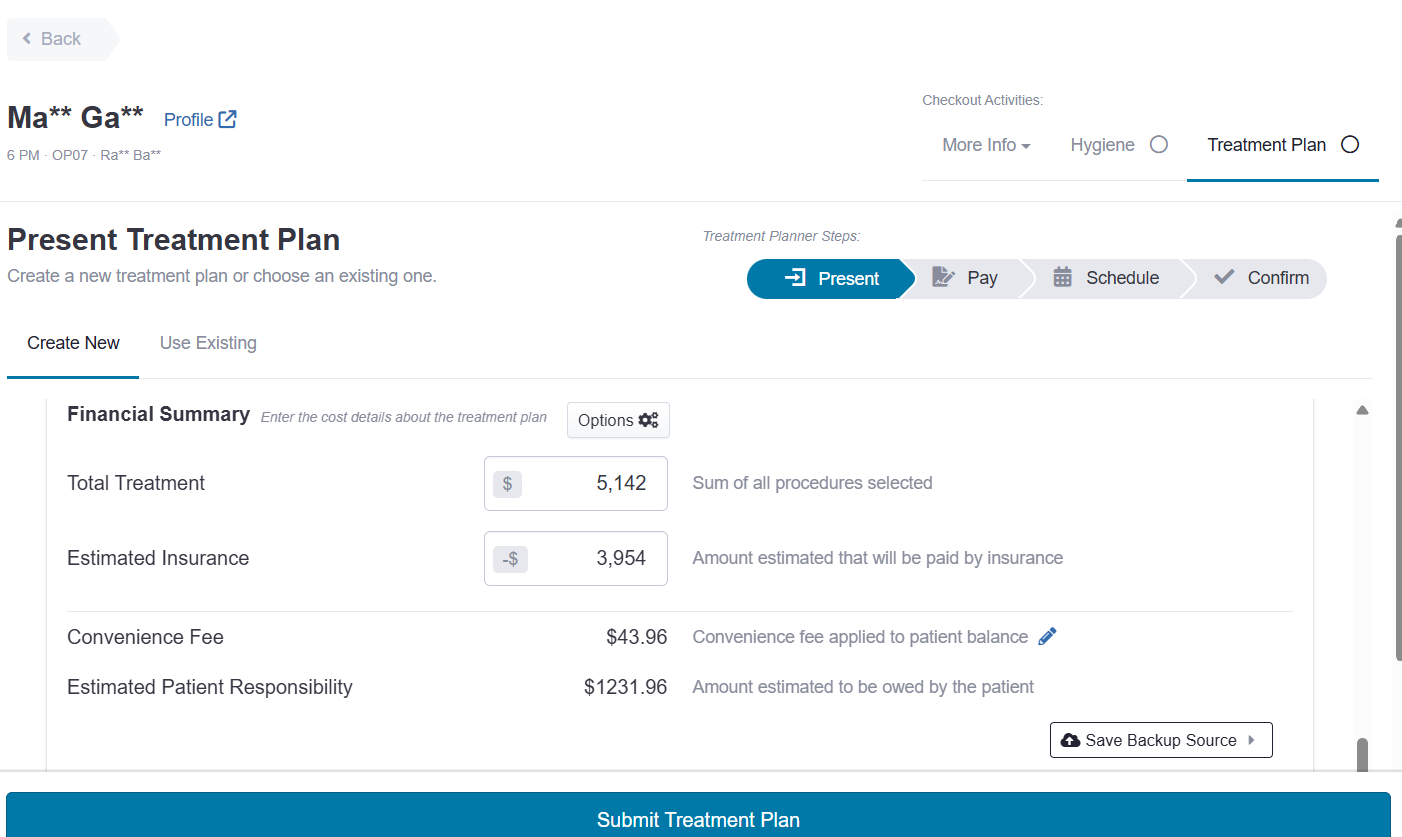
Choose payment options and decide who's responsible for the merchant fee.
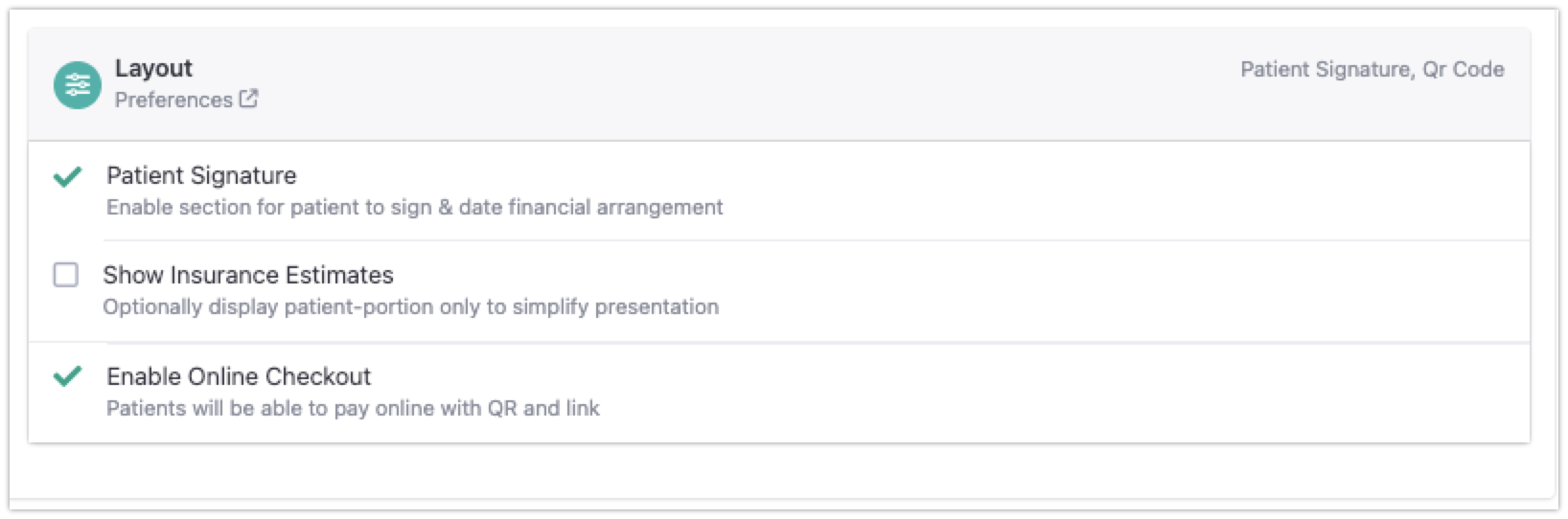
Set the layout options for the treatment plan, including whether to show insurance estimates, then select Submit.
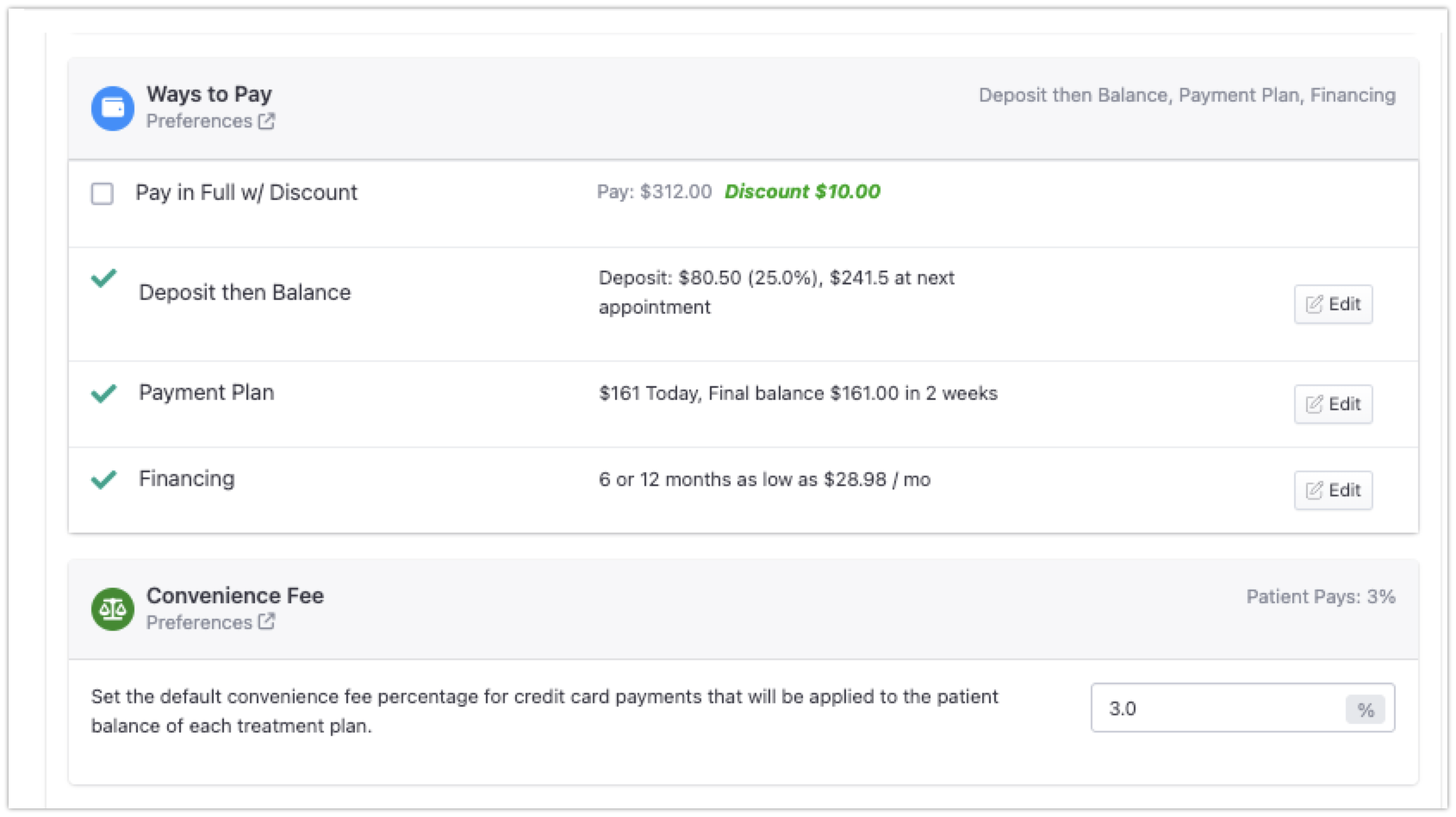
Finally, decide the layout options of your treatment plan, including whether or not you want to show insurance estimates and click submit.
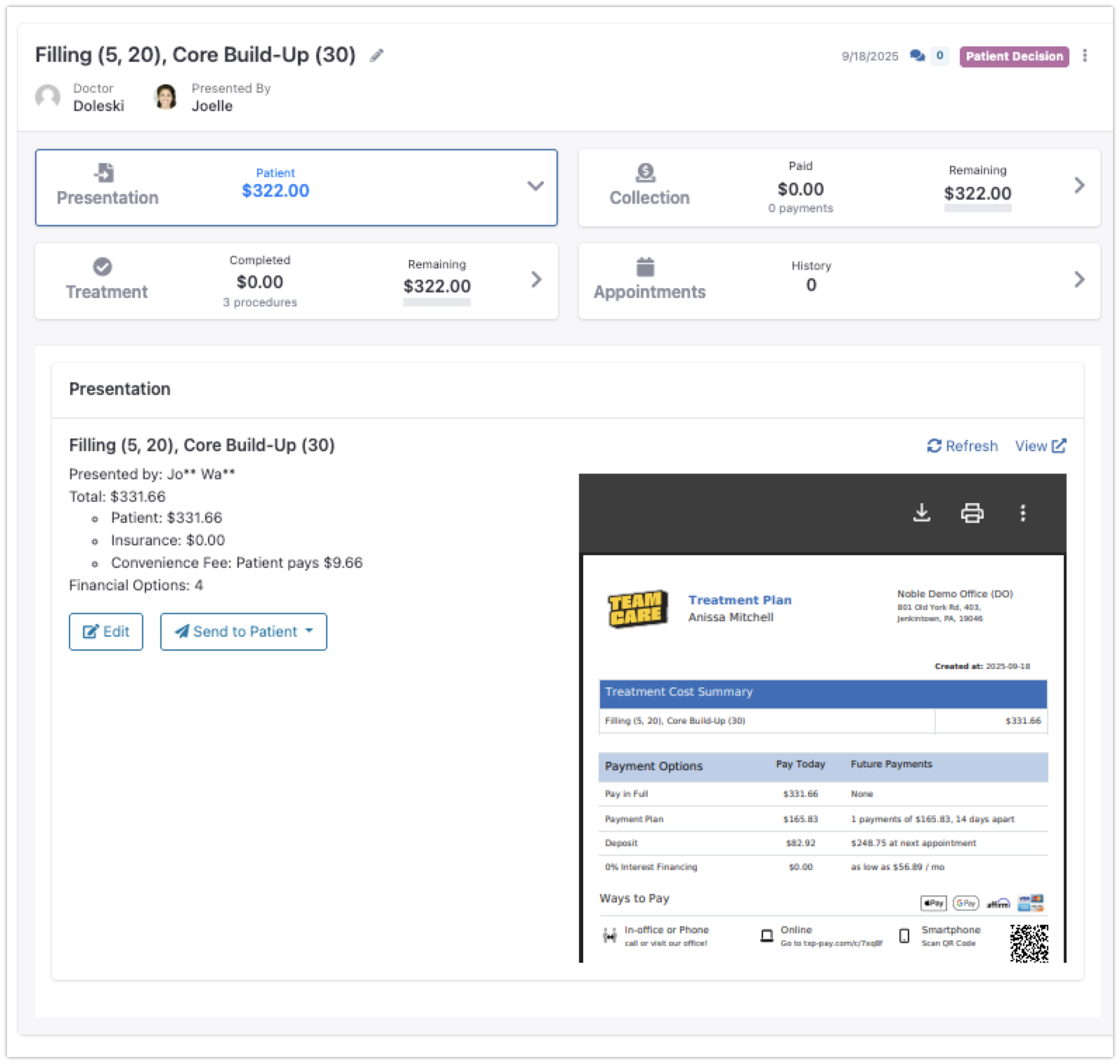
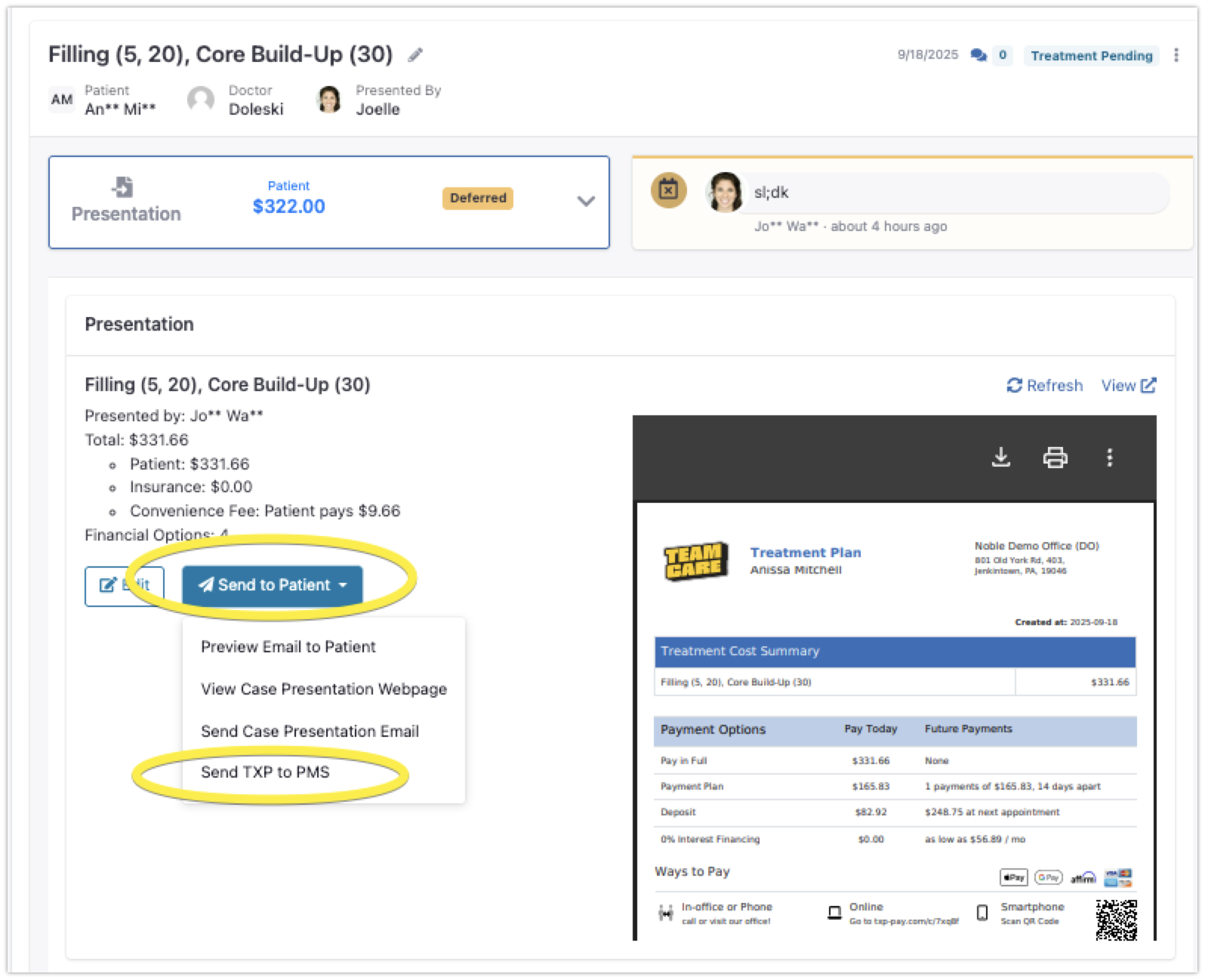
Once you submit, you'll see a confirmation of the information regarding your TXP, a chance to edit, send to patient as well as expand and view a digestible, easy to read version to print or show to your patient right in your office.
Signed treatment plans will write back to your PMS in the imaging center. You can also click "Send to PMS" for the same result.
Click Treatment Plan and search for the patient you are adding a plan for.
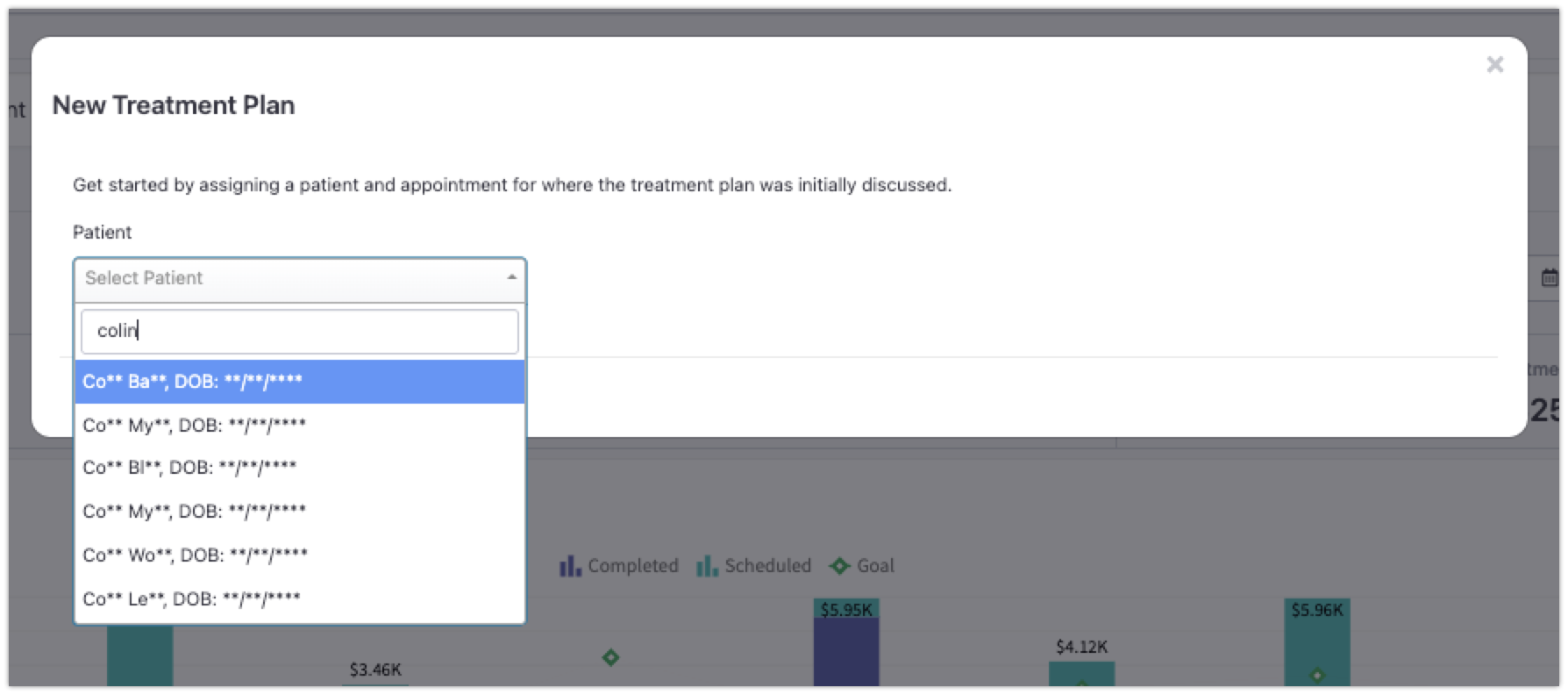
From here, TeamCare will update the latest originating appointment and allow you to add the treatment plan to that patient's record.
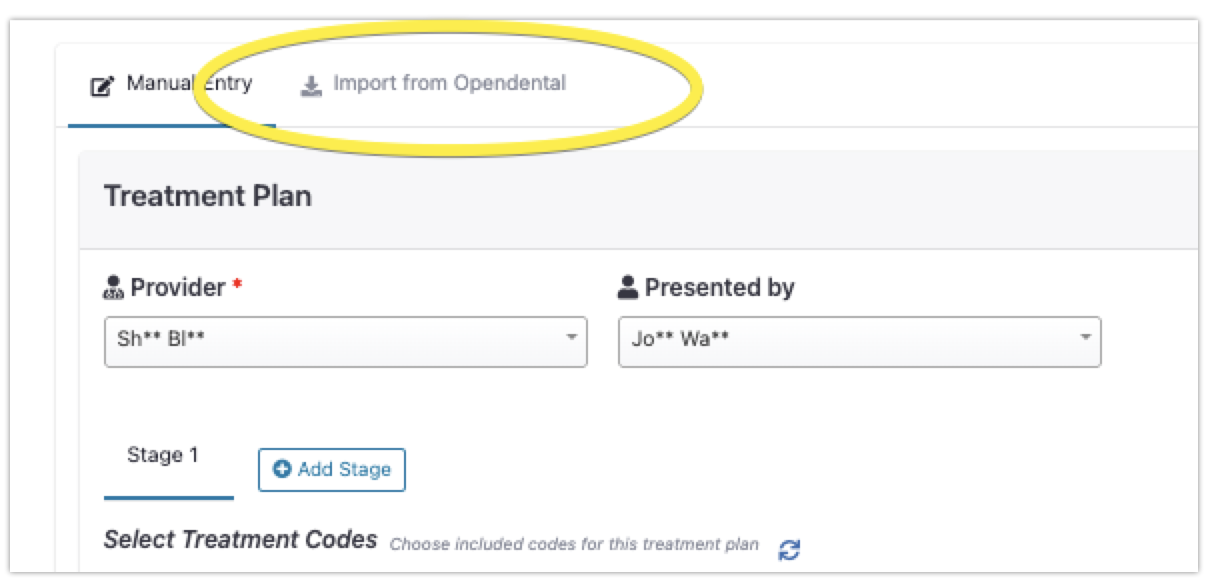
For limited PMS types, we offer the ability to import directly from your PMS