Manage Office Settings
Last updated: October 23, 2025
Understanding Company Settings
In the top right corner, there is an office icon. Click that to open manage your office settings.
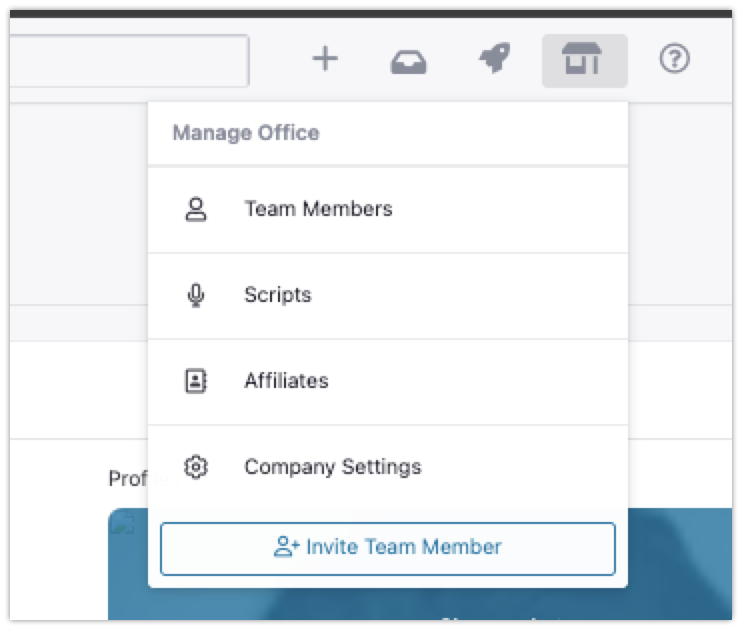
Here any admin can update, view and manage the office settings across your TeamCare account. Let's review each tab:
Team Members
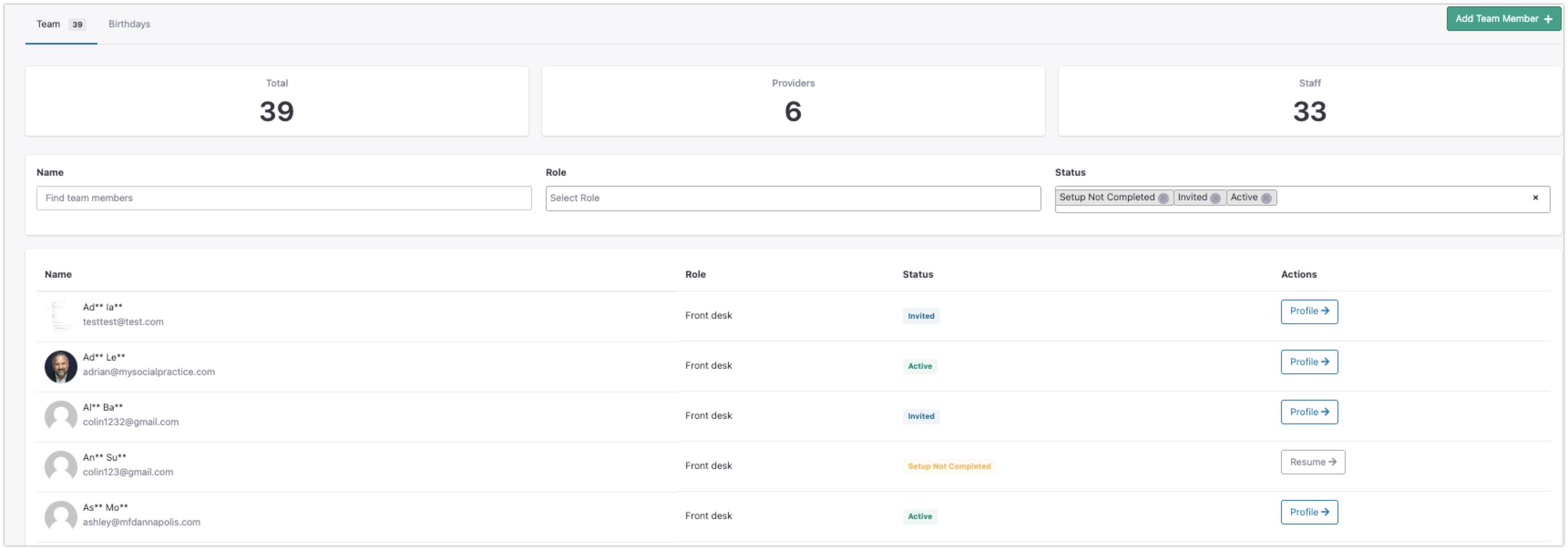
Here is where you can add and manage your team. This page will show you all listed team members filtered by default. You can look for new team members, deactivate and enroll team members from your PMS. You can also view the rose and status of each team member.
Scripts
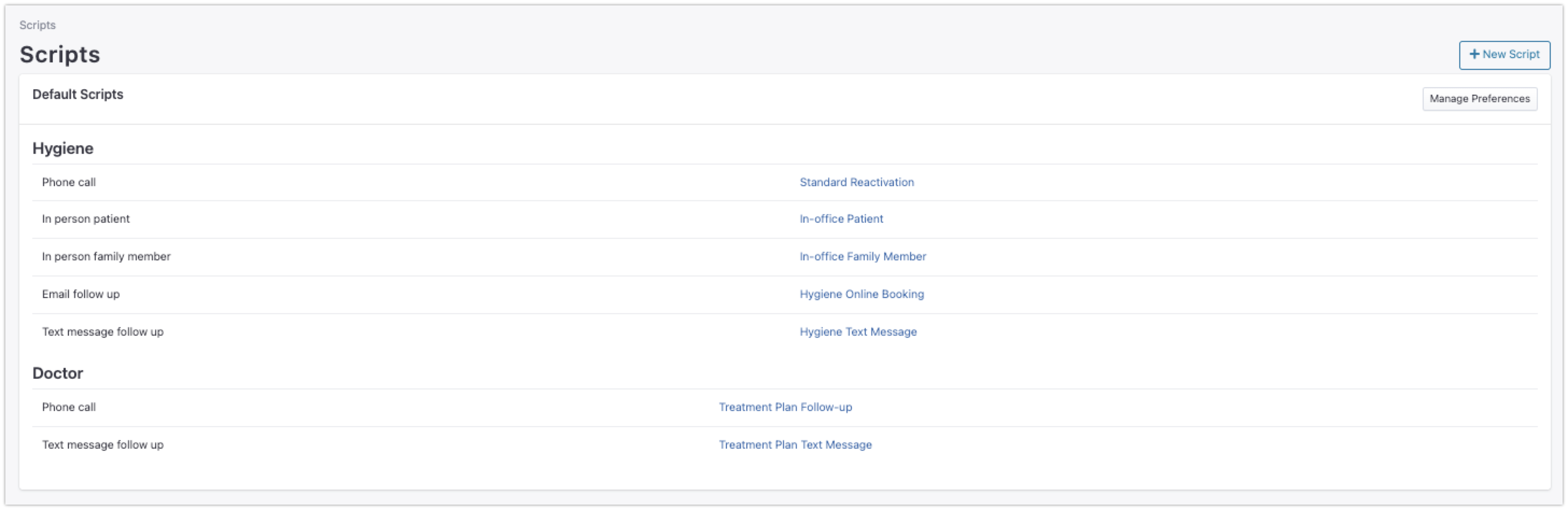
Here is where you can edit and manage the reactivation scripts used in TeamCare. You'll see a list of the default scripts for you to click into and edit. This will change the scripts for all users across the company.
Company Settings
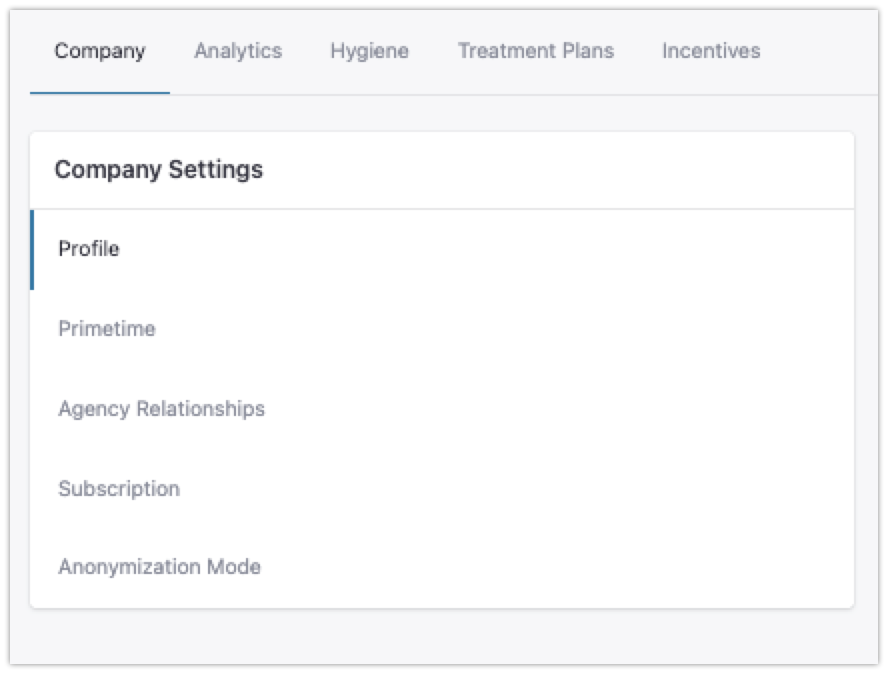
This is where all of the company settings live. Broken down below:
Company
This is your general settings tab is where you can update your practice information including logo, website and location. In addition, this is also where you:
Set up Primetime slots
Manage agency relationships (if applicable)
View and manage your TeamCare subscription
Analytics
Here is where you:
Manage Treatment Codes
Manage settings for leaderboards like financial visibility
Set standard hygiene pace
Manage review notifications
Hygiene
Here is where you can configure settings for Hygiene Reactivation including:
Next follow up settings
Scripts
Online booking details
Treatment Plans
The Treatment Plans tab includes all your settings for Treatment Plan presentation and payments, including:
Checkout requirements
Ways to pay
Treatment plan layout settings
Convenience Fee settings
Online checkout information (where you connect to Stripe and order supplies)
Doctor Reactivation settings
Incentives
Here is where you configure settings for your badges and automatic payouts, including:
Badge settings
Auto approval settings
Automatic payout connections