Scheduling and Configuring Prime Time Hours
Last updated: October 13, 2025
Configuring Prime Time Hours for Appointments
Prime Time appointments occur during your practice's busiest hours. Configure these hours in your practice settings.
Setting Prime Time Hours
Click your name in the top right corner.
Select "Company Settings."
Go to the "Prime Time" section.
Set Prime Time hours for each day.
Important Notes About Prime Time Appointments
Appointments must be fully within Prime Time hours to qualify. For example, an appointment starting at 8:30am and ending at 9:20am will not count if Prime Time ends at 9am.
Certain procedure codes, such as debridement codes (D4355), are excluded by default.
Prime Time periods often include evenings (after 5pm) and weekends but can be customized to your practice's needs.
If expected Prime Time appointments are not counted, verify your settings and ensure procedure codes qualify.
Scheduling Prime Time At Checkout
Scheduling Prime Time Hygiene Appointments at Checkout
Scheduling Prime Time hygiene appointments at checkout improves patient retention, scheduling efficiency, and production. The TeamCare Checkouts feature simplifies preappointments and follow-up tracking.
Step 1: Access Checkouts
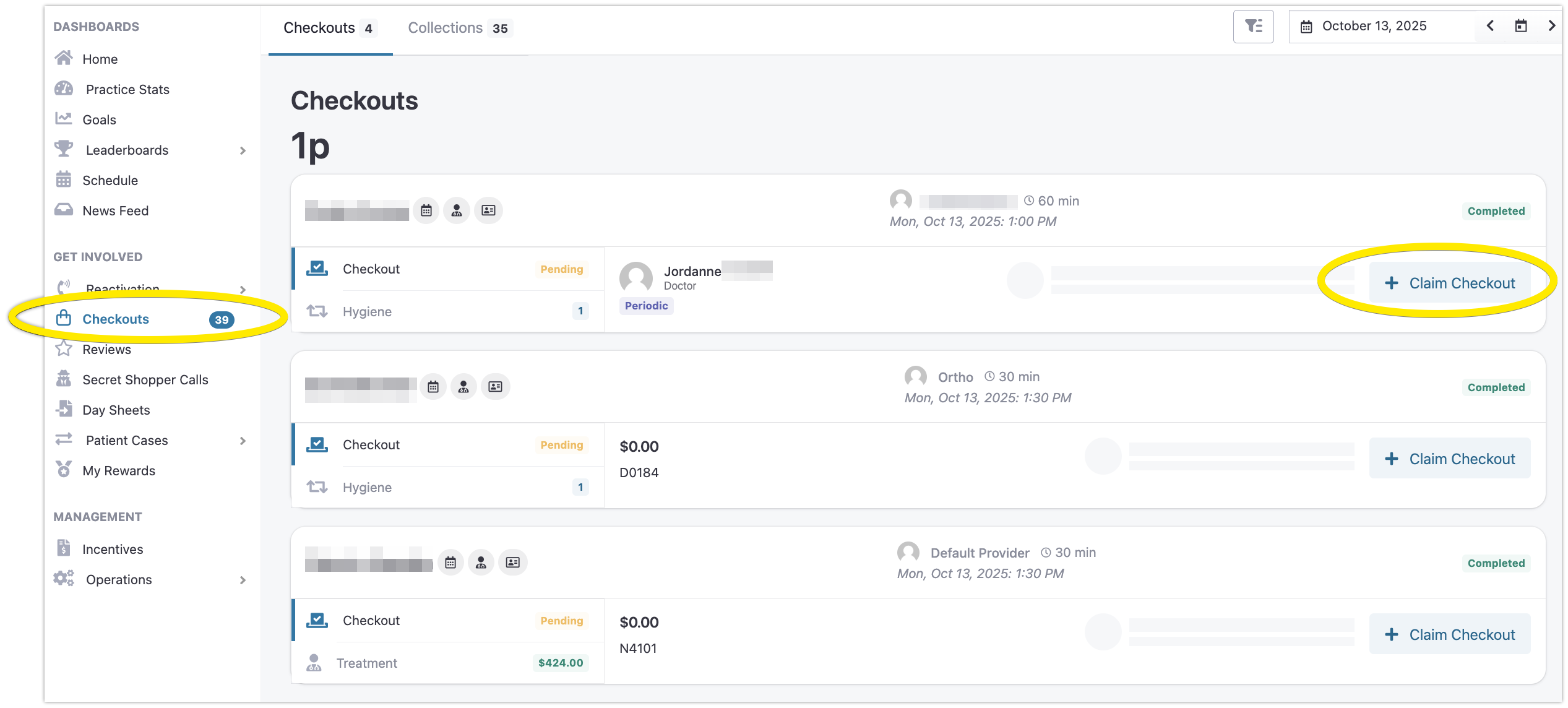
On the TeamCare homepage, click “Checkouts” on the left menu
View today’s patient visits and select +Claim Checkout for a patient.
Checkouts are listed by day; navigate to previous days if needed.
✅ Any TeamCare staff user, including Providers, can complete the +Claim Checkout workflow to confirm preappointments.
Step 2: Check the Patient’s Preappointment Status
In the Checkout window, click ”+New Preappointment” to review the patient’s hygiene preappointment status.
The system categorizes the patient into one of two scenarios:
Scenario A: “Preappointment Completed”
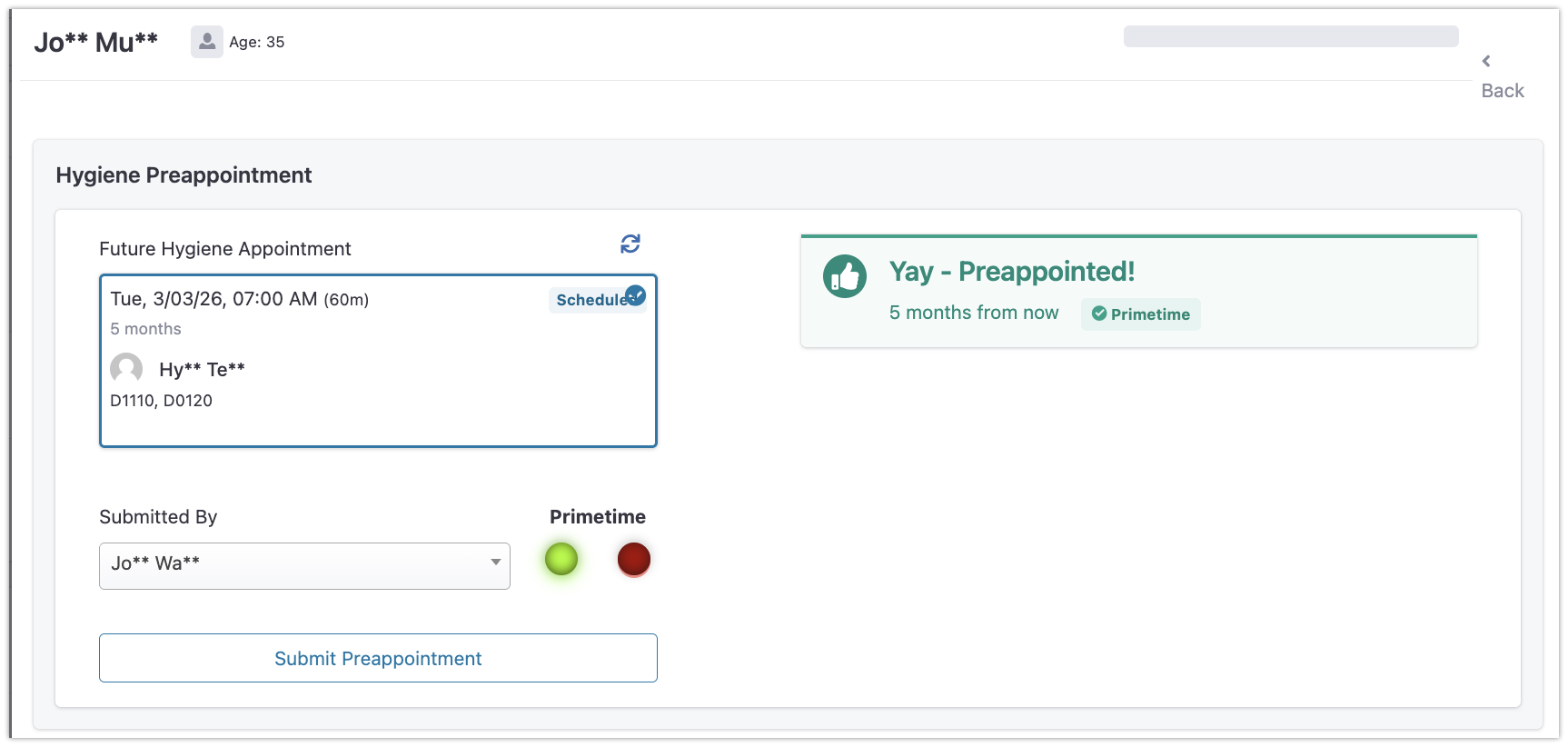
If the patient is scheduled for a hygiene appointment within the next six months, it will appear in the Checkout window.
Indicators:
✅ Green Light → Appointment is during Prime Time.
❌ Red Light → Appointment is outside Prime Time.
Scenario B: “No Appointments Present”
If the patient does not have a hygiene appointment within the next six months, manually:
Preappoint the patient for their next hygiene visit (ideally during Prime Time).
Refresh TeamCare to confirm the update.
If not preappointed, leave a note explaining why for future follow-ups.

Key Takeaways
TeamCare Checkouts streamline daily preappointment tracking and improve retention.
Optimizing Prime Time scheduling reduces cancellations and improves efficiency.
This process helps practices increase show rates and grow production sustainably.
When are Patients Considered "Not Preappointed?"
When viewing the reactivation screen, pre-appointments shown are specifically for hygiene appointments. For an appointment to appear in this view, it must meet at least one of the following criteria:
The provider must have the role of "hygienist"
The appointment must include a hygiene procedure code (configured in Company Settings > Treatment Codes > Hygiene Procedures)
Viewing All Appointments
To view all scheduled appointments for a patient, regardless of type:
Navigate to the patient's profile
Look for the "Scheduled" section
All booked appointments will be listed here, including both hygiene and non-hygiene appointments
Appointments with doctors or those using non-hygiene procedure codes will not appear in the reactivation screen's pre-appointment section, but they will be visible in the patient's profile.