Managing Profiles and Notifications
Last updated: August 8, 2026
Whether you are updating your own information or managing settings for a team member, TeamCare makes it easy to customize profile details, permissions, and notification preferences.
Accessing Profile Settings
To Manage Your Own Profile:
In the top right corner of your TeamCare account, click on your name to open the dropdown menu and select Profile.
To Manage a Team Member (Managers/Owners):
Navigate to Settings section in the upper right hand corner
Locate Team on the left side bar and click into it
All the Team members will appear.
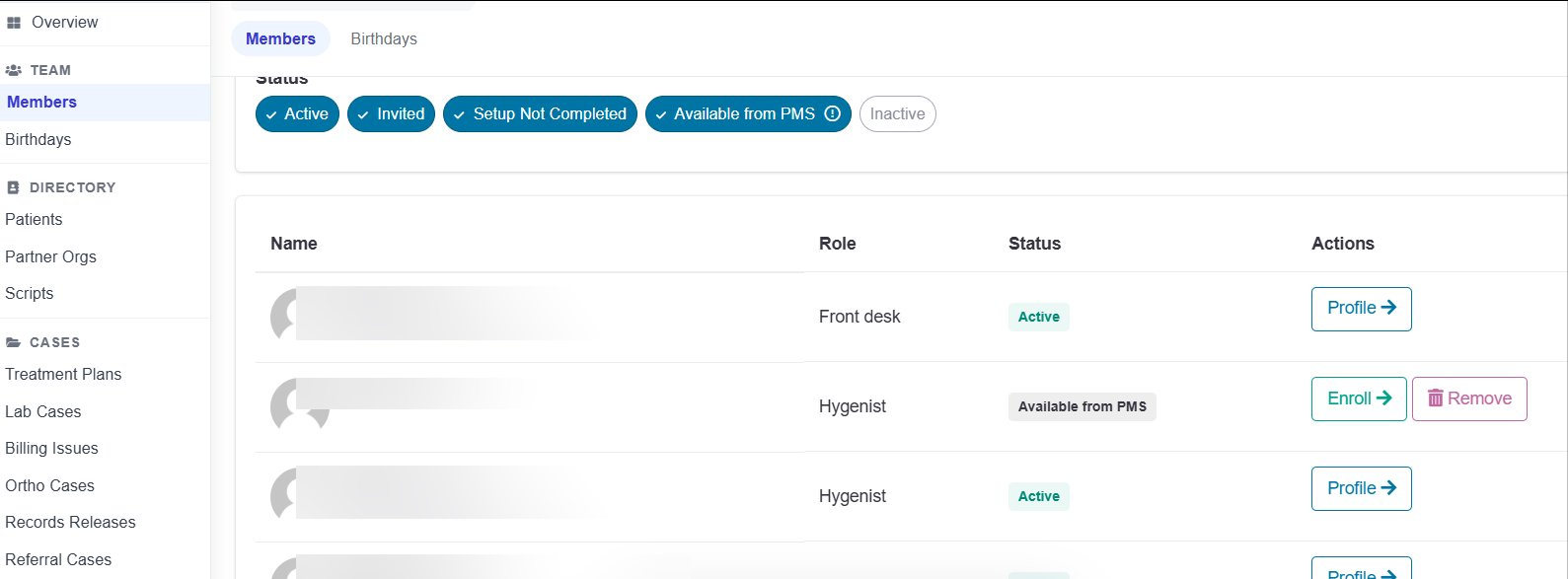
Profile Tabs & Settings
Once you are in a profile (your own or a team member's), you can navigate through the following tabs:
Profile
This section contains personal details including name, phone number, email, and birthday. Use this to ensure contact information is accurate for system communications.
Changing an employee's role
Navigate to the employee's Profile.
Scroll to the Admin section.
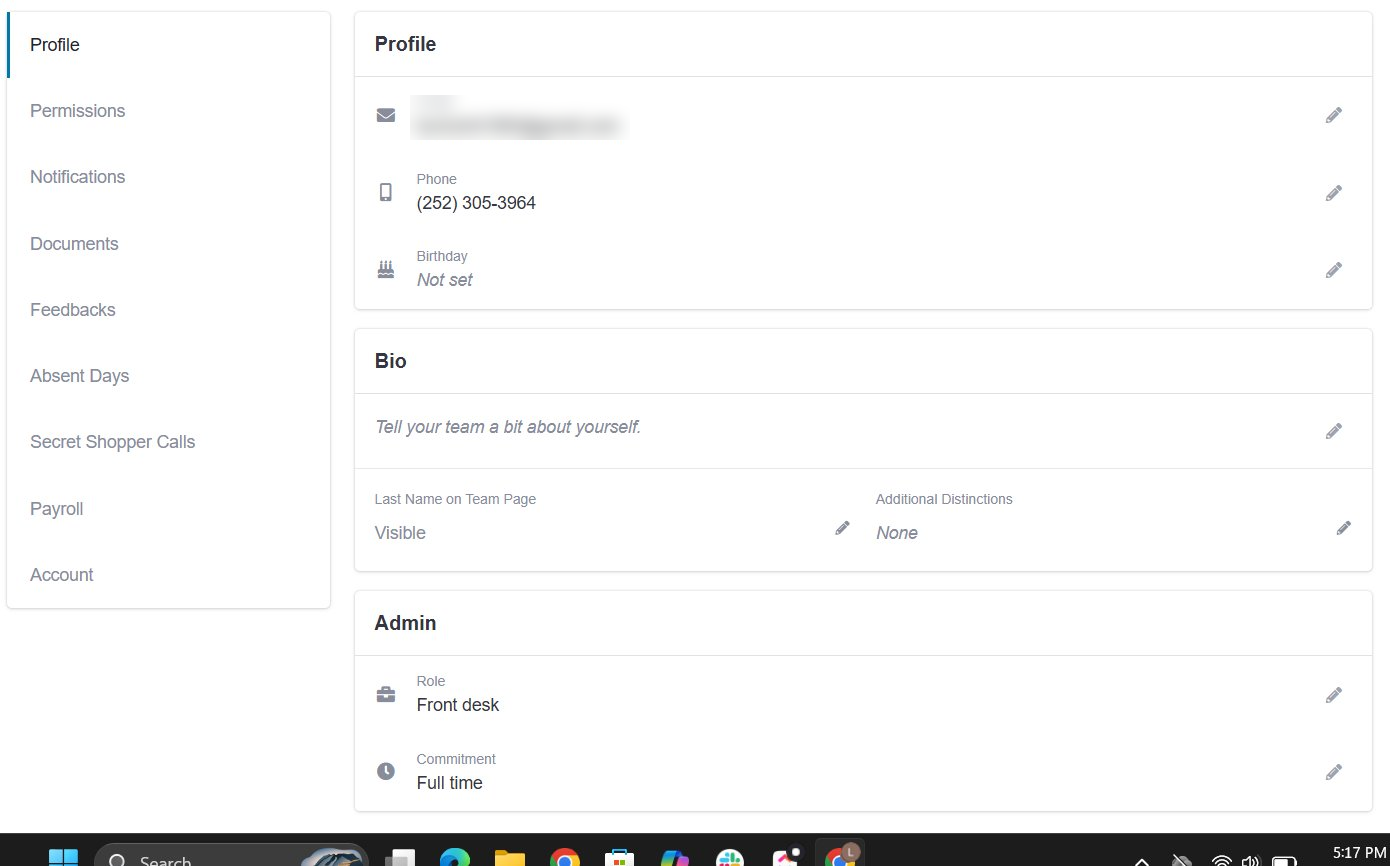
Next to Role, click the Edit button.
Use the toggle to select the new role
Notifications
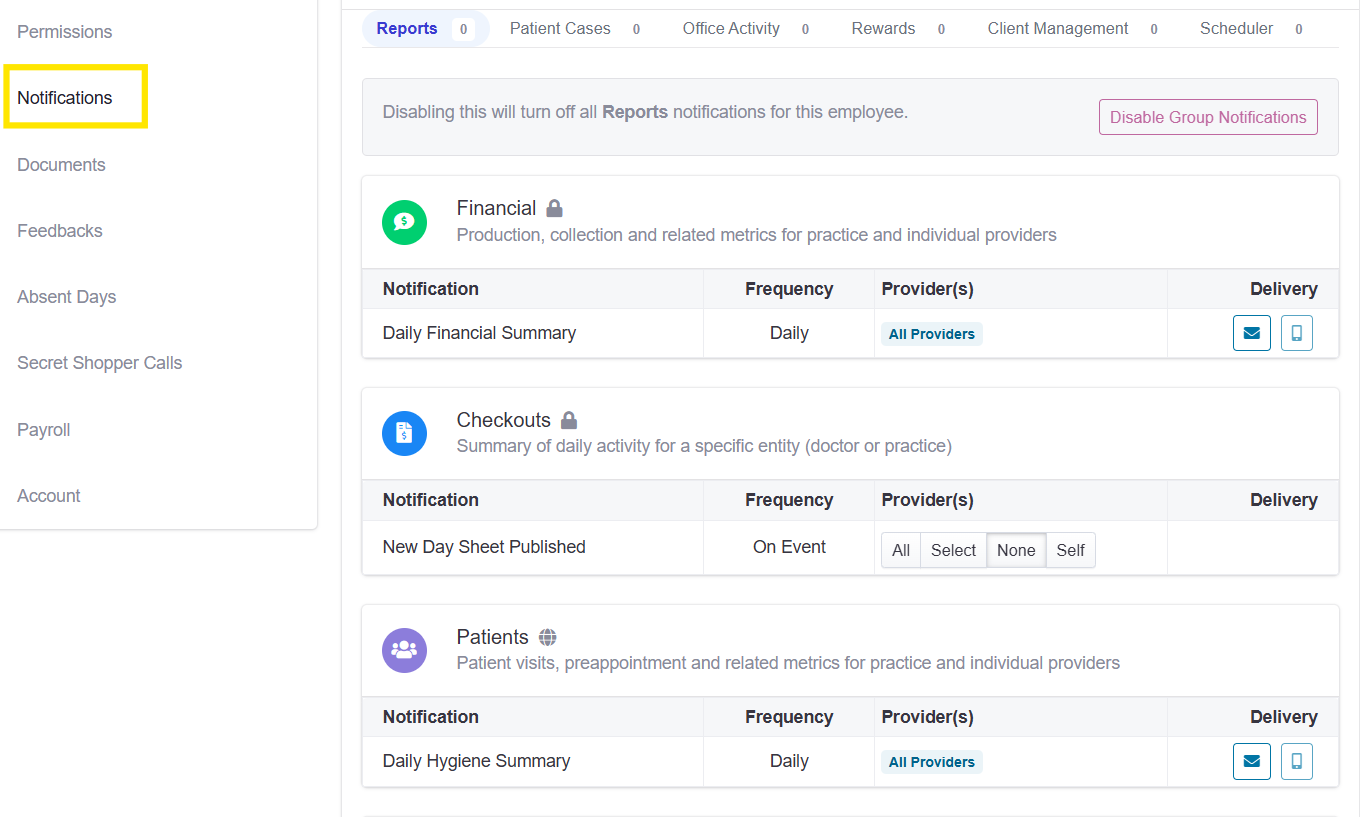
This tab controls the automated reports delivered daily. Notifications are organized into sub-tabs: Financial, Check Outs, Patients, Reactivation, and Goals.
Enabling/Disabling: Click the Email or Mobile icons to the right of each notification.
White icon: Notification is disabled.
Blue icon: Notification is enabled and will be delivered via that method.
Bulk Actions: You can use the Disable All Notifications button at the top right to turn off all alerts for that user, or Disable Group Notifications to turn off a specific category (e.g., all Financial reports).
Provider Filtering: For specific reports, you can select which providers the data should include by clicking the Provider(s) column.
Permissions
This is where you can view or edit (depending on your access level) the specific dashboards and management tools a user is allowed to see. This ensures team members have access only to the data relevant to their roles.
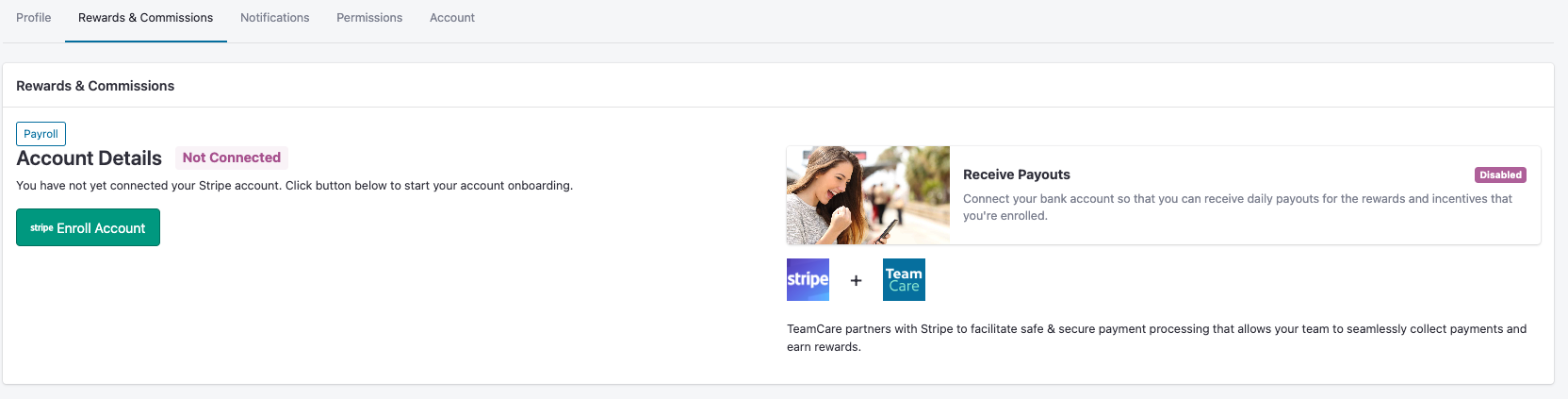
Rewards & Commissions
This tab displays payroll account connections and Stripe setup. This is essential for the quick and easy payout of earned incentives.
Account
The account tab allows for the editing of login credentials, such as updating a password or changing the primary email address associated with the login.
Need Help?
If you are unable to see the "Profile" button for team members, please contact your practice owner to ensure you have the correct administrative permissions.