Adding a Staff Member to an additional location
Last updated: February 11, 2026
TeamCare is designed for multi-location practices. Users can be associated with multiple offices and easily toggle between them without needing separate login credentials.
Overview
When a staff member works at more than one location, you do not need to create a brand-new account. Instead, you "invite" their existing account to the new location.
Important: To link accounts correctly, you must use the exact same email address the employee uses for their existing TeamCare account.
How to Add a Staff Member to a New Location
Follow these steps from within the location you want to add the employee to:
Switch to the Target Location: Ensure you are currently logged into the location where you want to add the new team member.
Navigate to Team Management: Go to your staff settings (Ref: Adding and Removing Staff Members).
Invite the Staff Member: Click the invite/add button as you would for any new hire.
Enter User Details: When prompted for their information, enter their SAME EMAIL ADDRESS associated with their other TeamCare location(s). If you've done it correctly, you will see a badge that confirms that you're adding the employment to an existing user.
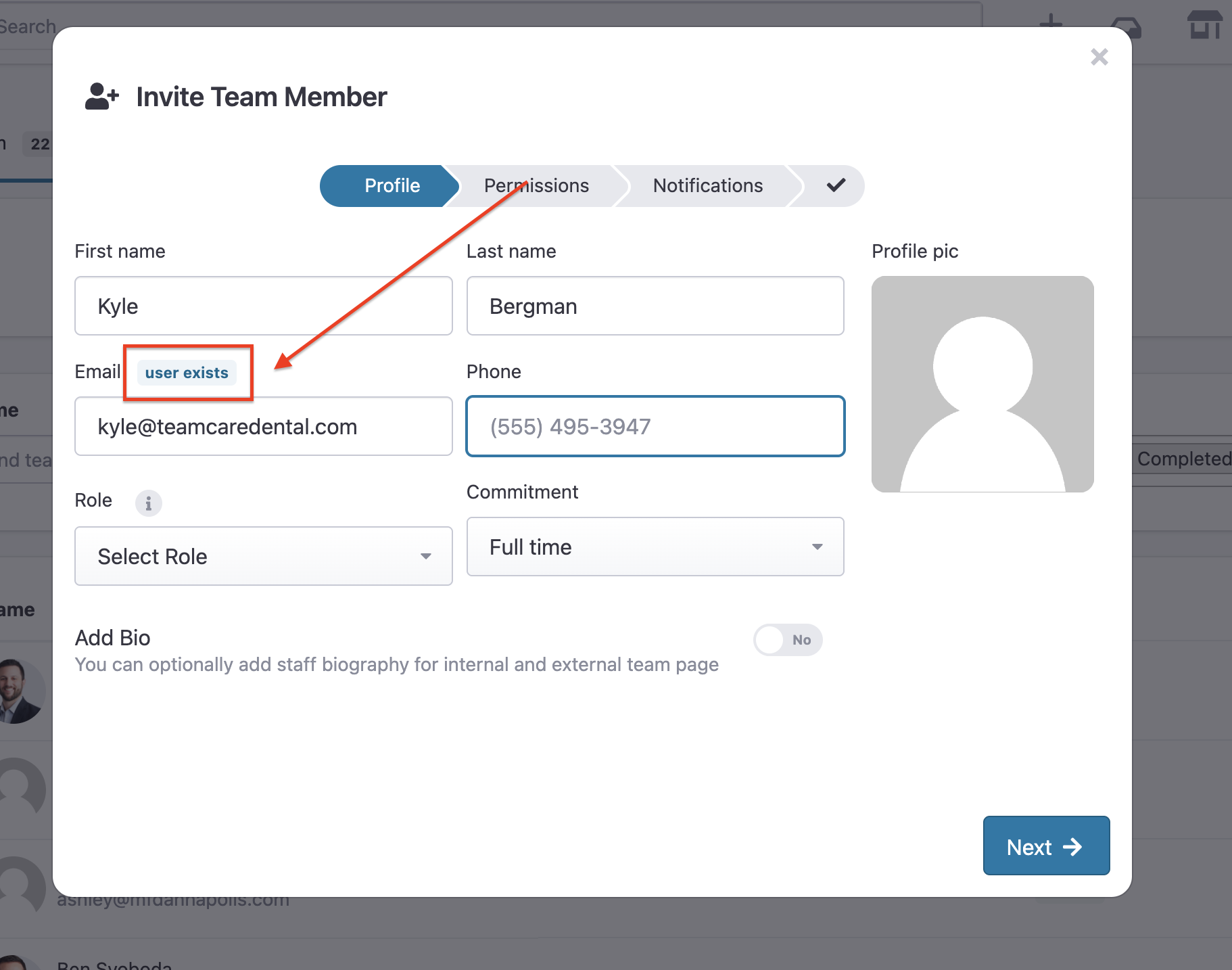
Save/Send Invitation: Once submitted, the system will recognize the email and automatically link this new location to their existing profile.
How the Staff Member Switches Between Locations
Once added, the staff member does not need to log out to change offices.
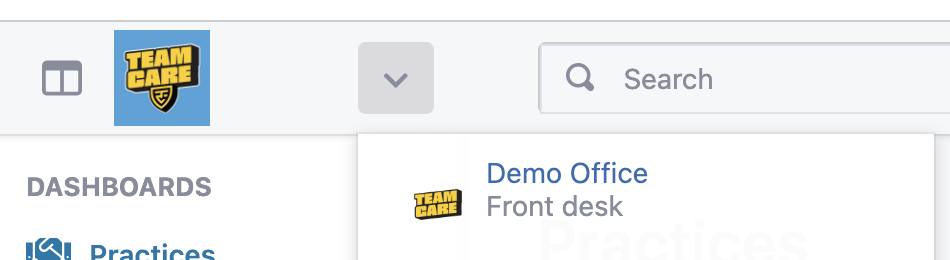
The Location Toggle: In the top-left of the navigation bar (next to the company logo), users will see a small arrow/dropdown menu.
Switching: Clicking this arrow allows the user to see all authorized locations and toggle in and out of them instantly. Example below how where & how you might find a multi-location picker.
Troubleshooting Tips
User can’t see the new location? Ensure the invitation was sent to the correct email address. Even a small typo will create a separate, unlinked account.
Permissions: Ensure the person sending the invite has the "Invite Employee" permissions enabled for that specific location.