Managing Staff Members: Inviting, Deactivating & Re-activating
Last updated: May 20, 2026
When you initially set up your TeamCare account you will be asked to invite additional users to your account. This article will cover:
Adding Team Members
Getting to the right place to view & manage employees
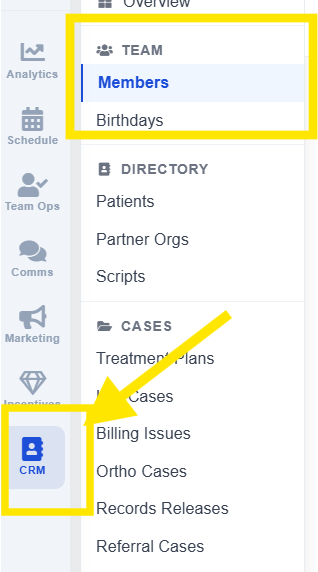
On the bottom left, select CRM then navigate to Members, which is under the "Team" section
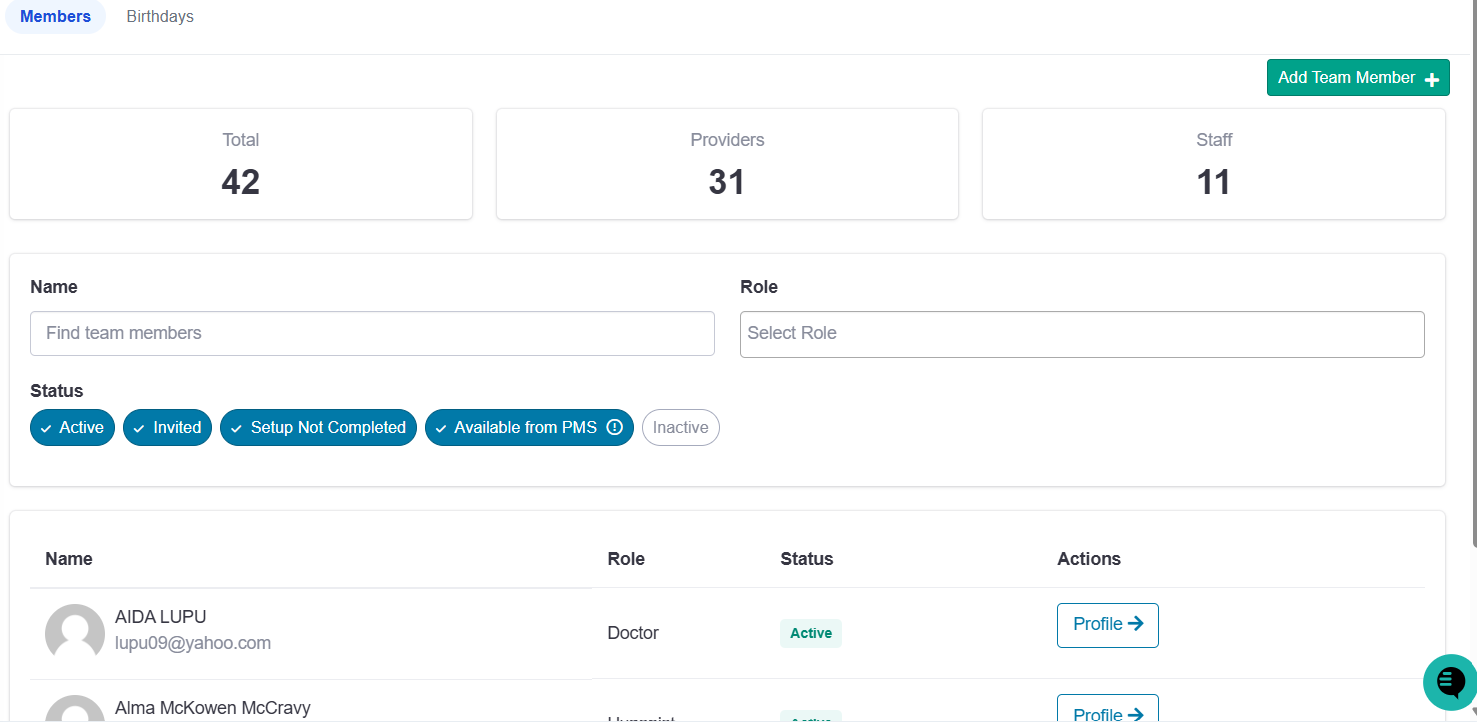
When you arrive on the page, you'll see a summary of your team members and providers followed by a list of employees with their statuses. Select the "Add Team Member" button
Adding a New Employee
Note: your account must have sufficient permissions to add & manage new employees. Only Managers and Owners are given this permission by default.
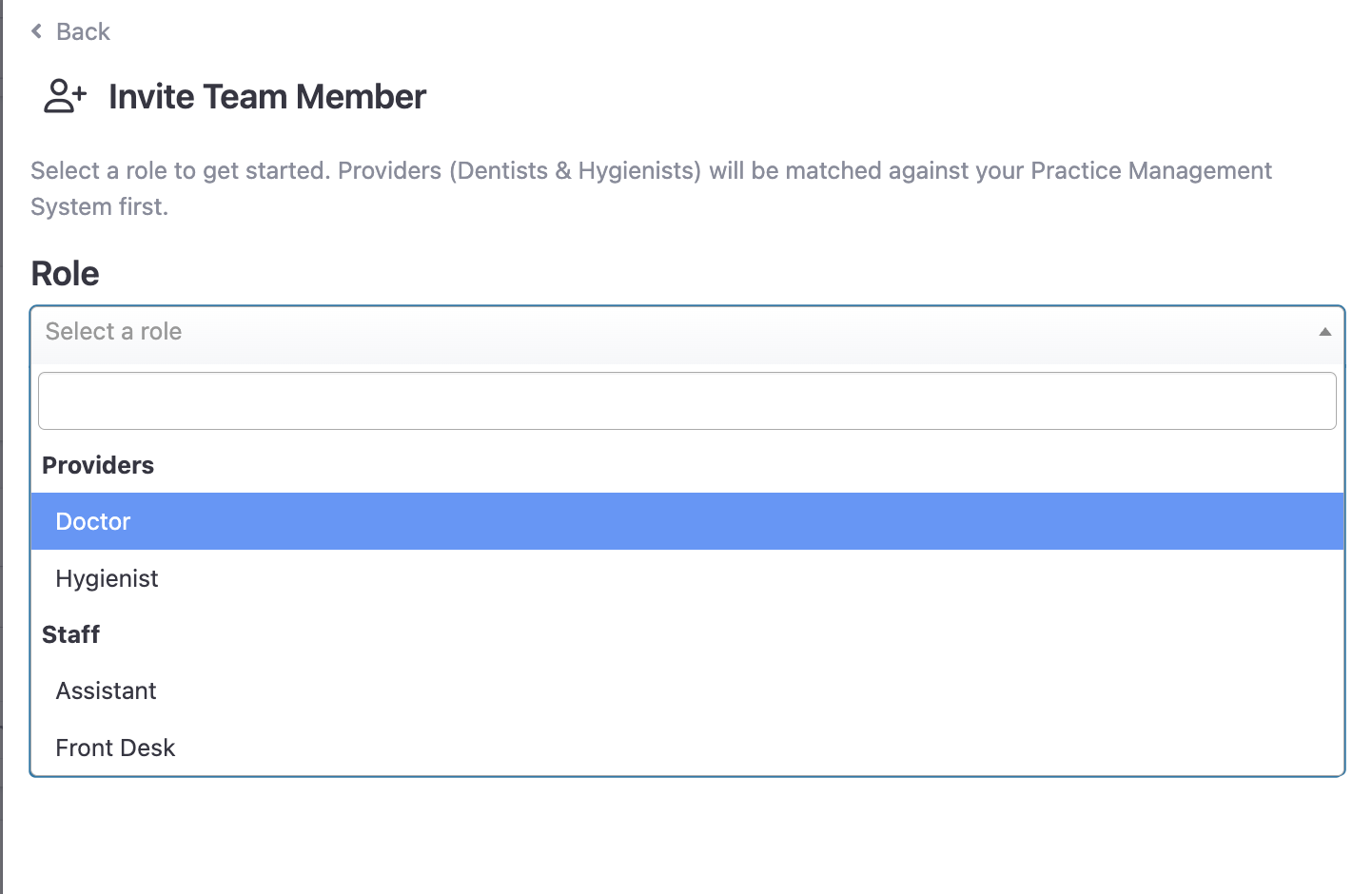
Providers (Dentists & Hygienists) will first be matched with your Practice Management System (PMS). If they are available from your PMS, you can enroll them directly. If no profiles exist from PMS, then you will add email to search for the user.
PMS Profiles Found 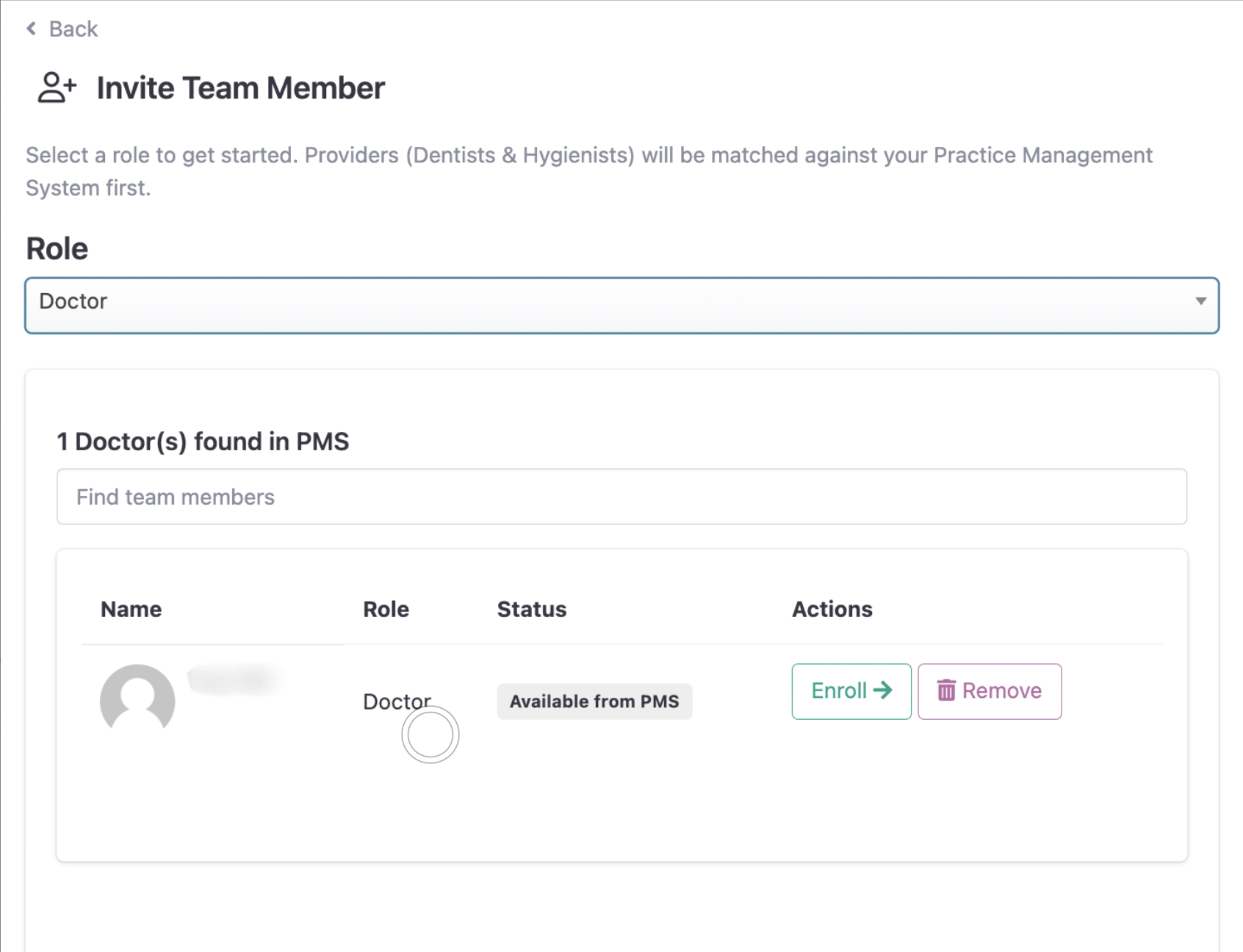 | No PMS Profiles Found 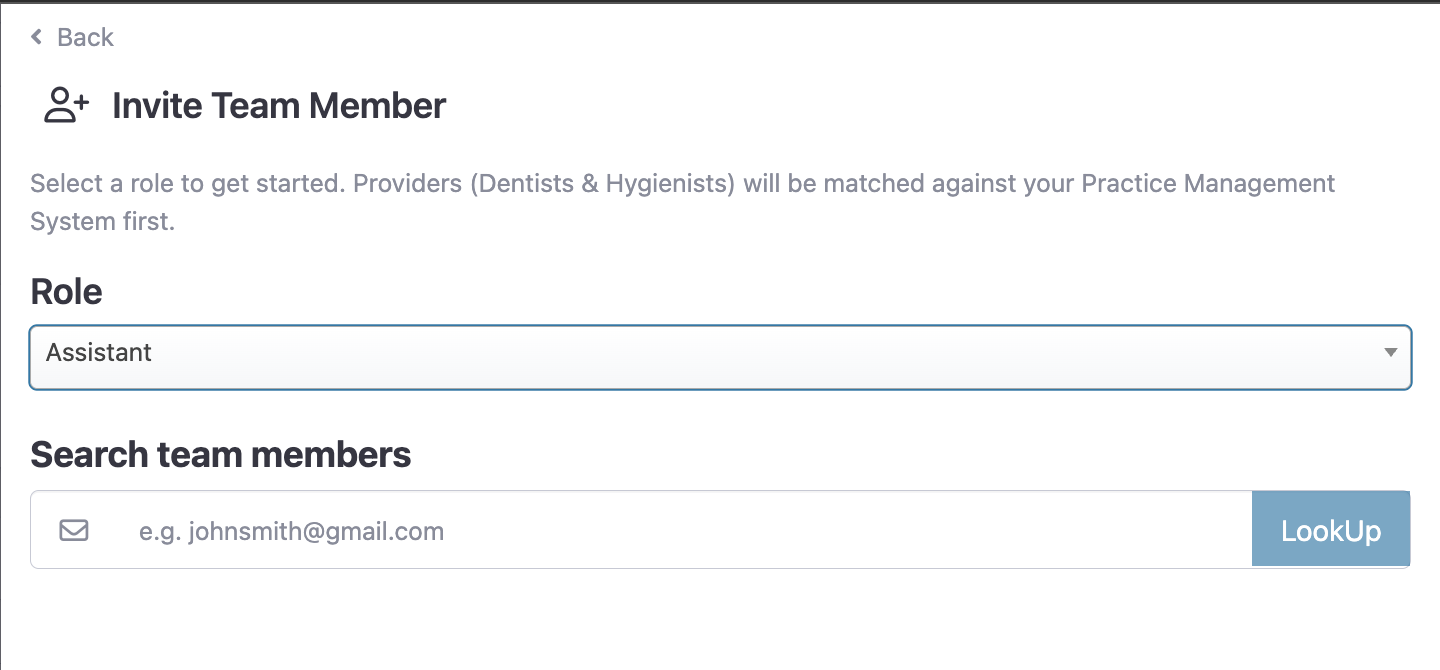 |
If they already have an account at another location, the system will notify you and give you the option to add them to your location. Otherwise, you will be prompted to complete their employee information form.
Existing Found User 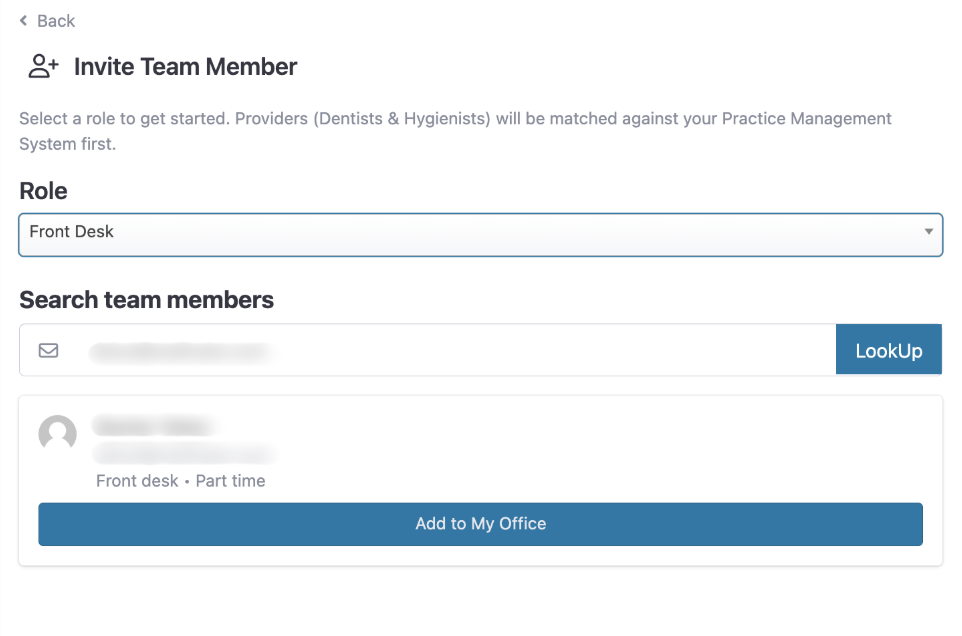 | New User 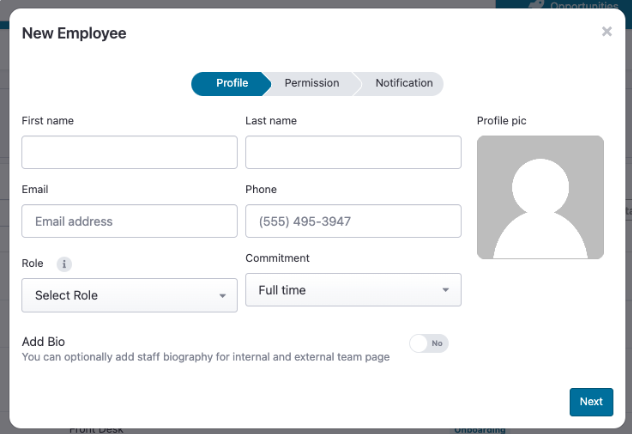 |
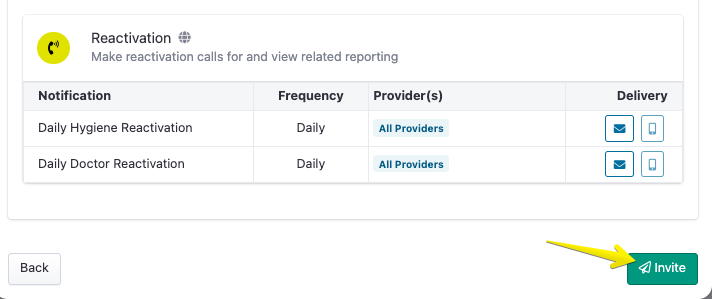
Work through the steps to fill out the required fields and make assignments about the staff member's appropriate permission levels & notifications. Once completed, ensure that you finalize the invitation by click "Invite" on the bottom right.
Deactivating Team Members:
The optimal approach is for the you to update the information directly within your Practice Management System (PMS), as our system will automatically sync the changes.
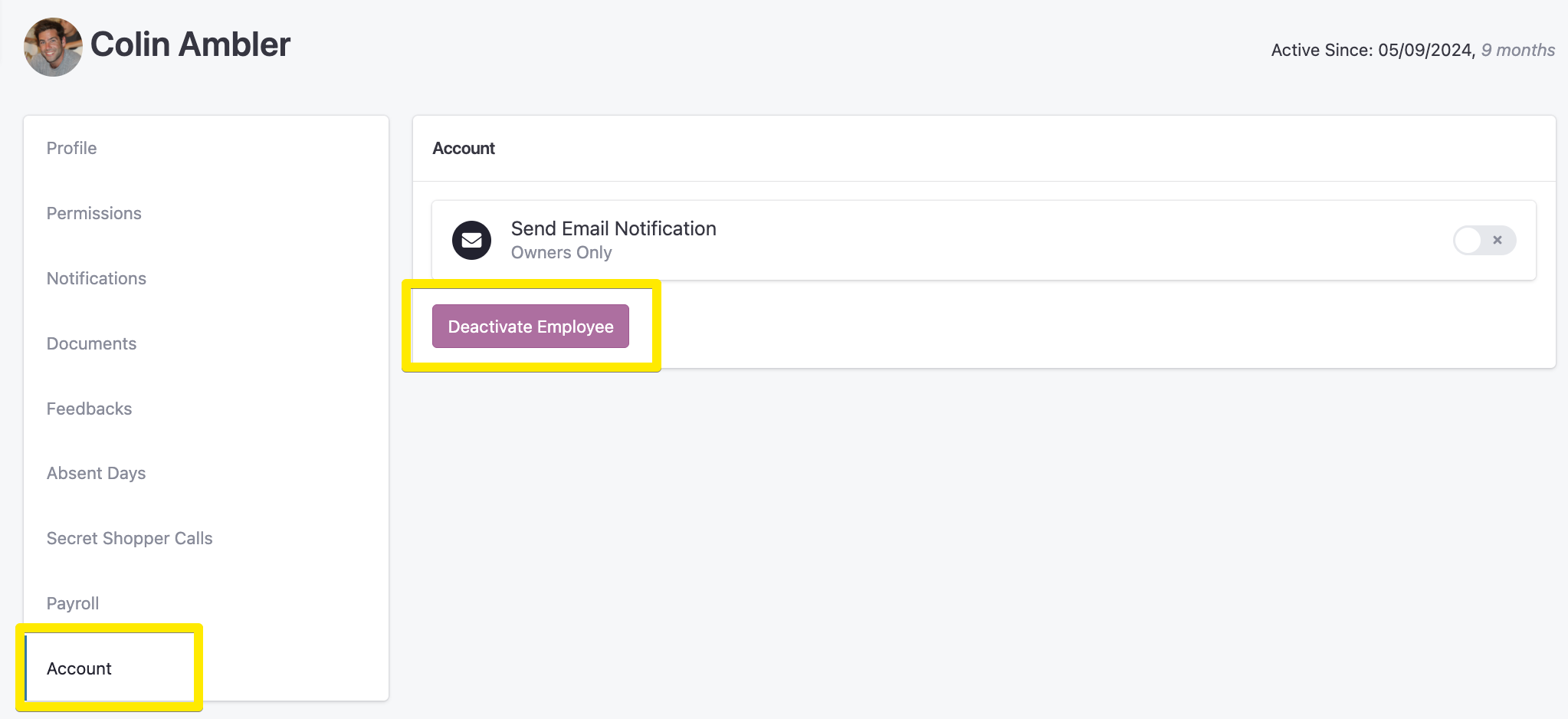
However, there is a "Deactivate" button available.
Click Office in the top right corner, then click Staff.
Locate the employee you want to remove, and click Account
Click Deactivate Employee
Reactivating Team Members
If a team member returns or was deactivated by mistake, you can restore their access by reversing the process:
Filter the List: By default, you may only see active users. Use the status filter at the top of the list to select "Deactivated."
Select the User: Find the person you wish to restore and click on their name or the Account button.
Reactivate: Click the Reactivate button within their profile to restore their access and permissions.
Reach out to support@teamcaredental.com with any questions!