Managing Team Member Permissions
Last updated: March 6, 2026
Controlling what your staff can see and do within TeamCare is essential for maintaining both security and operational focus. Permissions can be managed at a high level using pre-defined roles or fine-tuned at a granular, modular level.
Accessing Permission Settings
To manage a specific team member’s access:
Navigate to the Team Members section
Click on the name of the team member you wish to edit.
From their profile sidebar, select Permissions.
Using Permission Shortcuts (Employee Levels)
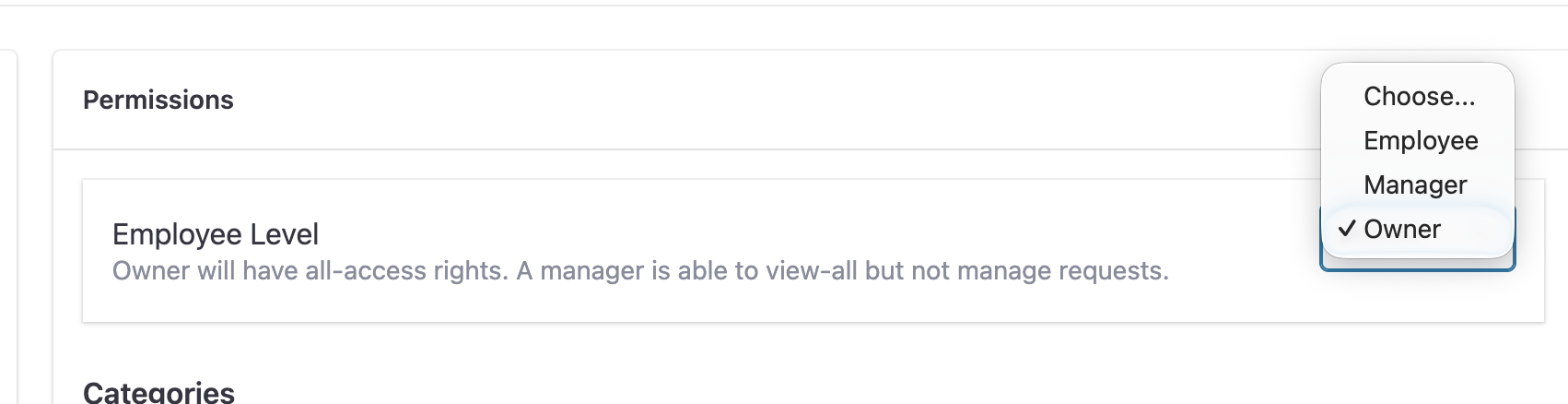
To save time, TeamCare provides three primary "Employee Level" shortcuts. Selecting one of these will automatically toggle the most common permissions associated with that tier of responsibility.
Employee: Standard access tailored to daily tasks without administrative overhead.
Manager: Can view all data and reporting but is restricted from managing specific requests or backend settings.
Owner: Grants full, all-access rights across the entire platform.
Pro Tip: Use these shortcuts as a starting point, then customize individual categories below if a staff member needs a unique setup.
Granular Modular Control
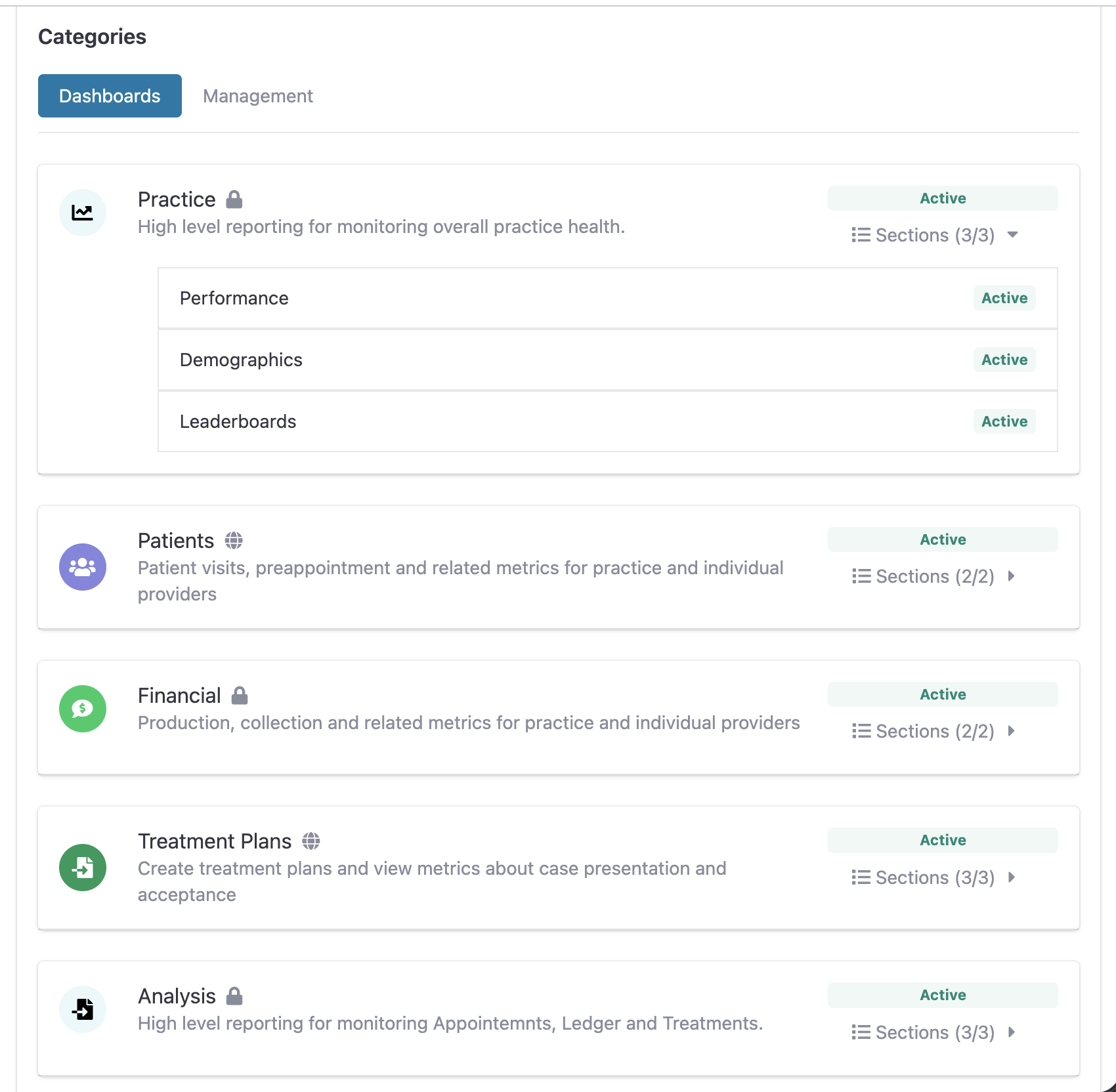
Below the Employee Level setting, you can toggle access for specific Categories (Dashboards and Management) and their sub-sections.
1. Dashboards
You can activate or deactivate entire dashboard modules. Clicking the Sections dropdown on a module allows you to be even more specific:
Practice: Toggle high-level reporting like Performance, Demographics, and Leaderboards.
Patients: Control access to patient visit metrics and provider-specific data.
Financial: Manage who can see production, collection, and ledger-related metrics.
Treatment Plans: Control visibility into case presentations and acceptance rates.
Analysis: Access to detailed Appointment and Treatment reporting.
2. Management
Switch to the Management tab under Categories to control administrative capabilities:
Ownership: An all-access level for all parts of practice management.
Checklist: Allow staff to view and engage with daily and monthly tasks.
Patient Deactivations: Monitor activity when patient statuses are changed to inactive.
Incentives: Control the ability to manage incentives by single module.
Troubleshooting Access Issues
If a staff member reports they cannot see a specific dashboard or tool:
Check the Lock Icon: In the permissions list, modules marked with a lock icon are restricted and require manual activation.
Verify Section Toggles: Ensure that even if the main category is "Active," the specific sub-section (e.g., "Leaderboards" under Practice) is also toggled on.
Refresh: After saving changes, ask the team member to log out and back in to see the updated navigation menu.