Inviting Team Members into a Client Account
Last updated: May 21, 2026
As a consulting firm, you can manage staff members for your client practices directly through the client profile in TeamCare. This gives you the same employee management capabilities available within a practice, accessed from the advisory side
The steps for adding and removing employees are identical to those performed from within a practice. This article covers how to access that functionality as an advisor. For full details on managing staff members, see the related article linked below.
📄 Managing Staff Members: Inviting, Deactivating & Re-activating
Navigating to the employees section
Open the client profile. From your consulting firm dashboard, select the client practice you want to manage.
Navigate to the "Employees" section
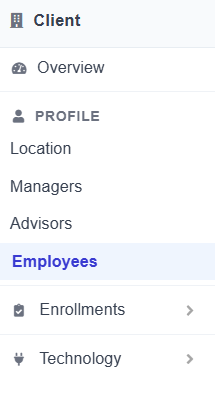
Click Employees. This opens the staff member management view for the selected client practice.
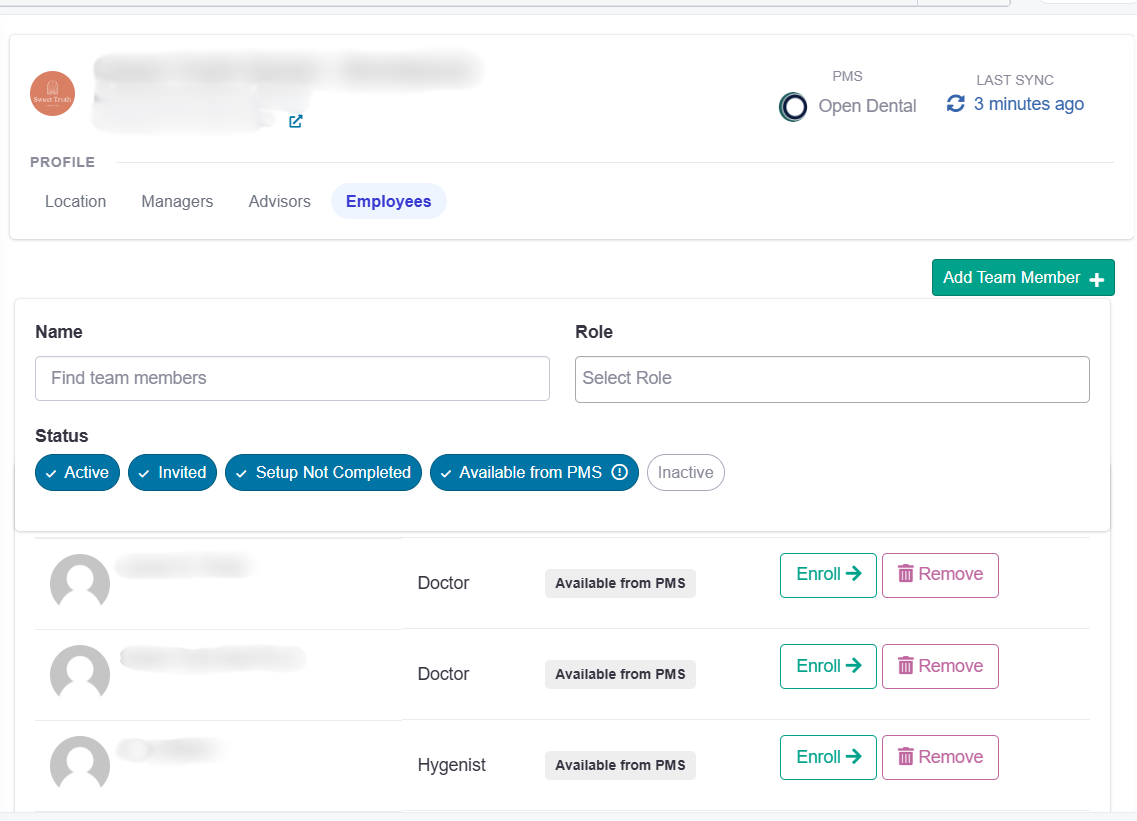
Adding or managing employees
Once you are in the Employees section, all available actions — inviting a team member, updating roles, and removing staff — work exactly the same as they do from within a practice account.