Understanding & Managing Consulting Assignments
Last updated: May 23, 2026
Consulting Assignments link your staff members directly to specific clients. This creates a personalized experience by filtering out the "noise" of the entire firm, allowing your team to focus exclusively on their direct relationships.
🟢 Viewing Your Clients
When you log into the web or mobile app, your dashboard defaults to your personal assignments.
The "My clients " Filter: Your landing page is automatically filtered to show only your clients. Use the filter at the top of the page to switch from "You" to "Entire Firm" or to view assignments for a specific colleague.
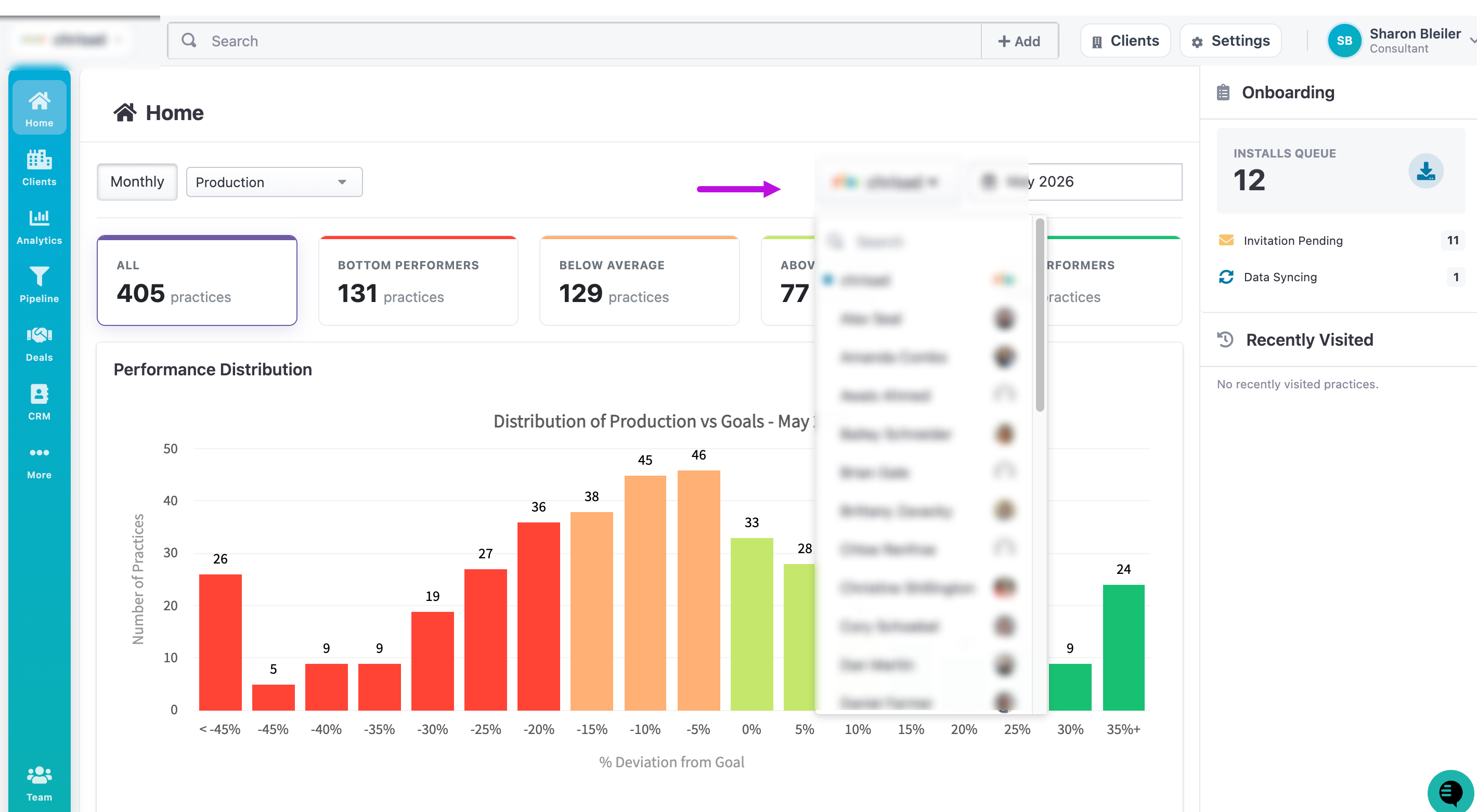
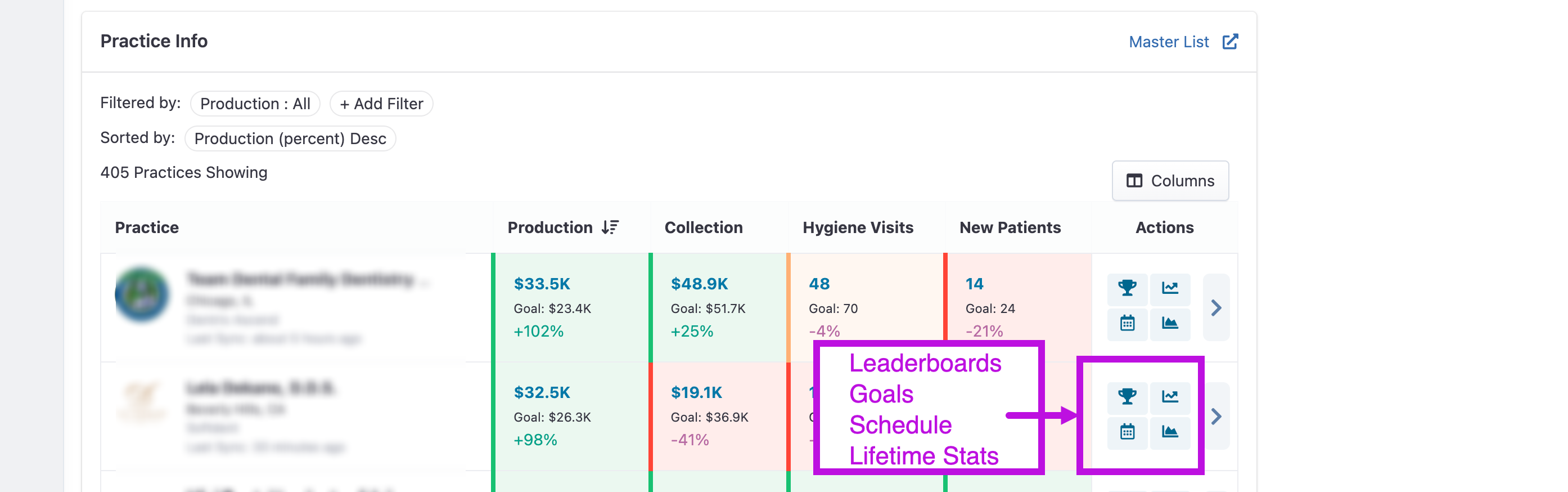
Individual Client View: When viewing a specific client profile, you can see high-level analytics at a quick glance. Leaderboards, Goals, Schedule and Lifetime Stats.
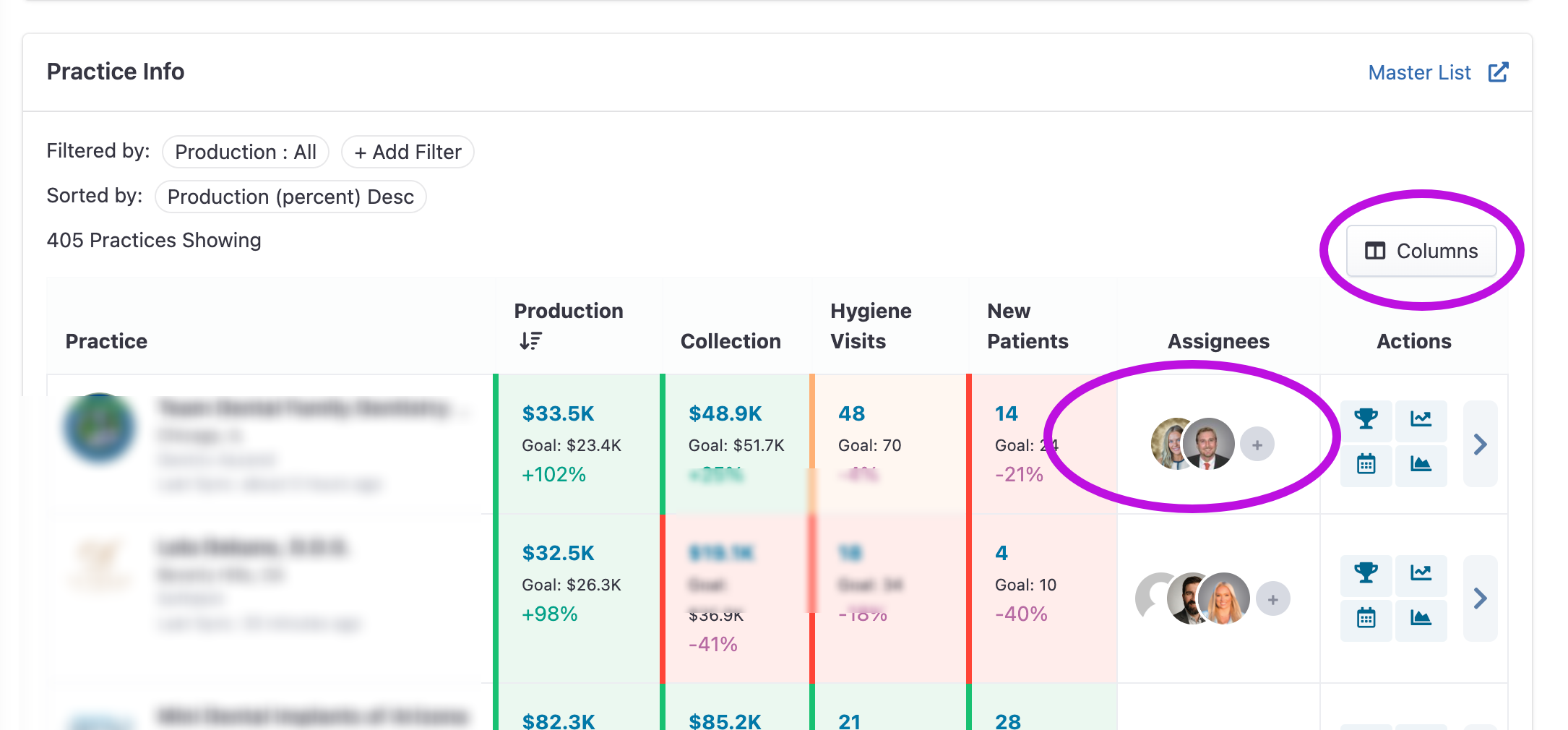
➕ Adding additional Consultants
Open the Columns modal for all additional choices of views
Navigate to Assignnees tab.
Click the (+) Plus Button in the bottom-right corner.
Select the consultant and save. Now they will have access to this practice.
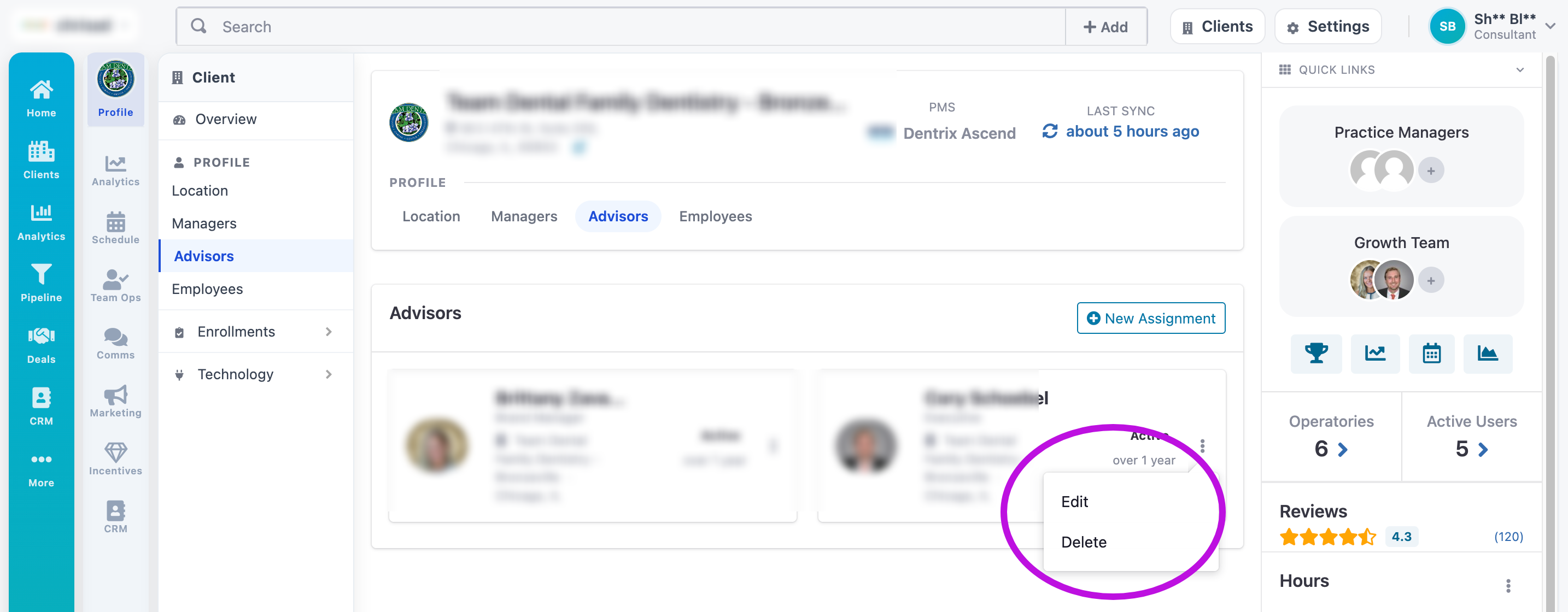
✏ Managing Existing or to Remove a Consultant.
To update or remove a relationship, Consulting
Enter the specific practice by clicking on the arrow to the right of Actions
Click on Advisors on the third bar from the left under the title Clients
Click on the three vertical dots next to the consultant's name
To Update: Select Edit to change assignment details.
To Remove: Select Delete to end the assignment
🔄 Transferring Assignments (Offboarding)
If an employee leaves or changes roles, you can quickly move their entire book of business to a new consultant:
In the profile of the deactivated employee, click Transfer Old Assignments.
Select the Recipient: Choose the new consultant from the dropdown list.
Review the List: By default, all assignments are selected. Uncheck any specific clients you do not wish to transfer.
Confirm: Click Submit. The assignments will immediately appear on the new consultant’s dashboard.
Select the new consultant. By default, all old assignments are selected.
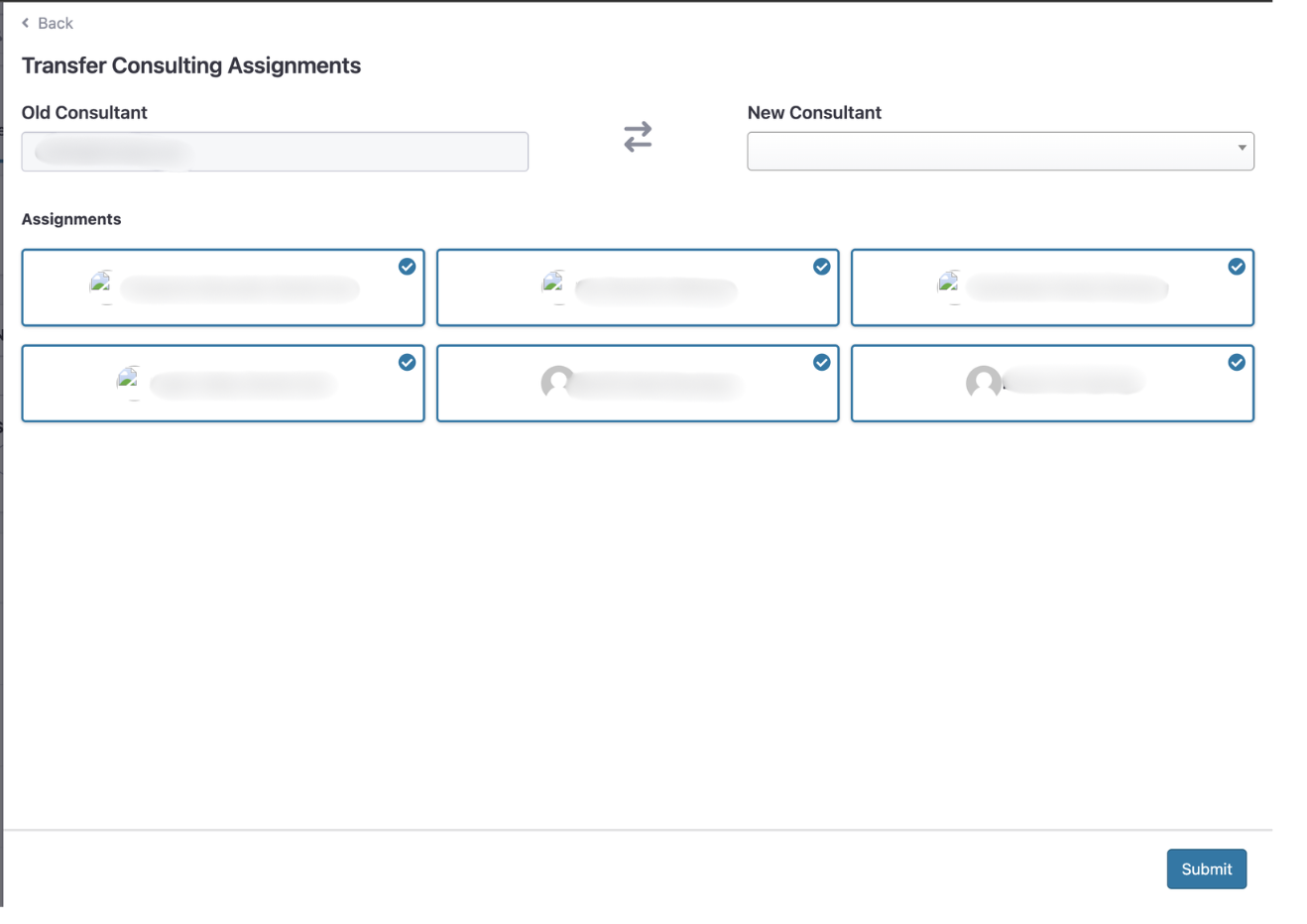
Uncheck any assignments you do not want to transfer and submit.