How to Set Up and Start Accepting Payments in TeamCare
Last updated: October 20, 2025
To begin using payment processing in TeamCare, you’ll first need to connect a Stripe account and order the compatible hardware. Follow this step-by-step guide to complete your Stripe setup and start accepting payments through the TeamCare app.
Step 1: Connect Your Stripe Account
Open the TeamCare app or web dashboard.
Navigate to Company Settings > Treatment Plans > Online Checkout.
Toggle on “Enable Online Checkout”, then click “Connect Stripe Account.”
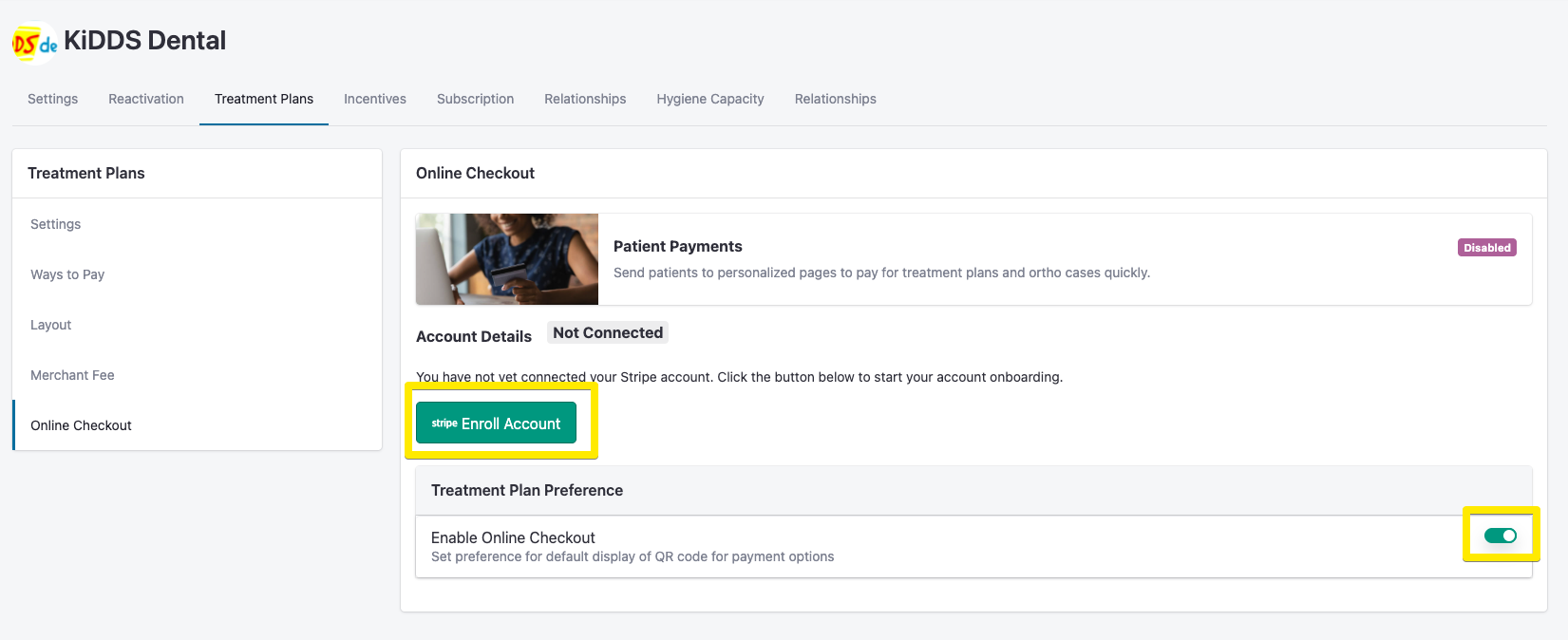
This will open a new browser tab to walk you through Stripe’s onboarding process.

Step 2: Complete Stripe’s Onboarding
Set up two-step authentication
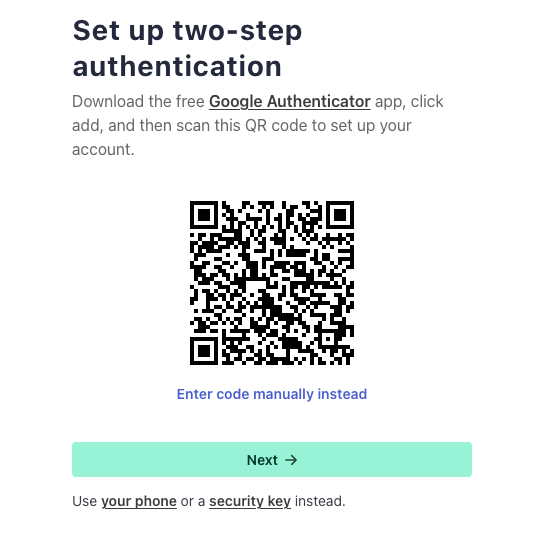
Fill out Business, ownership and personal information
Stripe will ask for:
Business information
Bank account details
Tax ID or Social Security Number
⚠ While this process can feel a bit cumbersome, it’s essential for secure and compliant payment processing.
Select an account for payouts - connect your bank.
Choose bank to login to
Connect with Link
Add accounts and public details for customers
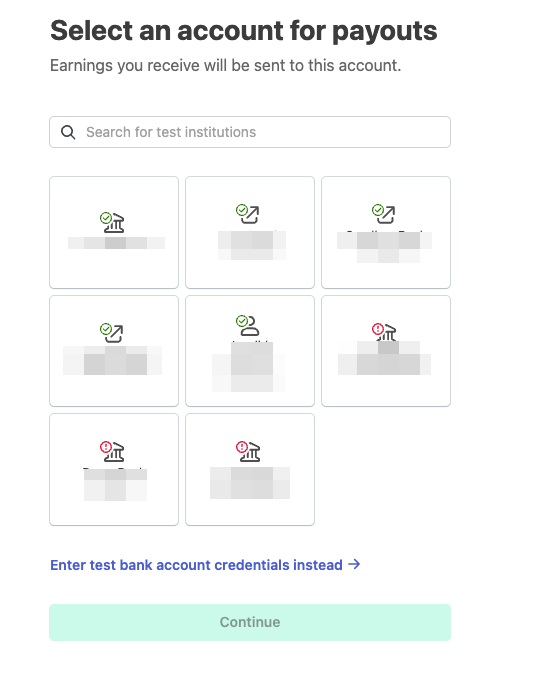
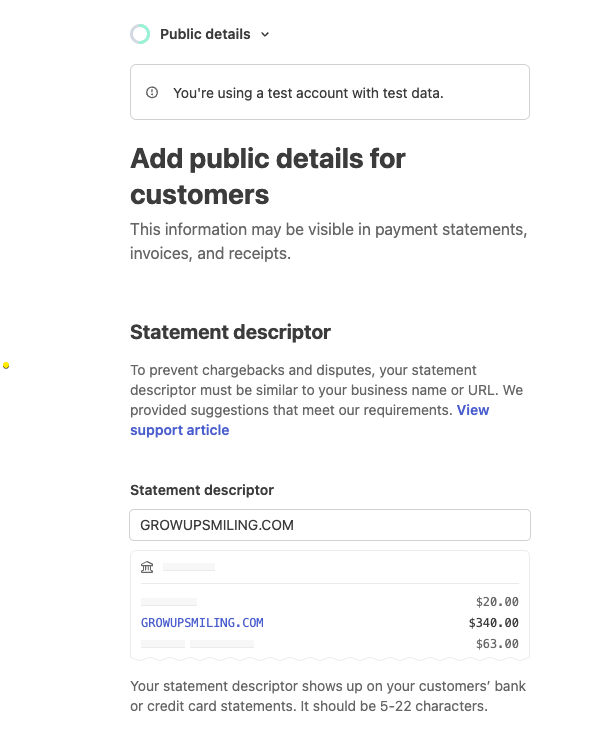
Once complete, you’ll be redirected back to TeamCare automatically.
Step 3: Finalize Your Stripe Setup
Open a new tab and go to stripe.com.
Log in using the credentials you created during onboarding (it might have you logged in already)
If any business information is missing, Stripe will display a banner with steps to complete it.
Step 4: Order Stripe Hardware
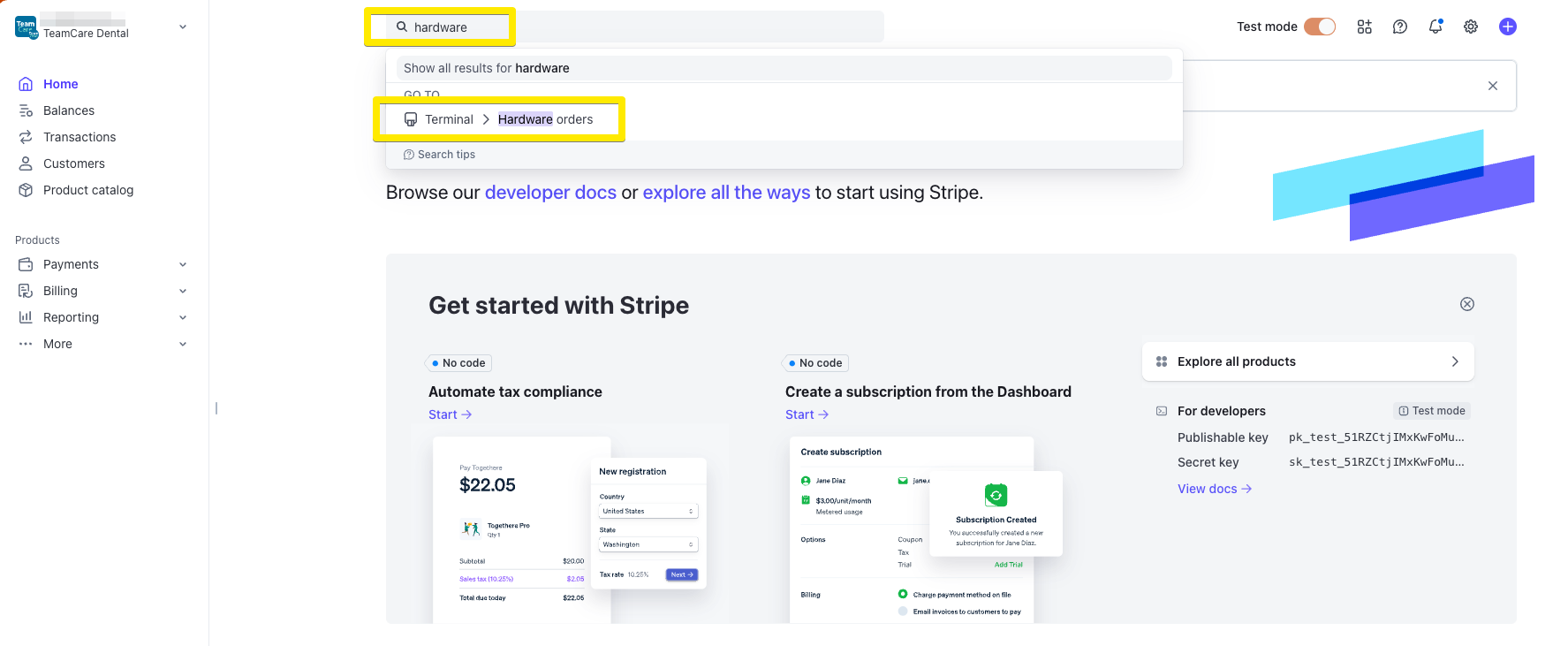
In your Stripe dashboard, type “hardware” into the search bar.
Click “Hardware Orders” from the dropdown.
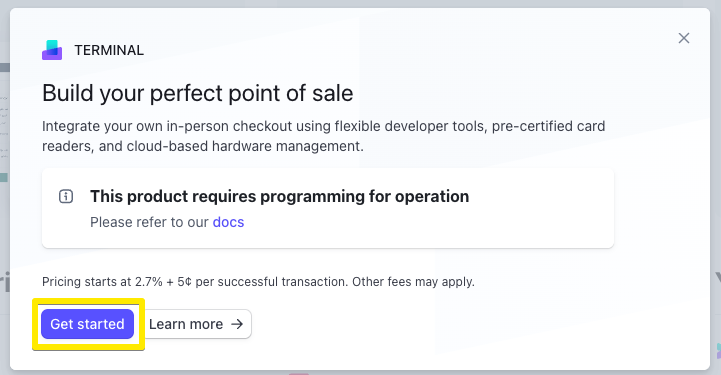
A pop-up will appear — click “Get Started.”
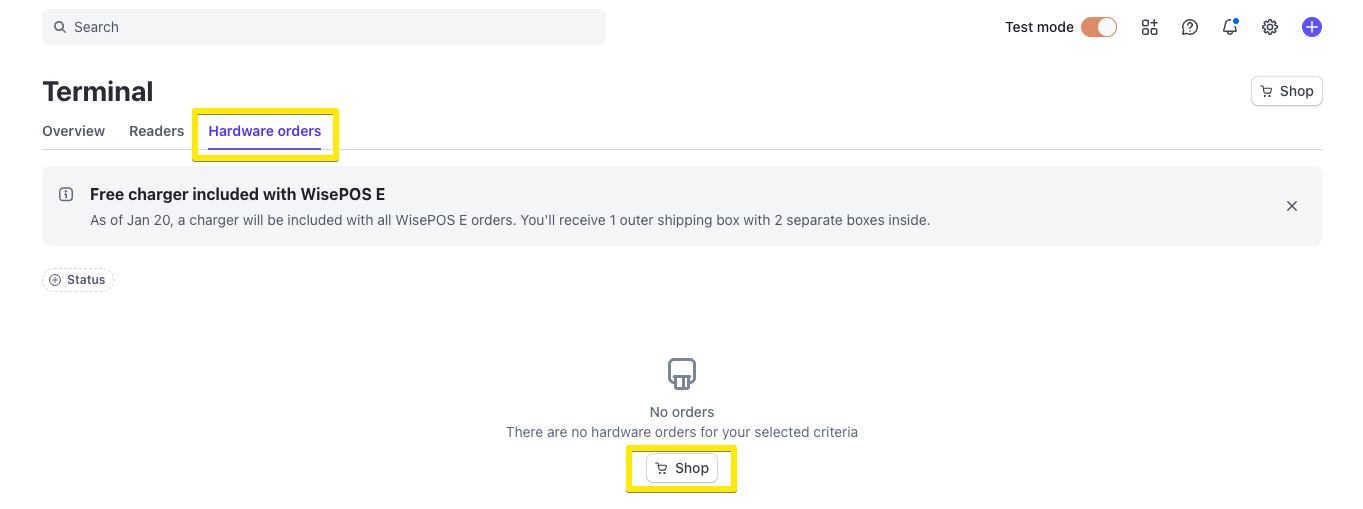
Click "Hardware rders" under "Terminal" then click "Shop"
Close out of the "Let's understand your integration" pop up
Scroll down and click on the Stripe Reader M2
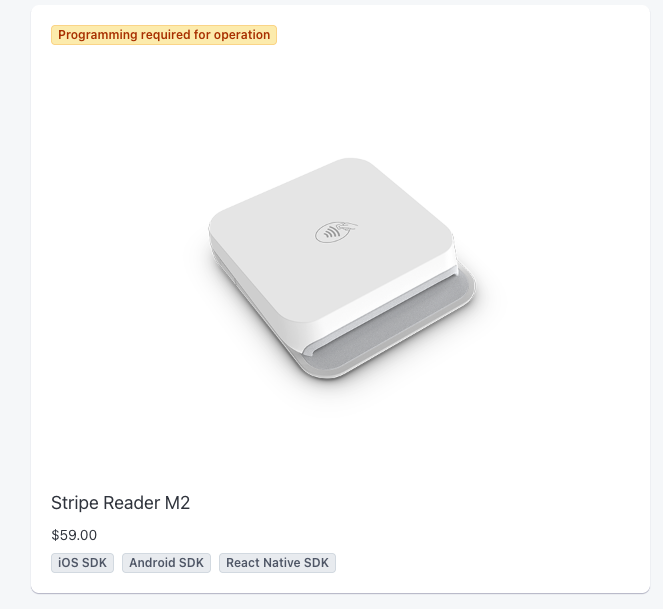
Order as many Stripe Reader M2 devices as needed and click "Add to Cart"
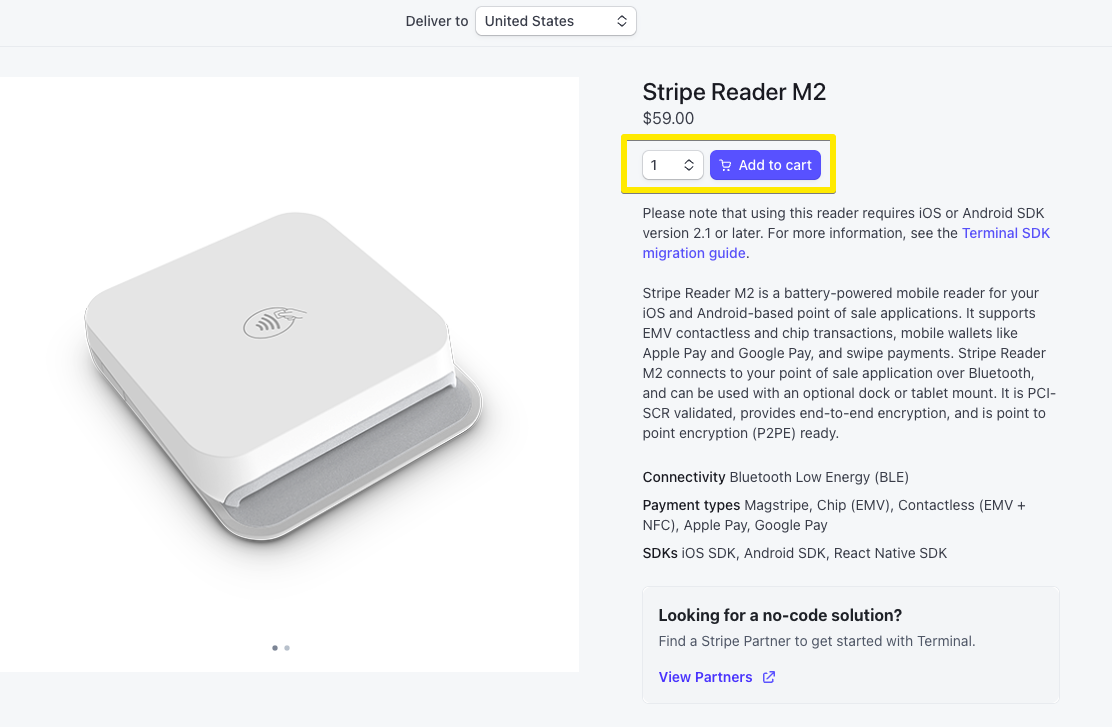
Click your cart in the top right corner, and checkout.
TeamCare currently supports only the Stripe Reader M2. We recommend pairing with an iPad for treatment plan signing and a professional checkout experience.
While You Wait for Your Hardware
As soon as your Stripe account is active:
The TeamCare iPhone app will support Tap to Pay, so you can begin accepting payments immediately.
This is a great interim option while you wait for your physical reader(s) to arrive.
Step 5: Connect Your Stripe Reader M2
Once your readers arrive:
Power on the Stripe Reader M2 by holding the side button until the green light appears.
Open the TeamCare app on your iPad.
Search for any patient, tap “Make a Payment”, and enter any amount.
If the reader is in Bluetooth range, it will appear as an available payment method.
Tap the reader name to connect.
You can rename Stripe readers in your Stripe dashboard now. Soon, they will also be manageable directly in TeamCare.
Recommended Setup for Best Experience
iPad + Stripe Reader M2 for a professional, easy-to-use checkout experience.
iPad also makes it simple for patients to sign treatment plans.
Need Help?
If you encounter any issues during Stripe setup, reach out to TeamCare support for assistance—we’re here to help!