How it works: TXP Reactivation
Last updated: February 16, 2026
The TXP Reactivation Tool helps your team re-engage inactive patients through an automated, centralized system that updates in real time.
How It Works
Dynamic Reactivation List
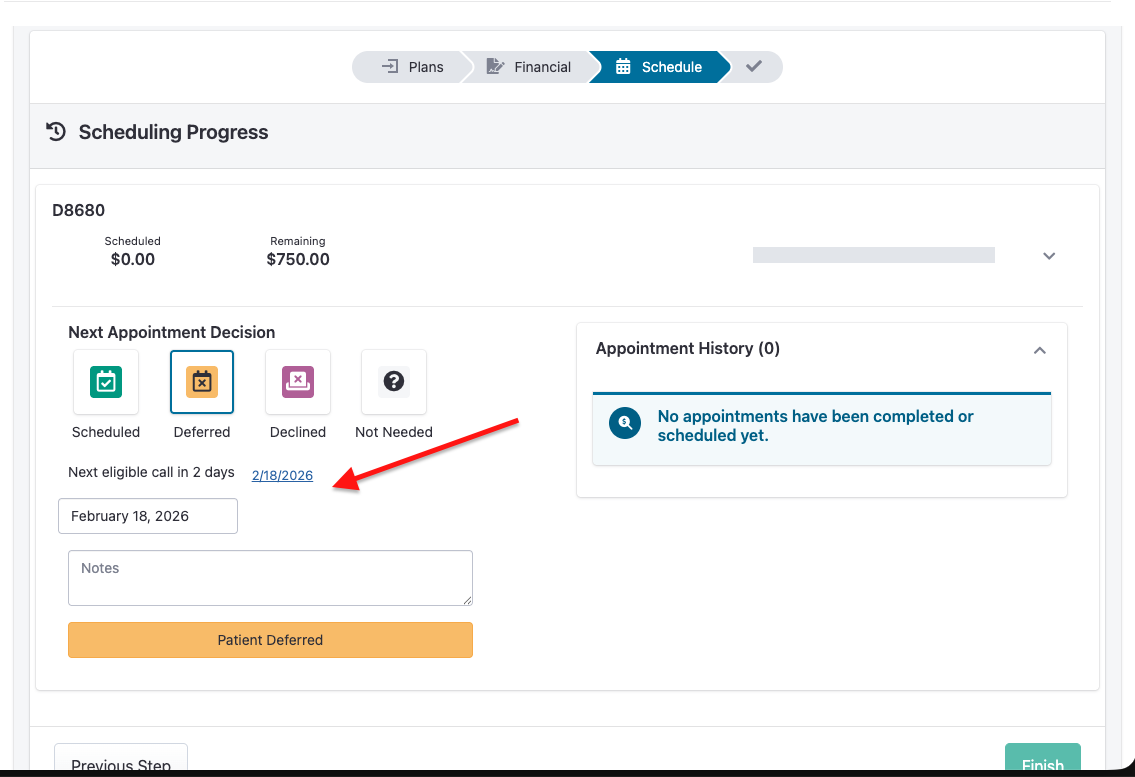
The Reactivation Tool automatically generates a list of patients who need outreach. These are sourced from the Treatment Plans that get inputted which have the outcome of "deferred" AND are due for a follow-up.
📄 How to Add and Present Treatment Plans
Note: during the TXP deferral process you can choose a custom date for the first & next attempt to be scheduled.
A patient appears on the list if:
Are an "active" patient
Have not scheduled their Treatment Plan
A previous follow-up call is due
When a call is logged:
The patient is removed from the list across all workstations.
Notes and outcomes are saved for future reference.
Making Reactivation Calls
Accessing the List
Reactivation → Hygiene
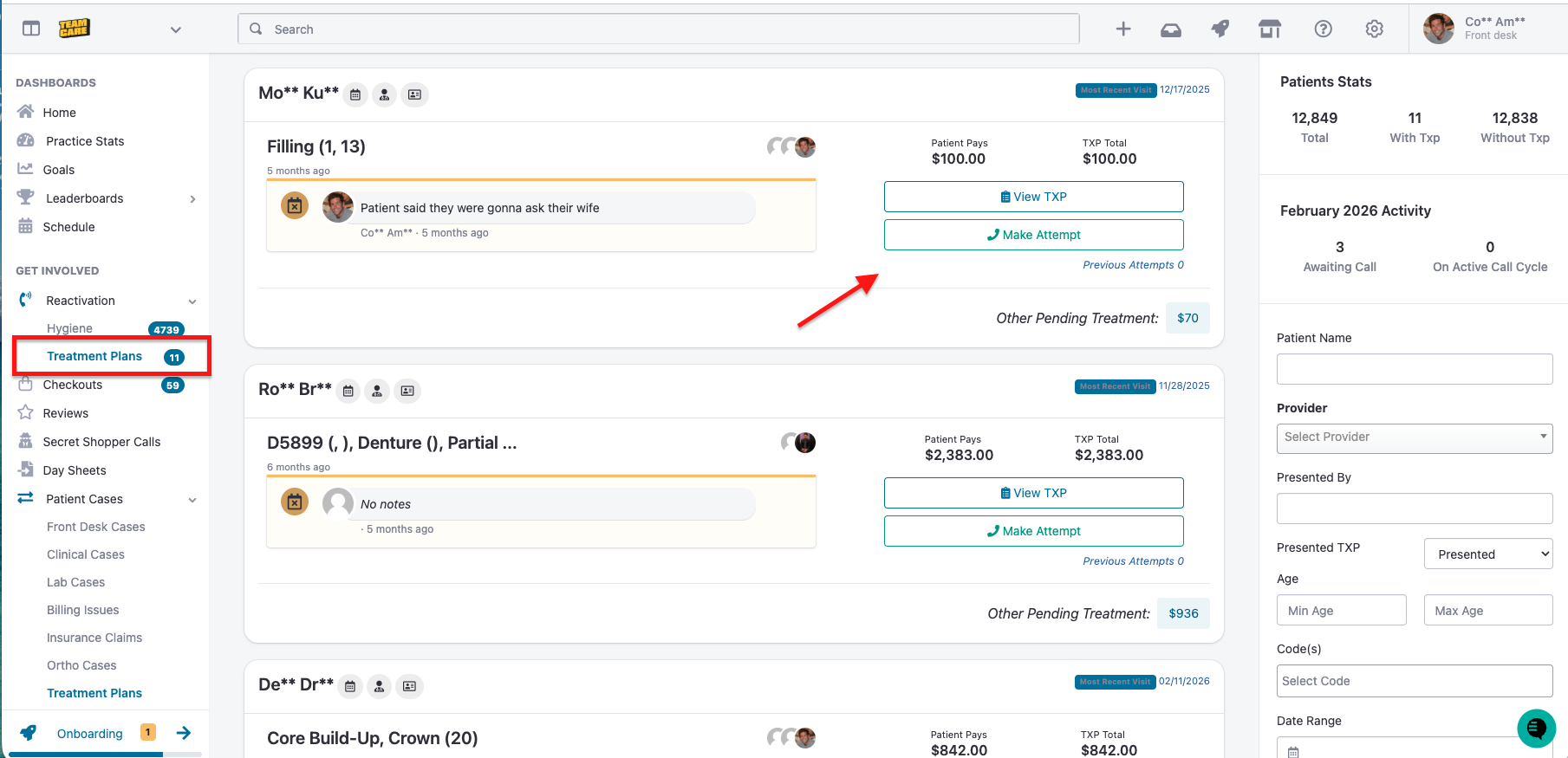
Click the green “Make Attempt” button.
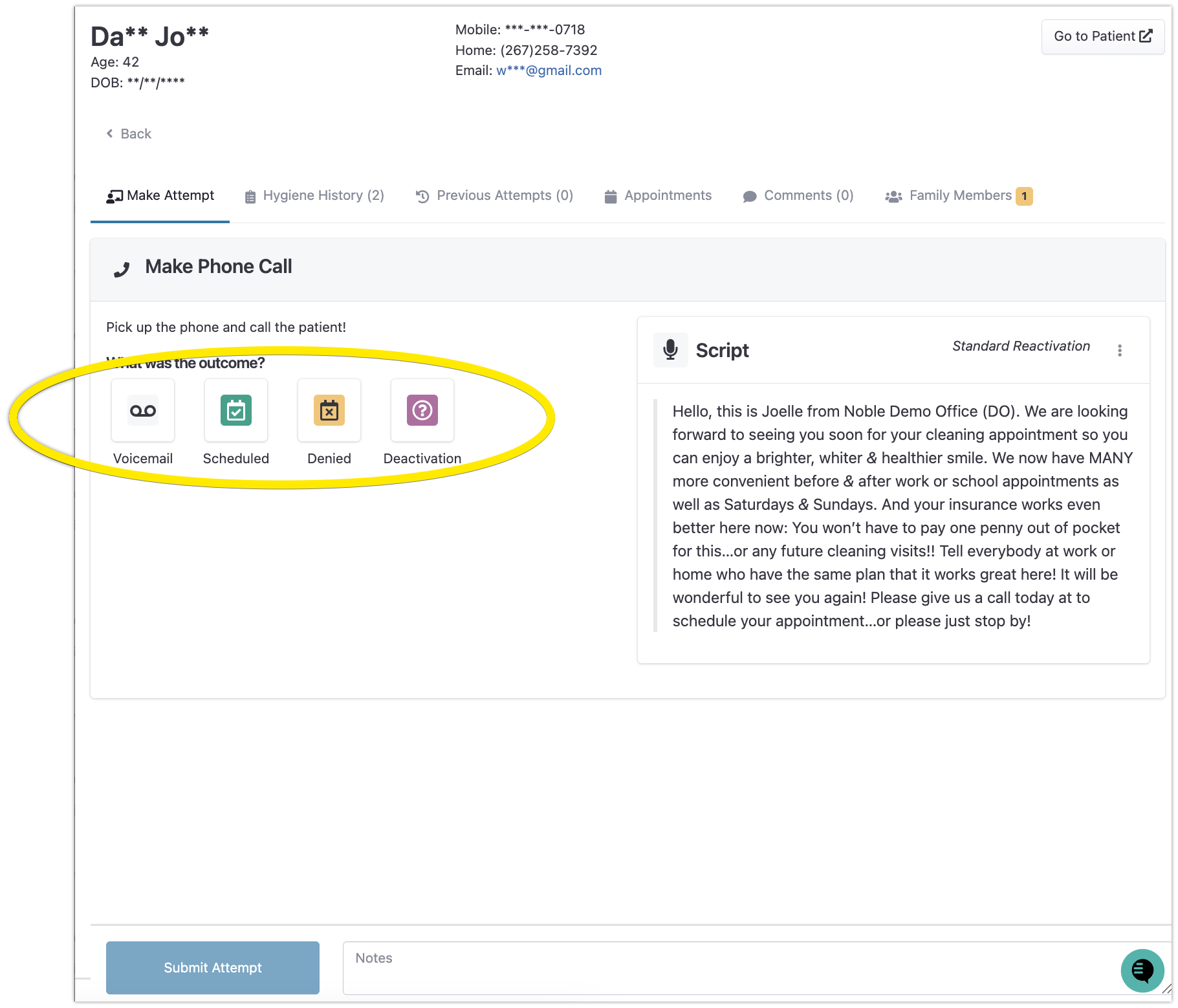
Review the provided call script before dialing.
Complete the Call Form after each attempt.
Completing the Call Form
Record the following:
Call Result (e.g., voicemail left, appointment scheduled, patient declined).
Call Back Date (if a follow-up is needed).
Notes (reason for outcome or additional context).
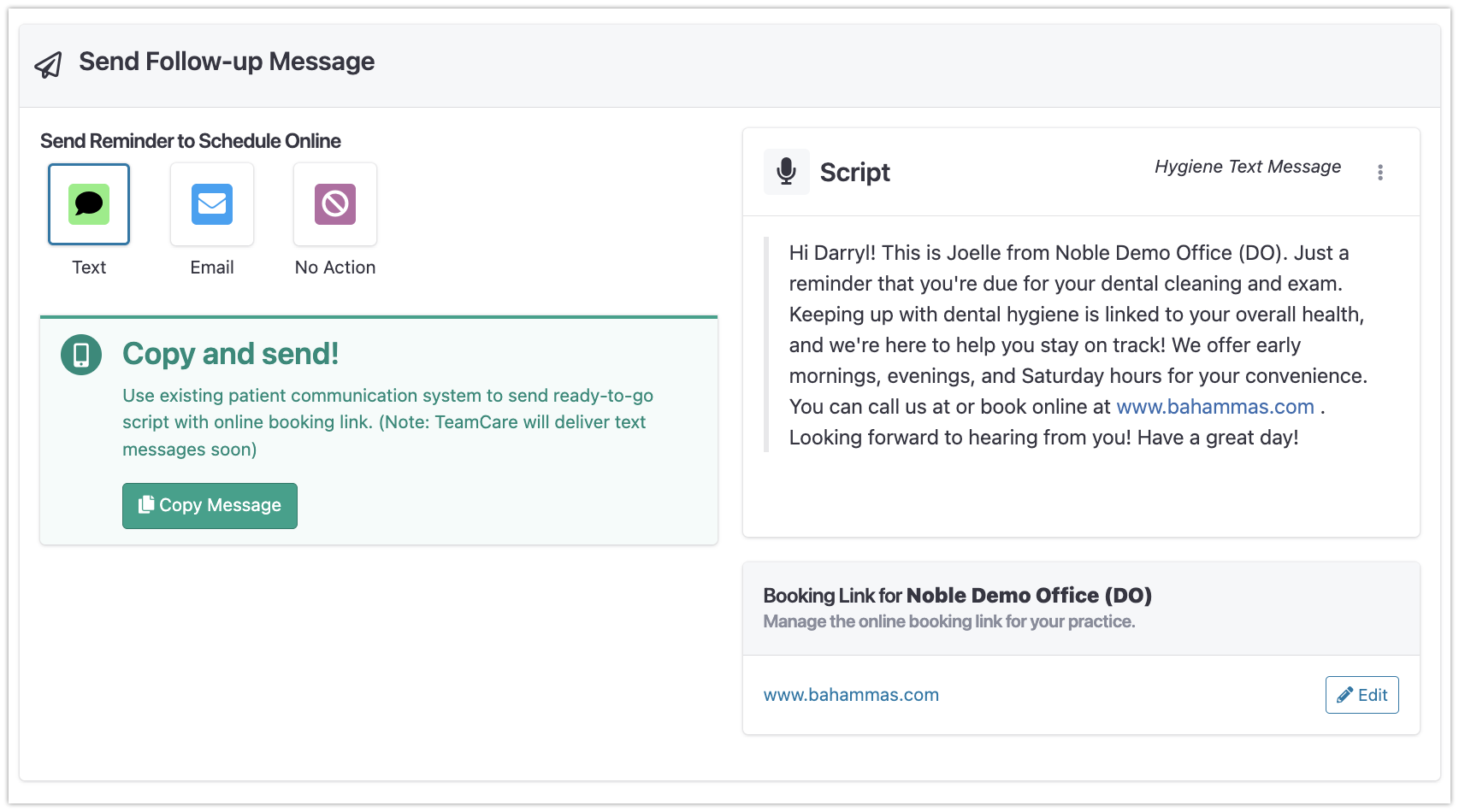
Once the form is submitted:
The patient is removed from all reactivation lists.
The staff member receives automatic credit for the call.
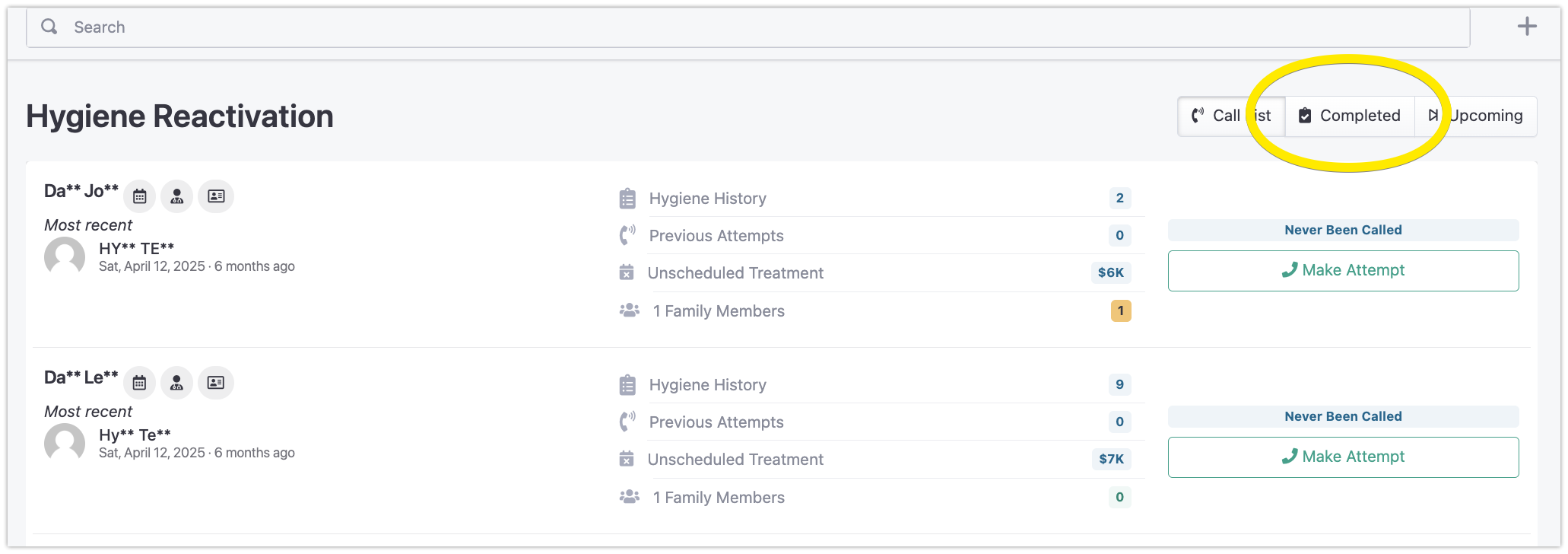
Viewing Past Activity
To view previous calls and notes:
Go to the Hygiene Reactivation page.
Click Completed in the top-right corner.
This displays all past outreach activity and notes for each patient.
Managing “Do Not Call” Patients
When you need to remove a patient from receiving reactivation calls (e.g., if they move away, leave the practice, or request no further calls), you can mark them as "do not call" through the Reactivation Tool.
Marking a Patient as Do Not Call
Open the Reactivation Tool
During a Reactivation Attempt, click the "deactivate" result option
Add a required note explaining the reason for deactivation
Note: Deactivating a patient in TeamCare's Reactivation Tool only removes them from reactivation calls - it does not deactivate them as a patient in your Practice Management System (PMS).
Setting Up Notifications
Practice managers can receive notifications when patients are marked as inactive. Contact your account representative to configure these notification settings.