Eaglesoft Installation Guide
Last updated: October 20, 2025
How do I sync my Eaglesoft PMS to my TeamCare platform?
Follow these steps to connect EagleSoft to TeamCare:
Download and Install the TeamCare Utility
Click this link to begin the download the TeamCare Utility for Velox integration.
Once the download is complete, open your Downloads folder and run the file.
Complete Installation
Click Install, and once the installation is finished, open the utility.
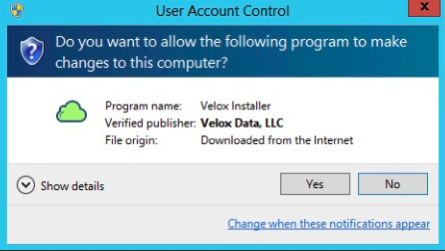
You will be propted to allow user account control. Click "Yes"
Copy Your Velox Integration Key
Return to your installation setup and copy the Velox Integration Key provided by TeamCare.
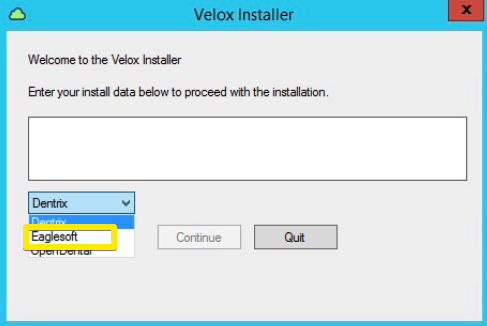
When the Velox Installer opens, paste your key and choose Eaglesoft system.
This key is unique to your practice and should not be shared.
Accept Terms and Conditions
To continue, the installation requires accepting VeloX's Terms & Conditions. Selecting "I Agree" with request another authentication confirmation.
Open Database Navigator
From your Eaglesoft menu, click Utilities then go down to Database Navigator. Clicking this will open the navigator.
Once opened, return back to the Velox installer
Create New Practice
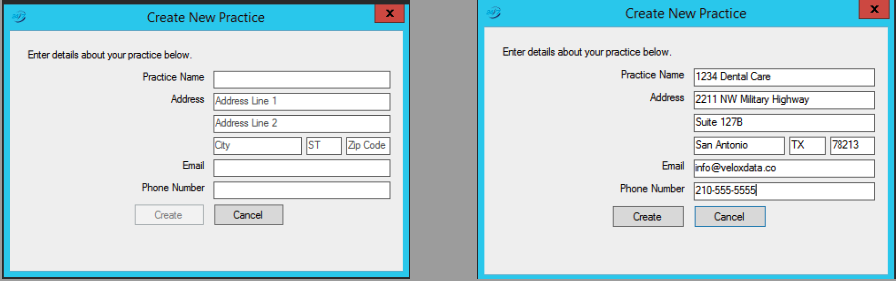
When prompted, enter the practice details, including name, address, office email and phone number.
Click "Create" to complete.
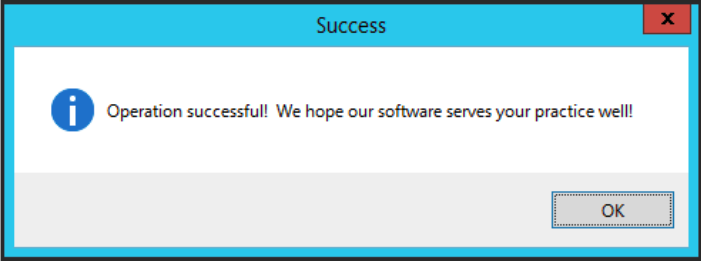
That’s it! Your EagleSoft PMS is now synced with Velox and TeamCare.
Need help? We’re just a call or click away!