Custom Sikka Installation Guide
Last updated: October 20, 2025
Who is this guide for?
This article is for practices that connect TeamCare to their dental software using Sikka.
Sikka securely powers the connection between your PMS and TeamCare — even if you didn’t select “Sikka” directly.
⚠ Note: TeamCare also supports other integration methods. If your PMS does not use Sikka, please refer to the correct installation guide or reach out to TeamCare Support.
✅ Sikka-Compatible Dental Platforms
TeamCare supports over 30 dental PMS platforms through Sikka, including:
SoftDent
Dentemax
AbelDent
ClearDent
Curve Hero
DentalVision
DenTech
Denticon / PlanetDDS
DentiMax
DentiTek
Dolphin Management
DSN-Dental
Easy Dental
Oryx
Power Practice Pro
Practice Works
PracticeWeb
Total Dental
Tracker
If your platform appeared in the dropdown during TeamCare sign-up, this is the right guide—even if it's not listed above.
Step 1: Register with TeamCare on the Sikka Marketplace
To begin using TeamCare, you must first register your practice via Sikka's marketplace.
Go to https://sikka.ai/teamcare.
Click the blue Register button on the TeamCare product page.
Create a new account or log in using an existing Sikka account.
Once registration is complete, follow the prompts to begin installation.

Step 2: Download and install the Sikka Platform Utility
Once registered, you will be prompted to download the Sikka Platform Utility. During installation:
Launch the installer and proceed to the Practice Management Access tab.
Fill out the following required fields:
Practice Management System and Version
Data Path (see below for help)
PMS User Name and Password
Data Refresh Time – choose when data should sync
Confirm the Sikka Utility Installation Folder, or use the default.
Click Next to continue the installation.
👉 If you’re unsure how to find your data path, refer to this guide: Verifying the Data Path of the Practice Management Systems
Step 3: Start Data Sync from the Sikka Utility
Once the utility is installed:
Open the Sikka Platform Utility and go to the Settings tab.
Make sure your PMS User Name and Password are entered.
Click Refresh Data to begin the initial sync.
Ensure the Windows Service Status shows as Running.
If data doesn’t synchronize, double-check login credentials and data path.
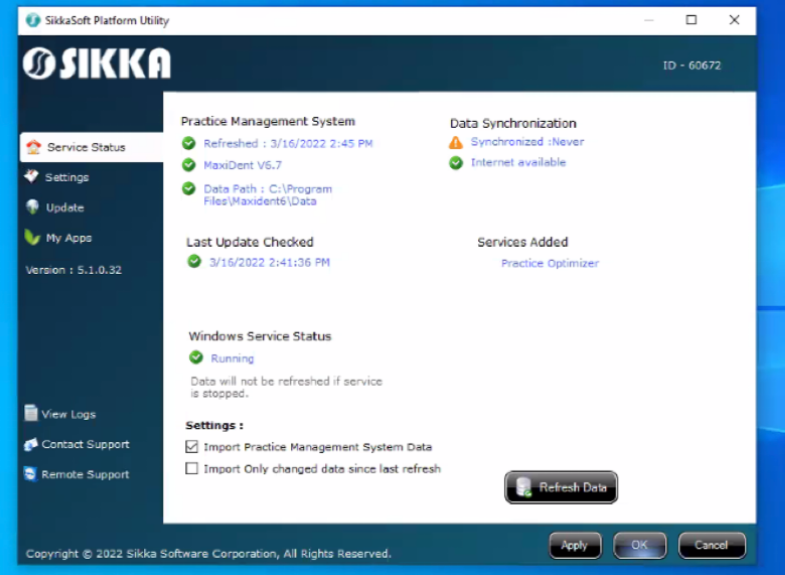
Step 4: Troubleshooting Sync Errors
If you see an error in the Practice Management System status (e.g., failed refresh or missing data):
This may indicate a connection issue, invalid credentials, or incorrect data path.
Please contact TeamCare support for assistance. Screenshots of your Sikka utility screen may help us resolve the issue faster.