How to Claim and Complete a Checkout
Last updated: September 8, 2026
Once a patient's appointment is finished, it needs to be closed out in two places: first, it must be closed out in your practice management software (PMS), Teamcare reads from your PMS, Team Care's checkout workflow walks you through confirming family member appointments, recording the hygiene if there is a hygiene pre-appointment for this patient, and presenting a treatment plan. A checkout won't show as completed until every step has been addressed.
Pro tip: Complete the checkout in your PMS first. Team Care's checkout queue reflects what's already been marked complete in the PMS, so this needs to happen before you can claim the checkout in Team Care.
Steps to Claim and Complete a Checkout
1. Complete the appointment in your PMS
Mark the appointment complete in your practice management software before doing anything in Team Care. Team Care's Checkouts queue is built from what the PMS reports as done, so nothing shows up on the Team Care side until this step is finished there first.
2. Navigate to Checkouts in Team Care
Navigate to Team Ops → Checkouts. If the appointment you just completed isn't showing up in the list yet, refresh the page. This is all organized by the time the patient is scheduled.
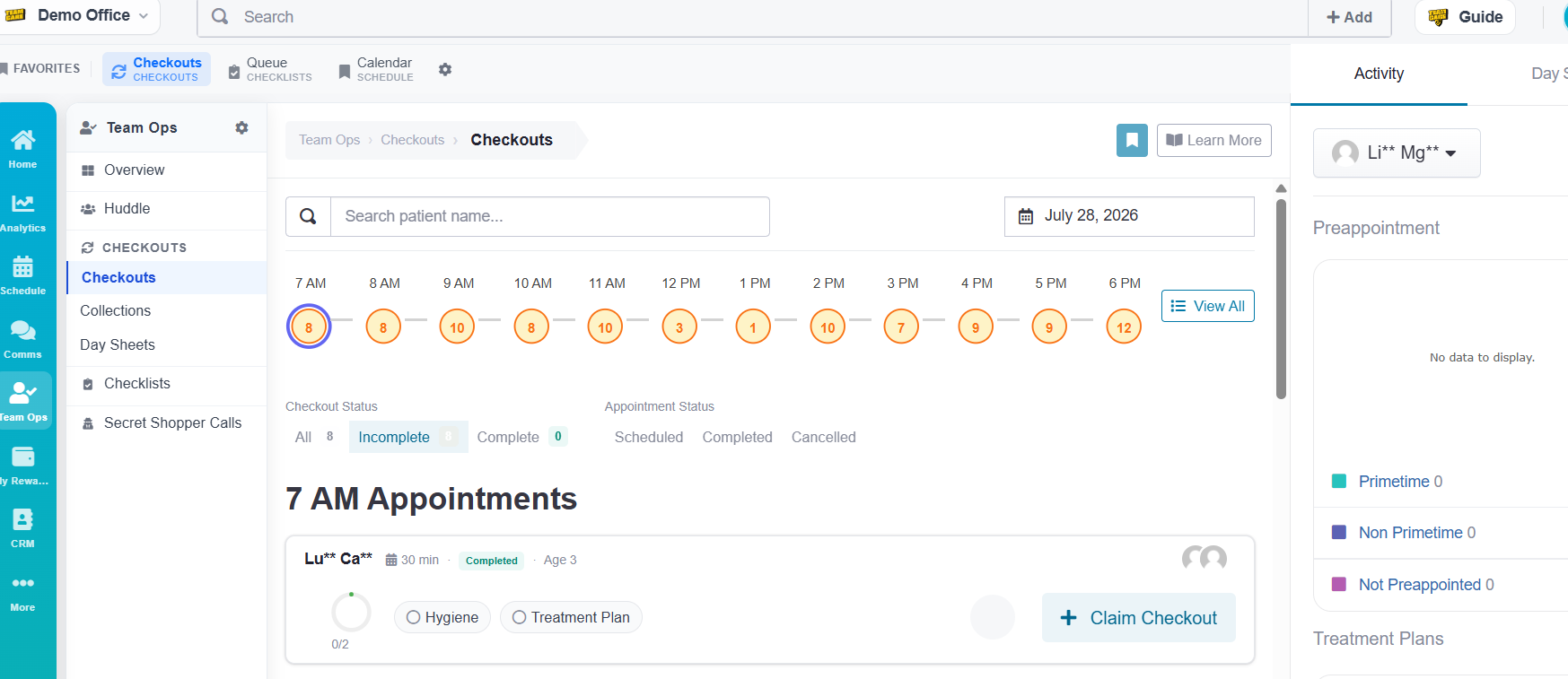
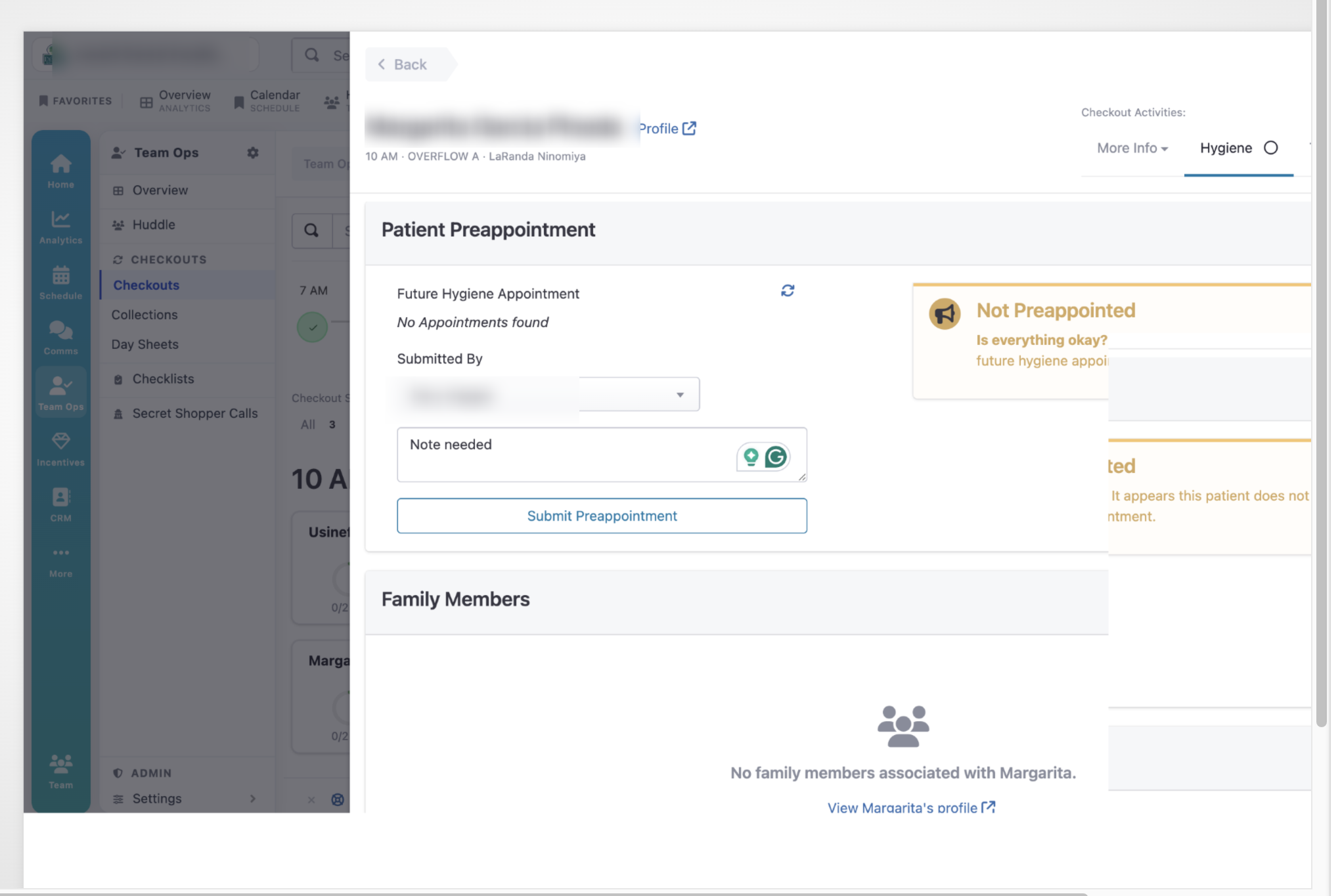
3. Claim the checkout/ Record the future hygiene Appointment
Select the appointment and claim the checkout. Whoever is logged in will get the credit for the checkout. The guided workflow walks you through every remaining step in order.
First was the Patient Pre-appointed for the next hygiene visit, if the appointment is in the PMS; it will show up, if not you must write a reason why the patient was not Pre-appointment.
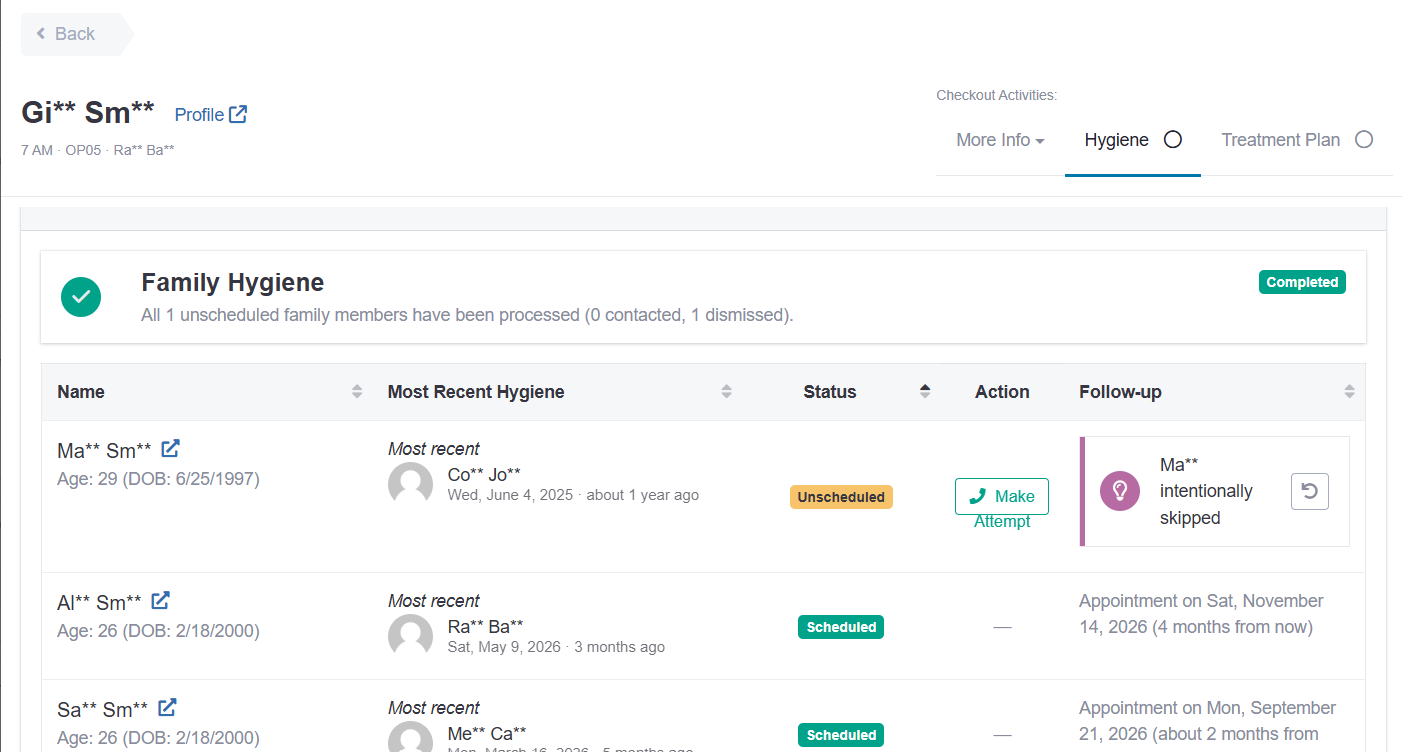
4. Review family members for additional appointments
The workflow checks whether any family members linked to this patient need a hygiene appointment. Review and process for each one, whether to go ahead and schedule them now or move on without booking anything for them at this time.
Treatment Plan
Select Continue to Treatment Plan and build out the treatment plan for the patient based on what was discussed or performed during the visit.
Was Treatment Presented? Choose an option below.
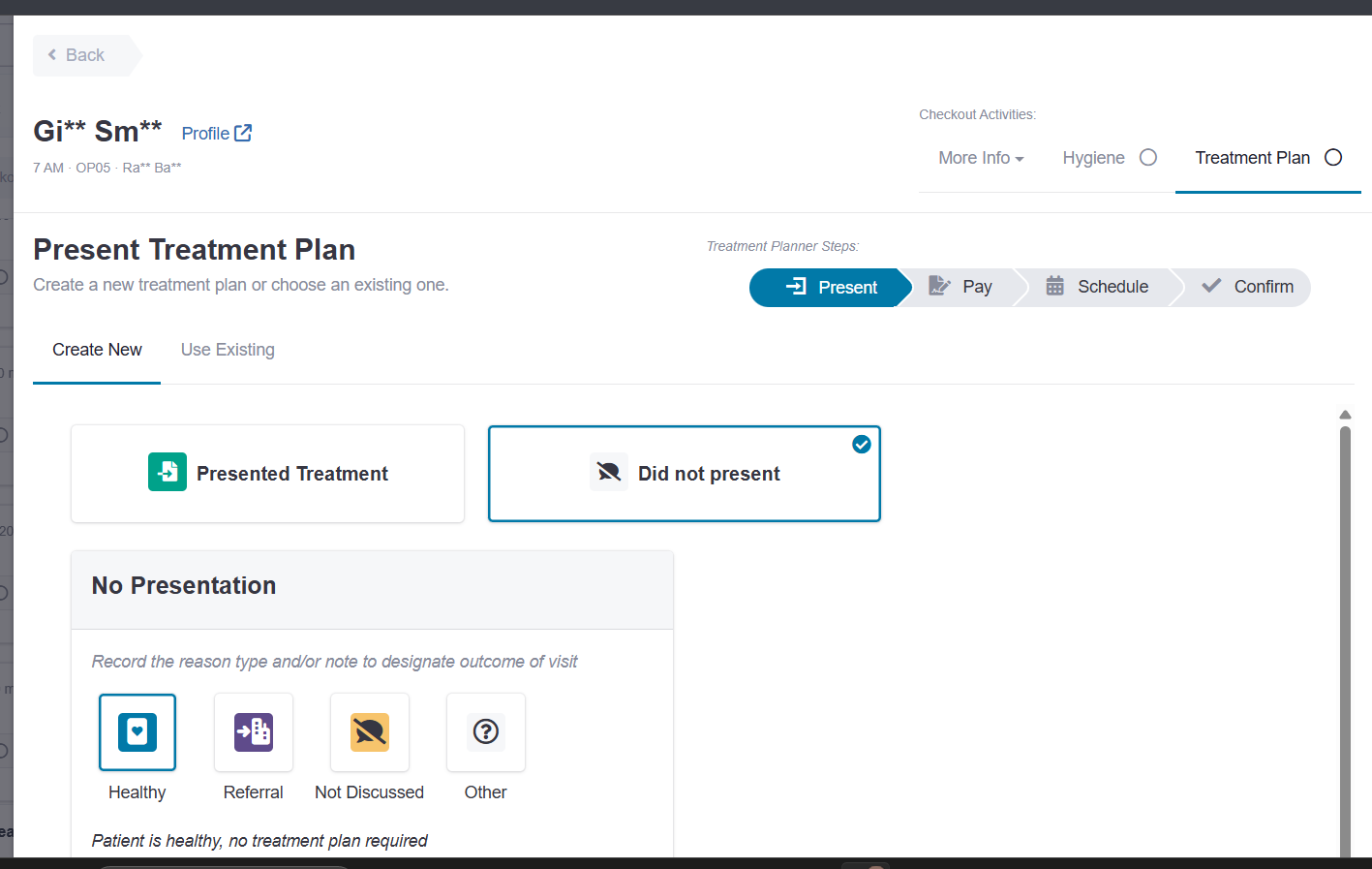
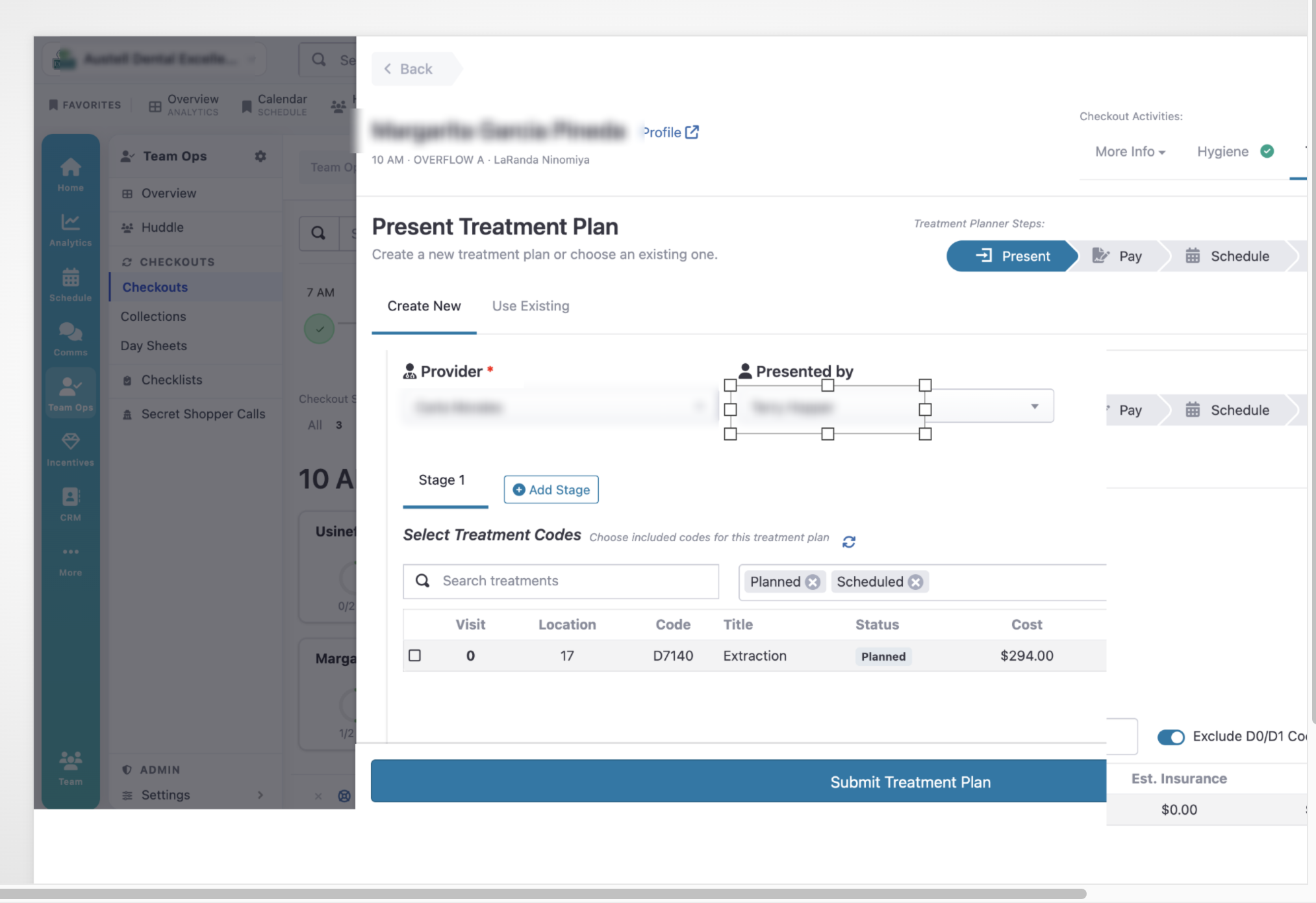
Presenting Treatment Plans
All treatment placed in the PMS will be pulled over into Teamcare
Chose what was presented at that visit and hit enter, this will create a treatment plan for the patient to sign and give them options to pay.
Once the Treatment plan is signed, it will save directly to your PMS and the patient will move on to payment.
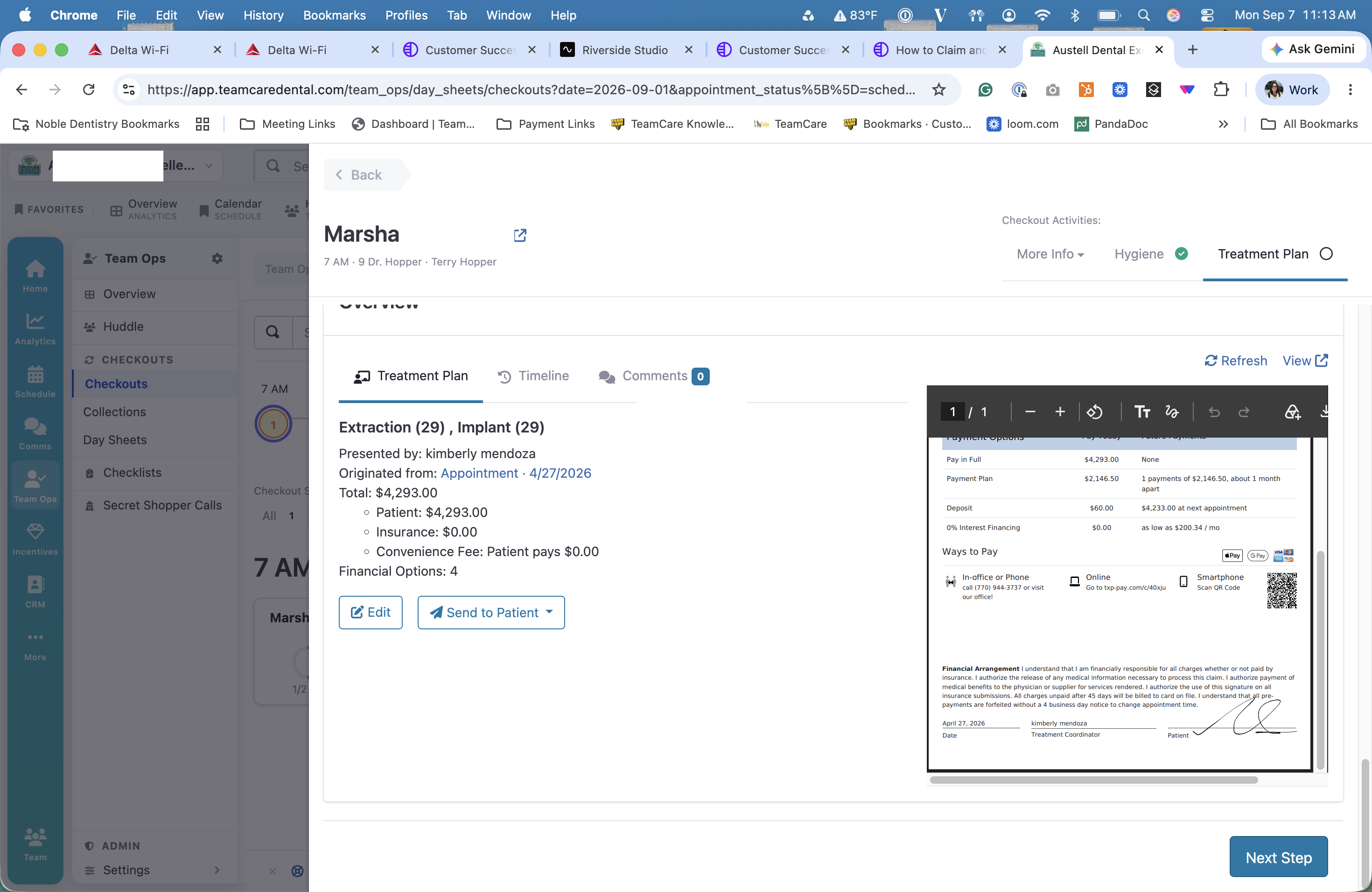
In this step the patient will be given options to pay, payment can be taken by the reader and then scheduled by the treatment plan coordinator or by the convenient online scheduler
8. Finish the checkout
All of the that days treatment will either be scheduled or deferred so that none are lost or forgotten. The deferred treatment will automatically show up in the treatment plan list for anyone to schedule from to fill the doctors' books!