Deactivating a Client
Last updated: May 26, 2026
This action cannot be easily undone. Before proceeding, confirm with the appropriate stakeholders. Deactivating a practice will notify the ownership group and all relevant team members via automated alerts
Steps to deactivate a client:
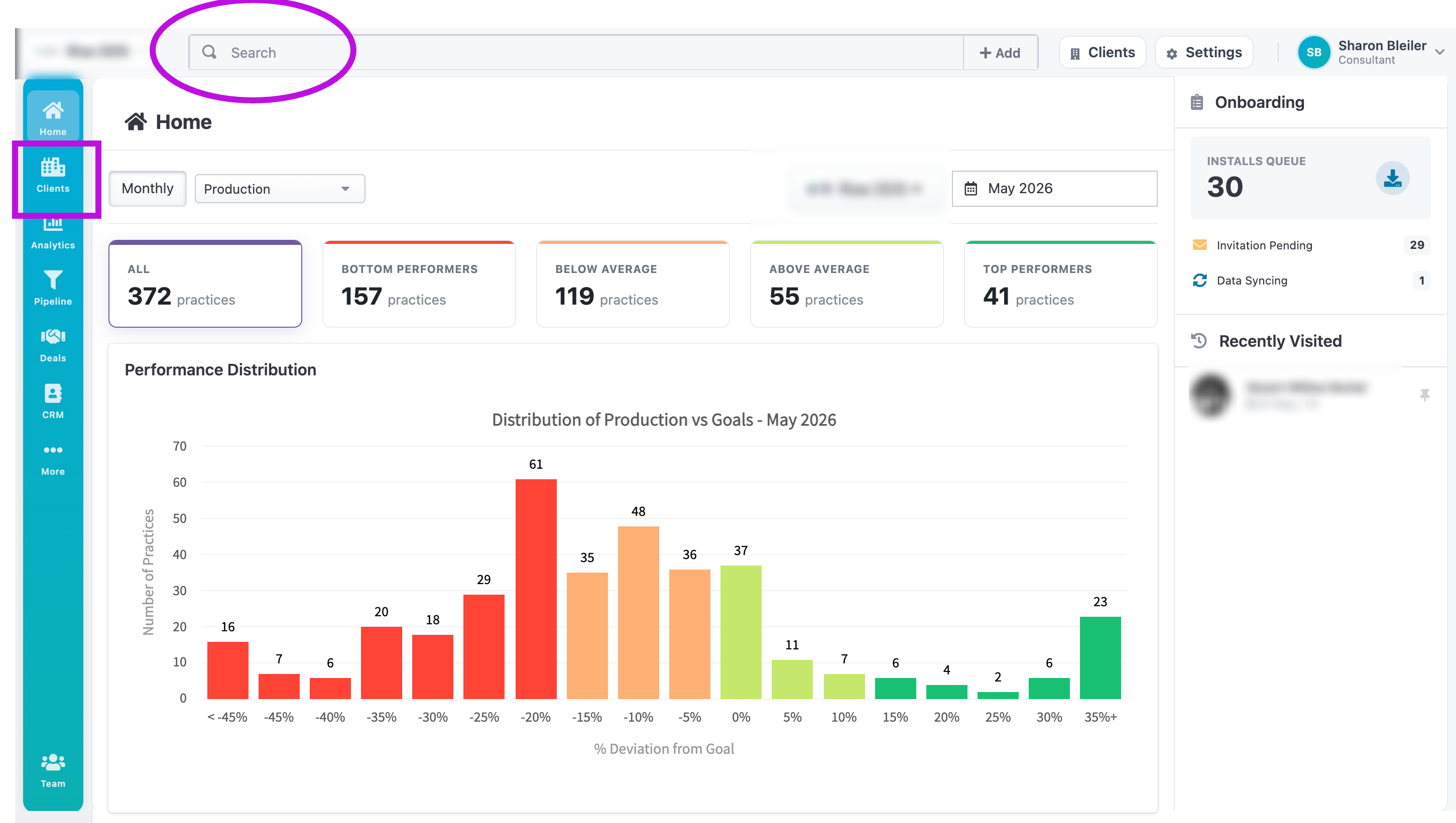
Navigate to the client's profile. There are multiple ways to search for your clients: You can type into the search bar either the client's name or the practice name. or you can go to the primary rail, Clients icon and then type them in.
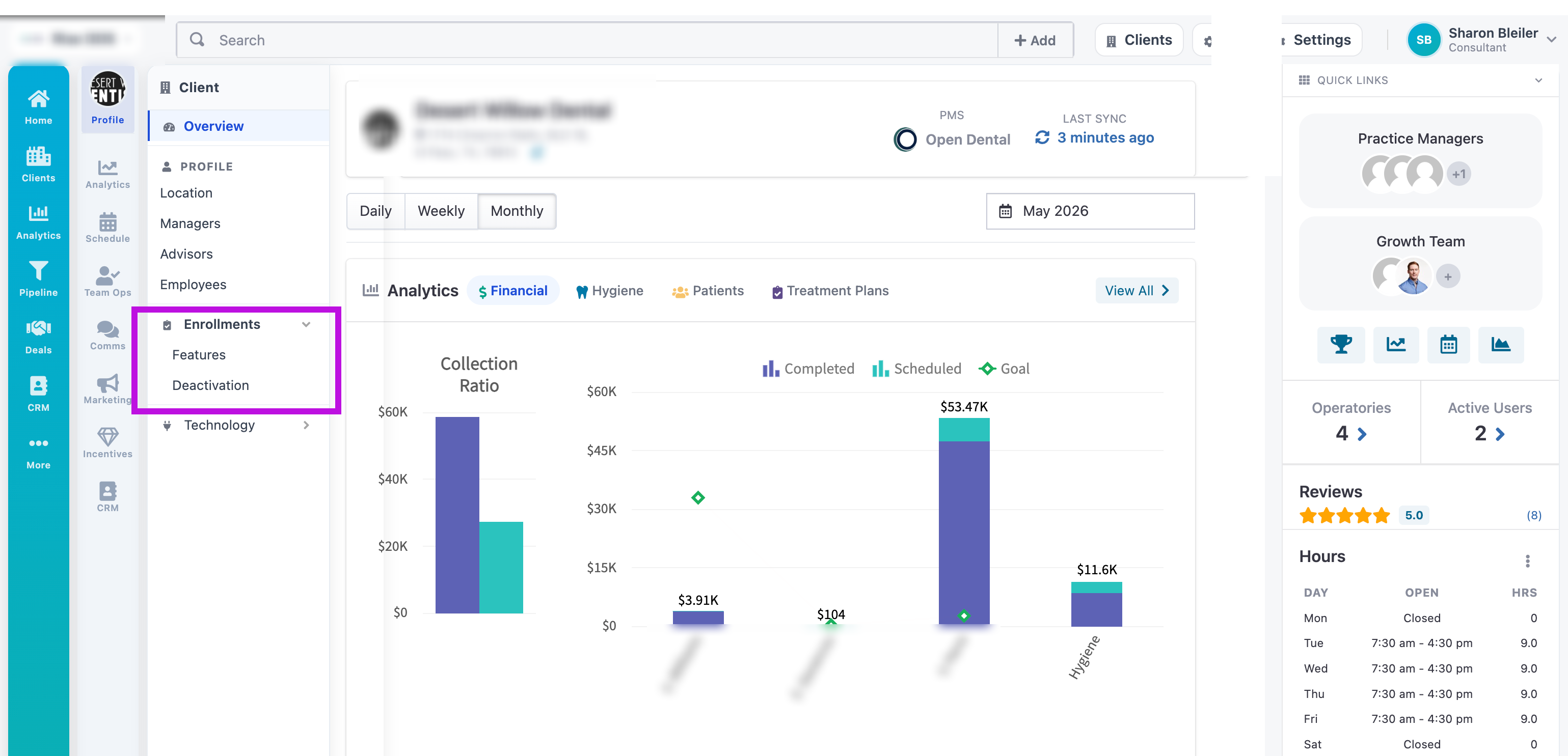
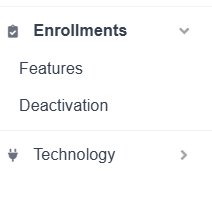
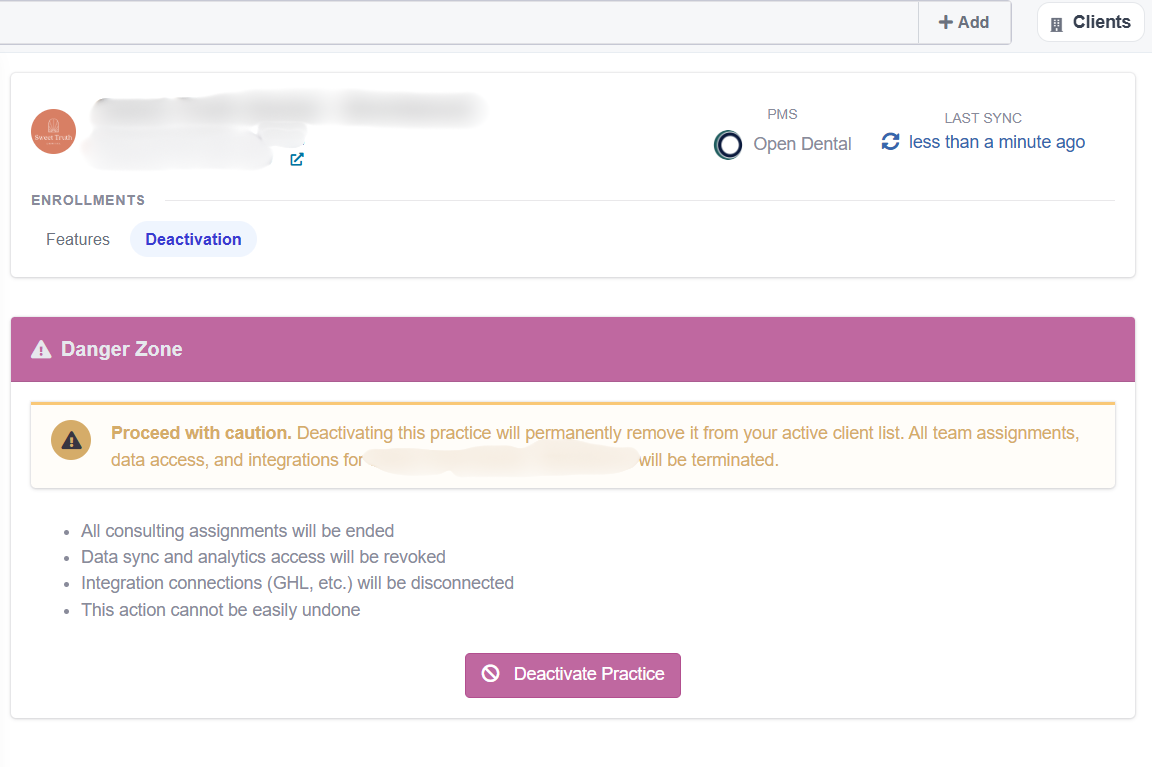
Select the Enrollments section and Deactivation
The Deactivation tab will open showing the Danger Zone panel. Review all listed consequences carefully. When ready, click the Deactivate Practice button.
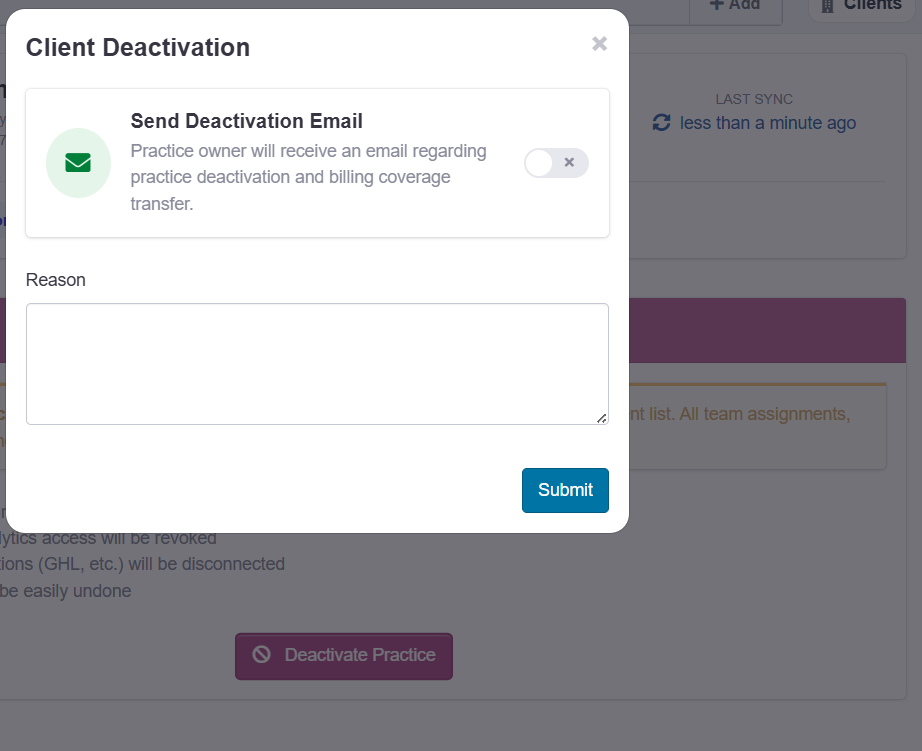
A Client Deactivation confirmation dialog will appear. You must enter a Reason for the deactivation before submitting. Optionally, toggle Send Deactivation Email to notify the practice owner about the deactivation and any billing coverage transfer. Click Submit to confirm.