Removing Operatories from Team Care
Last updated: June 9, 2026
If you've removed an operatory from your practice management system (PMS) but it's still appearing in TeamCare, you can hide it by moving it to the Unlisted section in your company settings.
TeamCare pulls operatory data from your PMS. When an operatory is deleted or deactivated in your PMS, it may still show up in TeamCare until you manually remove it from your view.
Steps to remove an operatory
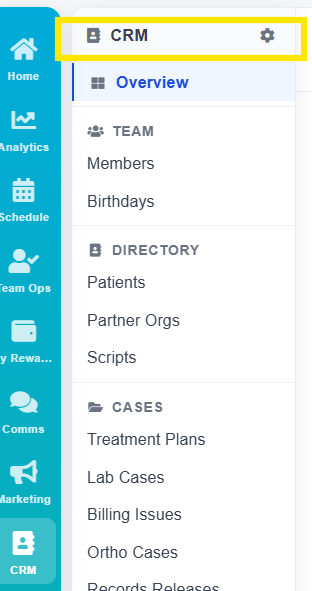
Navigate to your CRM and open Settings
Click on Company
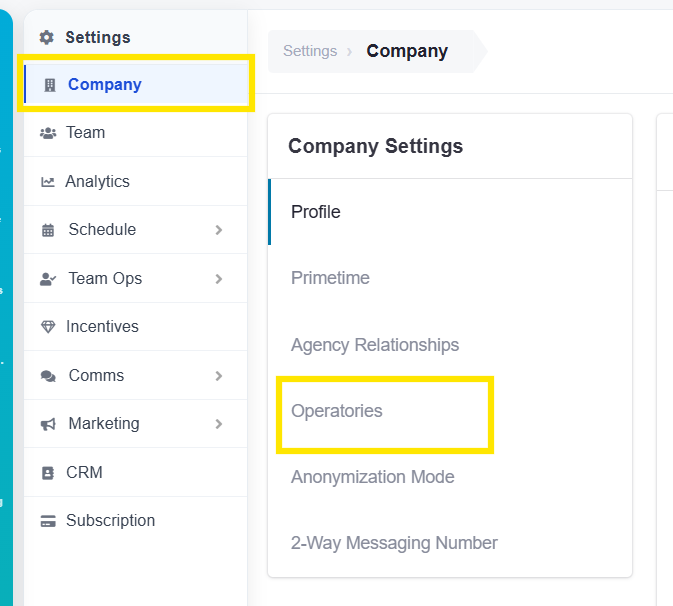
On the Company Settings page, locate and click the Operatories tab or section. You'll see a list of all operatories currently associated with your account.
Find the operatory (or operatories) you want to remove from your view. Move them from the active list into the Unlisted section. This is typically done by dragging the operatory or using a move/arrow control.
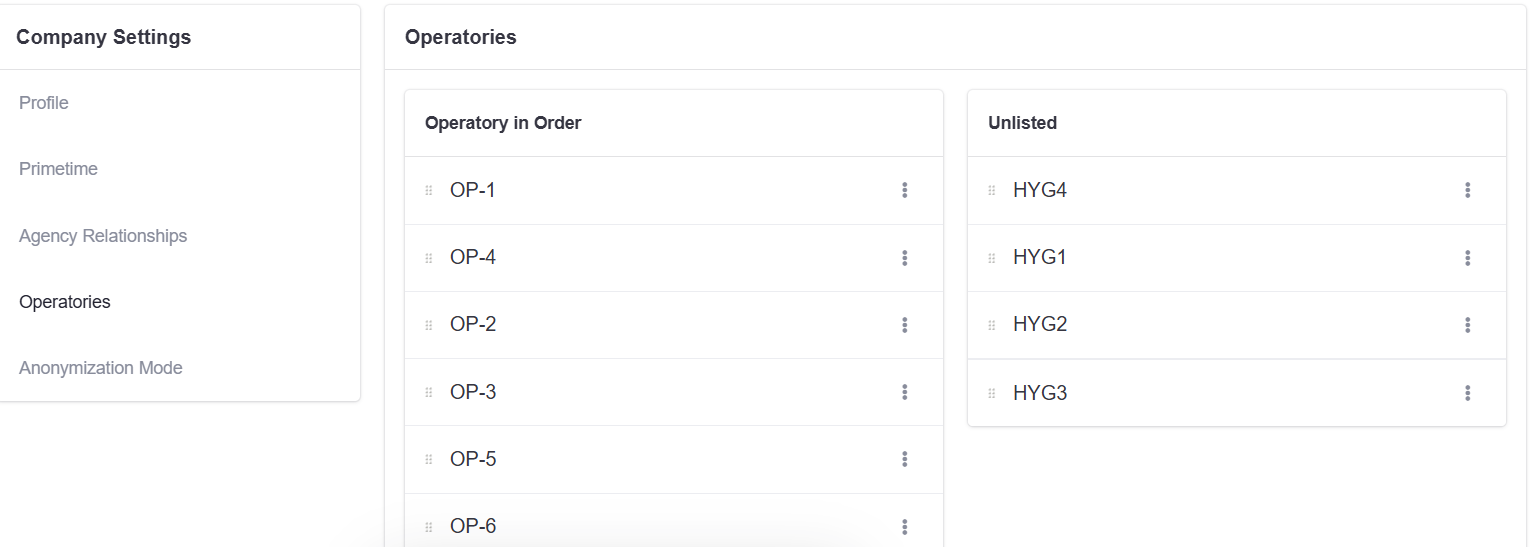
Once the operatory has been moved to Unlisted, refresh your "Schedule" view. The removed operatories will no longer appear, and only your active operatories will be shown.