Dentrix: How to run a Day Sheet Report
Last updated: February 3, 2026
Learn how to run reports in Dentrix that match TeamCare metrics
Dentrix has a number of reports that can be run to derive production, collection, and adjustment data. To pull accurate Dentrix metrics that match Analytics metrics, you must run the Dentrix Day Sheet reports using the Procedure Date.
In this article, you'll learn about:
For assistance with running Dentrix reports, please visit the Dentrix Knowledge Base. Learn more about Day Sheet Reports in Dentrix here.
How to Run a Production Report in Dentrix
If you would like to run an accurate Production Report in Dentrix for all providers that matches TeamCare data, please follow the steps outlined below:
In Dentrix, click to open the Office Manager
Click on the Reports tab, then choose Management from the dropdown menu
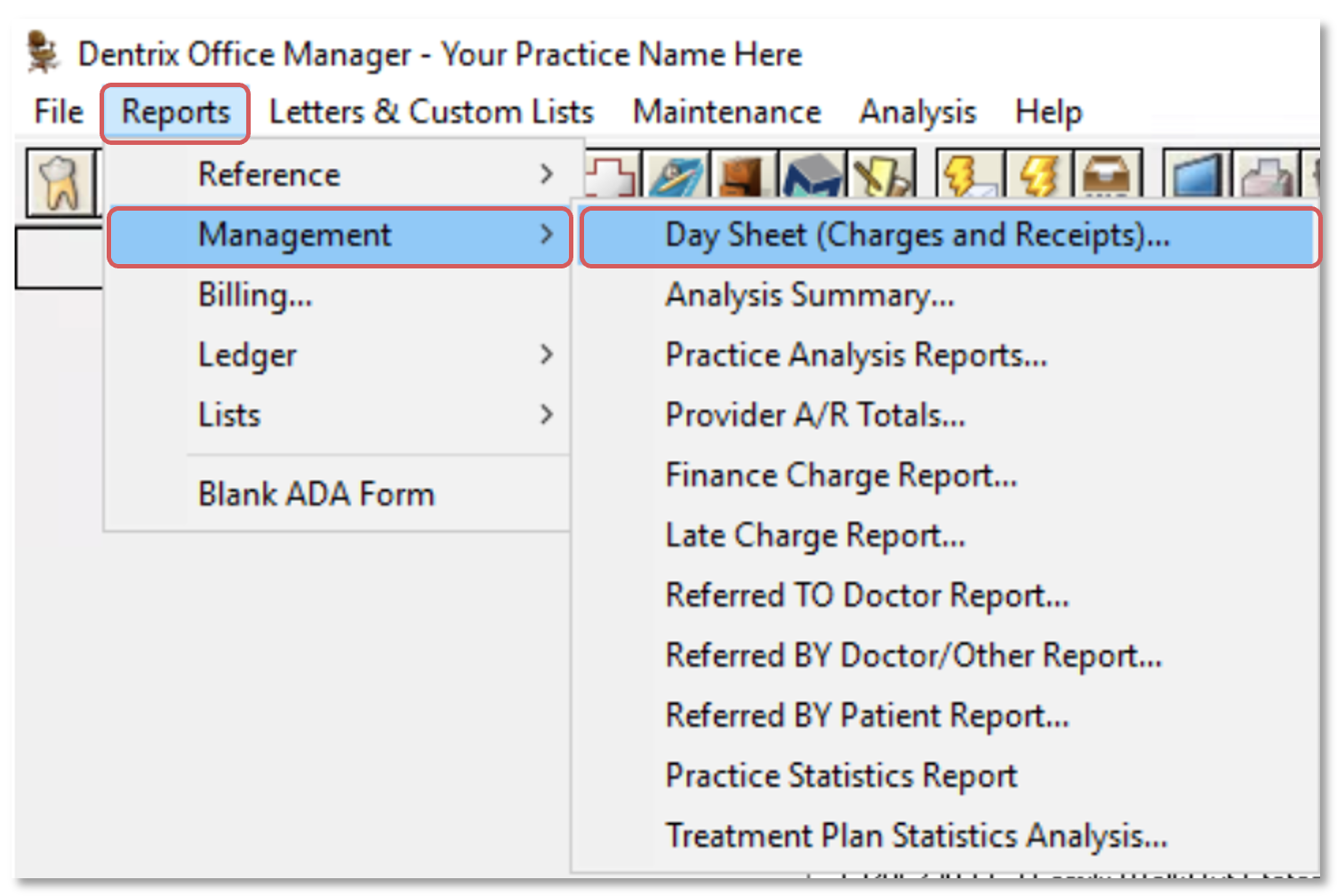
Click on Day Sheet (Charges and Receipts)
In the Select Provider section, choose to run the report for ALL
In the Select Billing Type section, choose to run the report for ALL
Click on the Select Date fields to change the time period to match the week or month time period selected in the Analytics dashboard (week or month)
Click to select the bubble next to Procedure Date
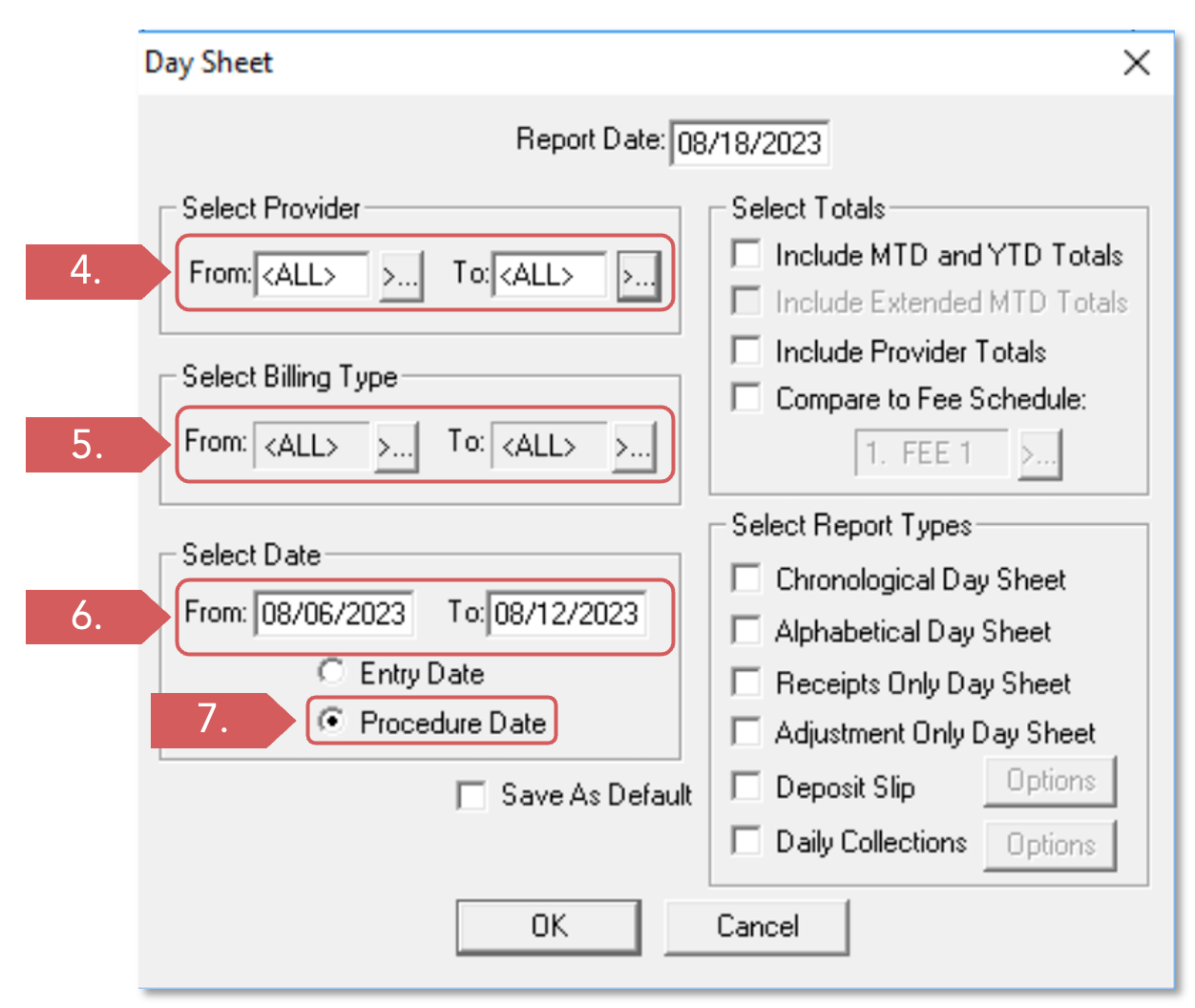
The options in the Select Totals and Select Reports Types sections can be left blank
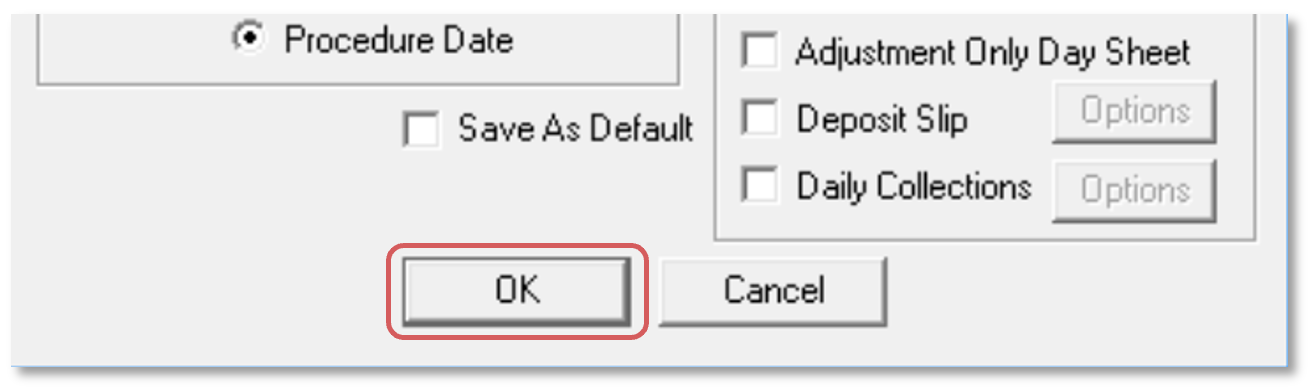
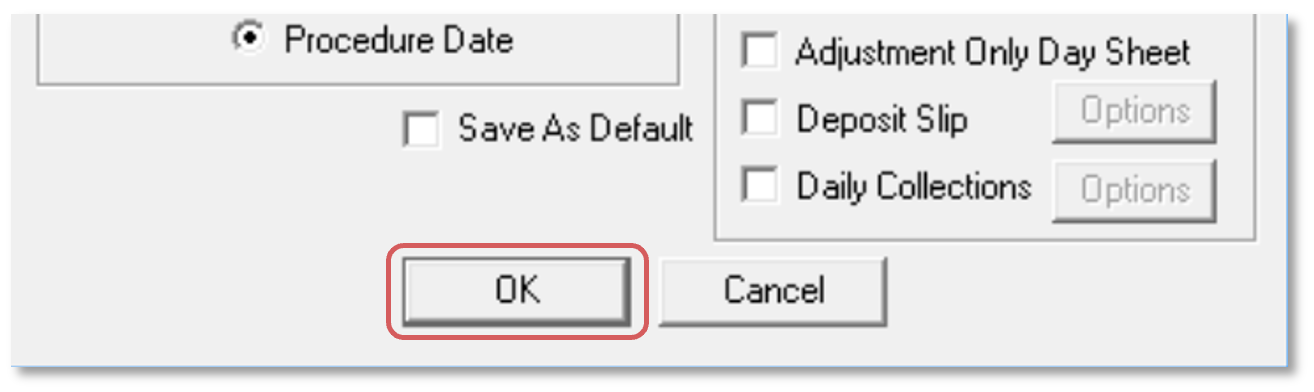
When all of the selections above have been made, click OK to run the report
Production Report in Dentrix
If you would like to run an accurate Provider Production Report in Dentrix for a specific provider that matches the TeamCare, please follow the steps outlined below:
In Dentrix, click to open the Office Manager
Click on the Reports tab, then choose Management from the dropdown menu
Click on Day Sheet (Charges and Receipts)
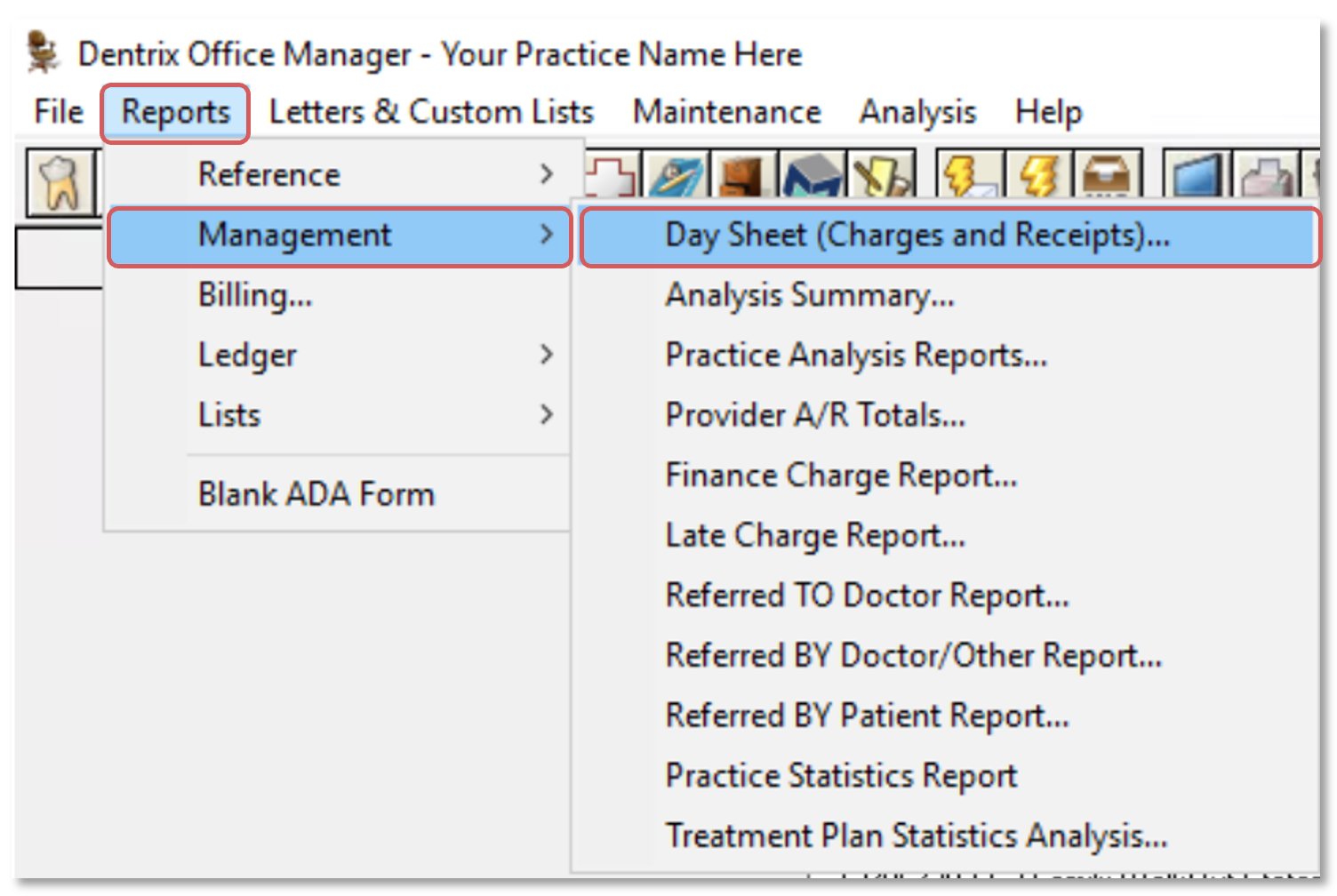
In the Select Provider section, click on From and To to open the dropdown list of available Providers. Choose the same provider for both options
In the Select Billing Type section, choose to run the report for ALL
Click on the Select Date fields to change the time period to match the week or month time period selected in the Analytics dashboard (week or month)
Click to select the bubble next to Procedure Date
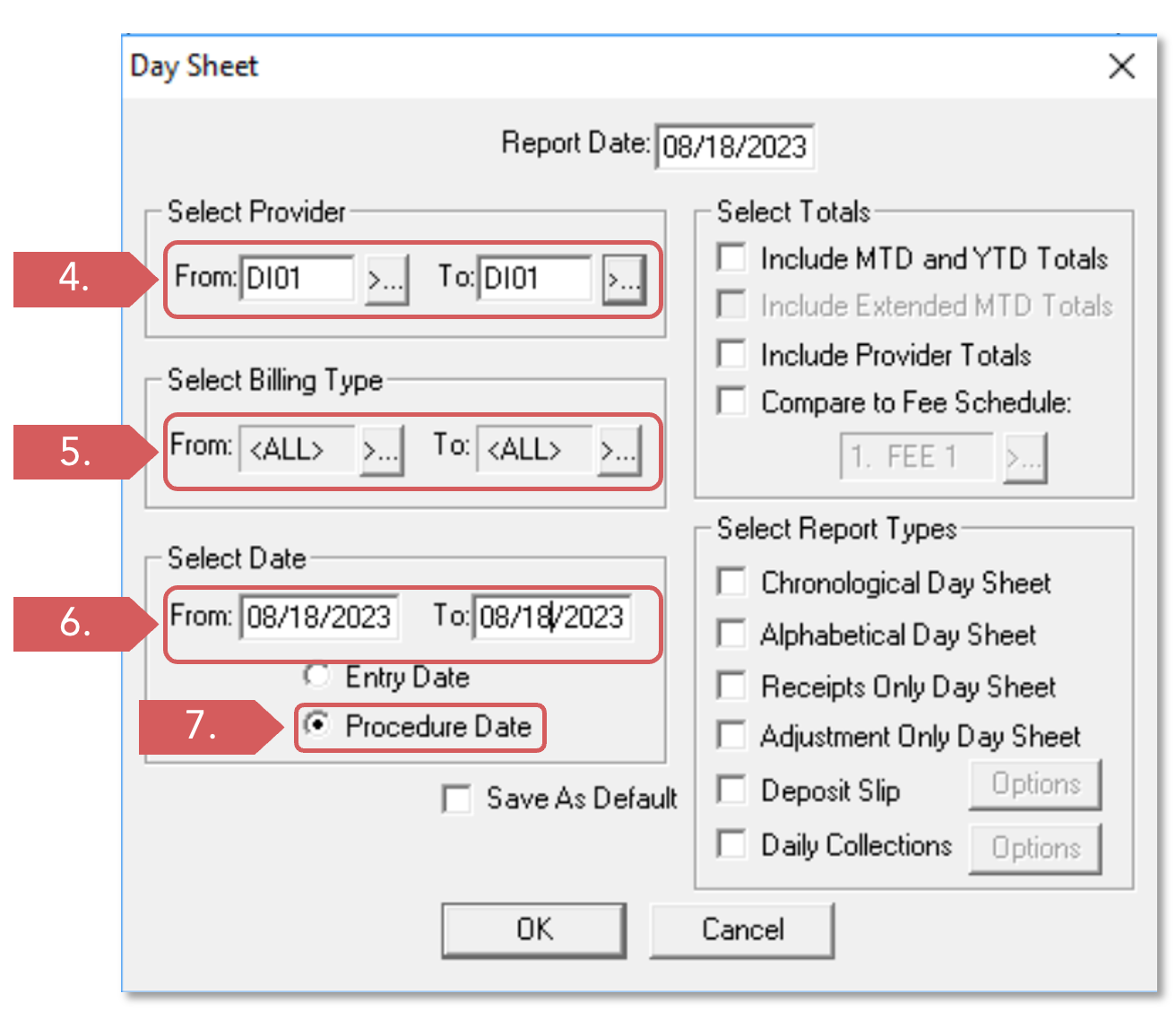
The options in the Select Totals and Select Reports Types sections can be left blank
When all of the selections above have been made, click OK to run the report